

Features
From the shelf to the sale.
Scan at the shelf on your phone, then list, ship to FBA, reprice and recover in the web panel. Here is each part, chapter by chapter, on the real screens.
- Phone appiPhone, iPad and Android
- Web panelAlso in a phone browser
ScanPhone appWeb panel
Scan any book, with or without a barcode.
Point the camera at the barcode or the front cover, pair a Bluetooth scanner or type the number. A barcode answer comes back in about a second.
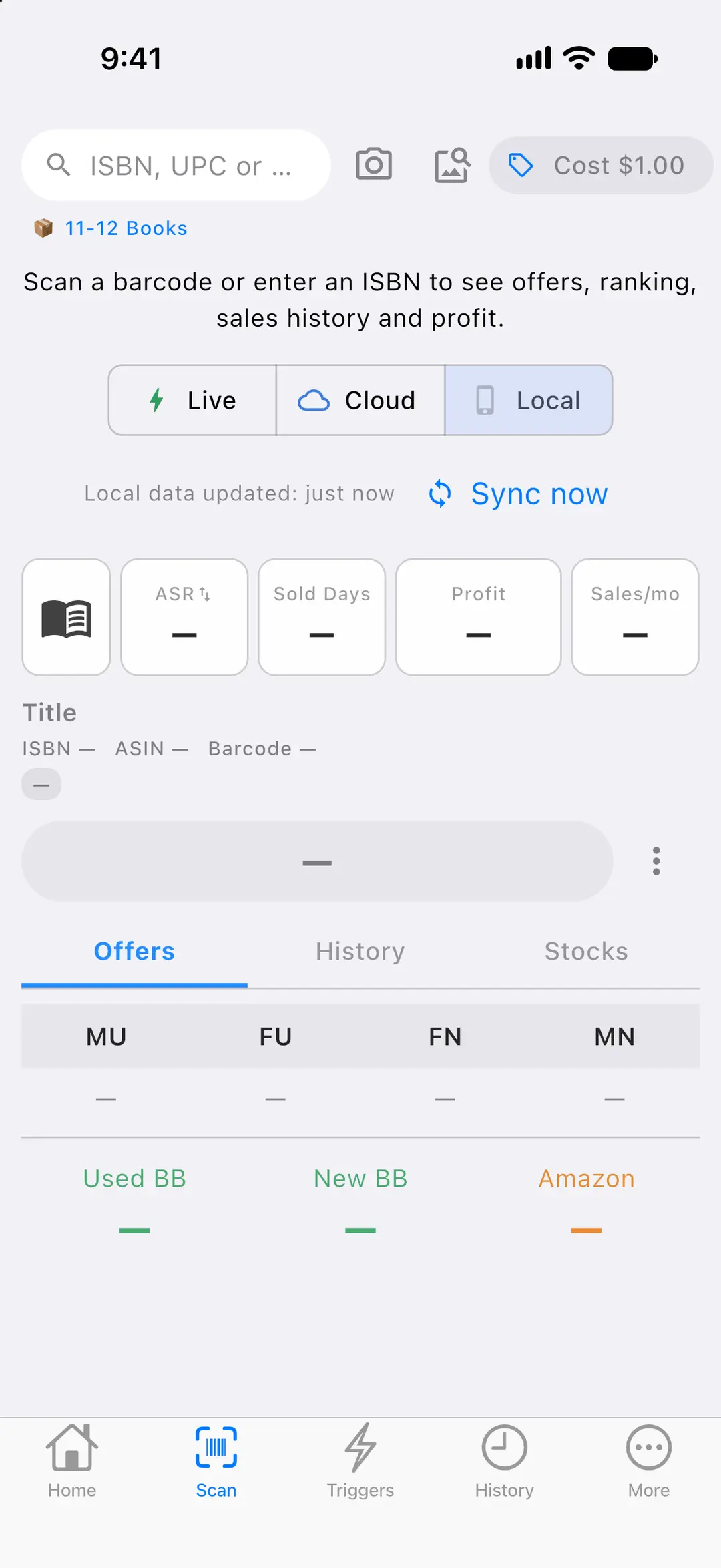
On the phone
- Camera scanning reads EAN-13, UPC-A, EAN-8 and Code-128. The guide turns green, the phone gives a haptic tick, and there is a torch.
- No barcode? “Read ISBN” reads the ISBN printed inside the book, such as on the copyright page, with on-device text recognition and no internet.
- Cover scan: tap the cover button next to the camera button, or “Try cover scan” when the camera finds no barcode. The phone reads the title and the author, SpineFlip finds the book on Amazon, and the usual result opens with your trigger’s decision.
- When more than one edition matches, you pick yours from a short list with the cover, binding and year. If the title can’t be read, type it, or choose a cover photo from the gallery.
- Finding a book by its cover needs an internet connection, also in Local mode.
- Bluetooth barcode scanners in keyboard (HID) mode work without setup.
- Type an ISBN, UPC or ASIN by hand.
- The buy-cost chip has presets of $0.25, $0.50, $1.00 and $2.00 or a custom amount, and it is remembered.
- The same code read again within 3 seconds is ignored, and the screen stays awake while you scan.
- Speed mode shows only the decision, profit and rank, for fast Bluetooth scanning.
- Scan the same book twice in a row for live offers, or pull down on a result for live data.
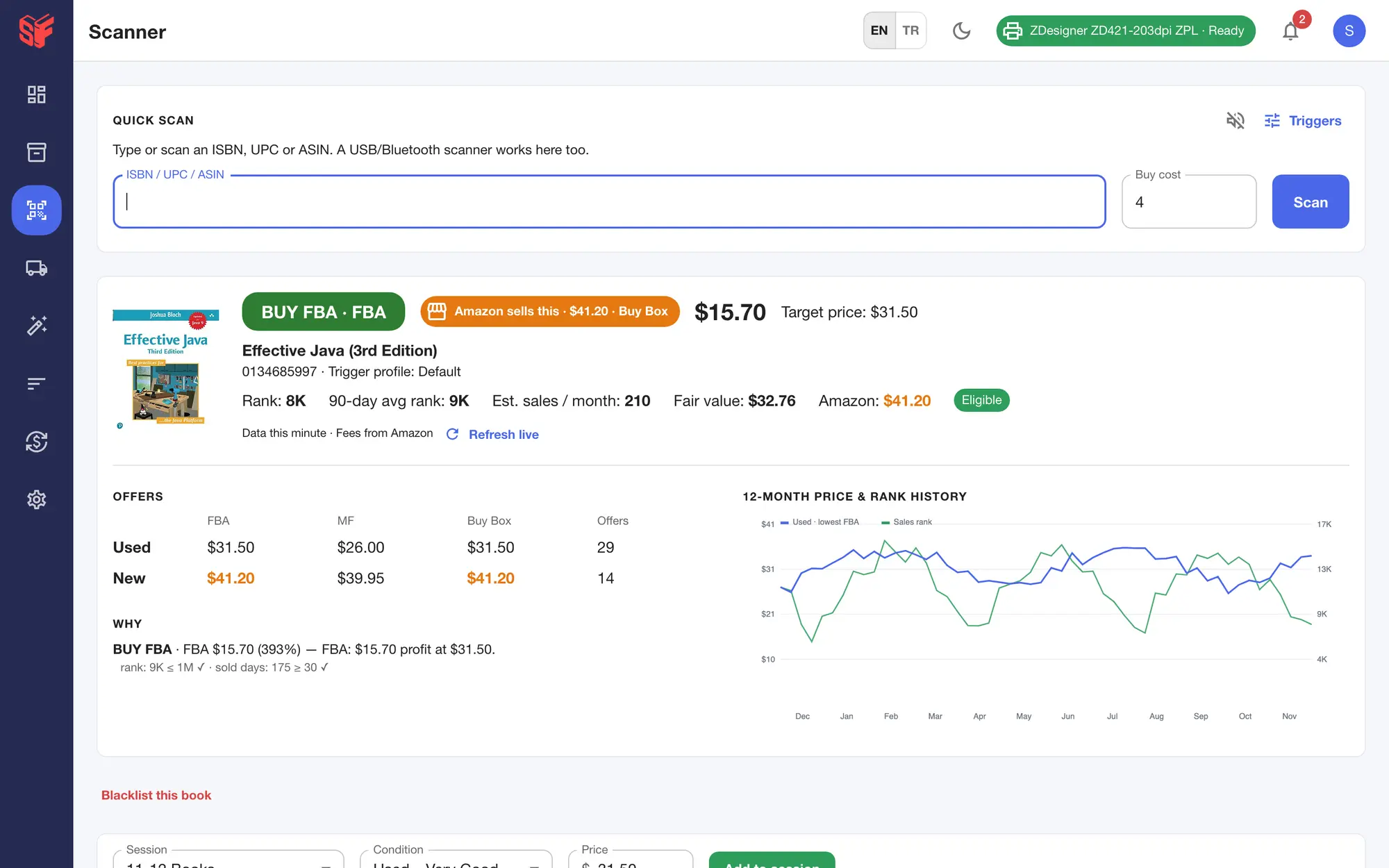
In the web panel
- Type or use a USB or Bluetooth scanner; scans are captured even when the cursor is not in the box.
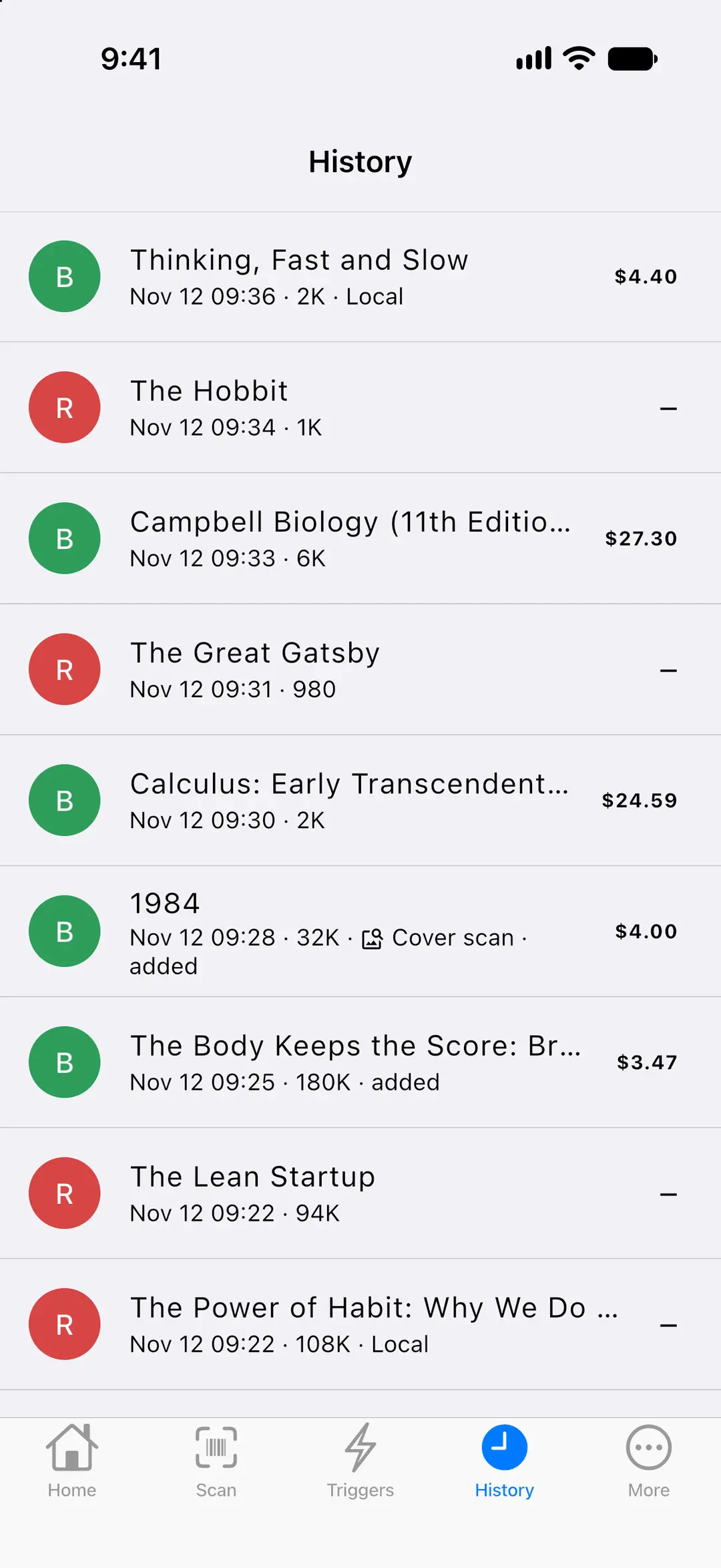
- There is no camera on the web: camera scanning, cover scan and “Read ISBN” are on the phone. Scans found by their cover are marked “Cover scan” in the panel’s scan history.
- A failed scan stays selected, so the next scan replaces it, with a double buzz and a red flash.
More screens
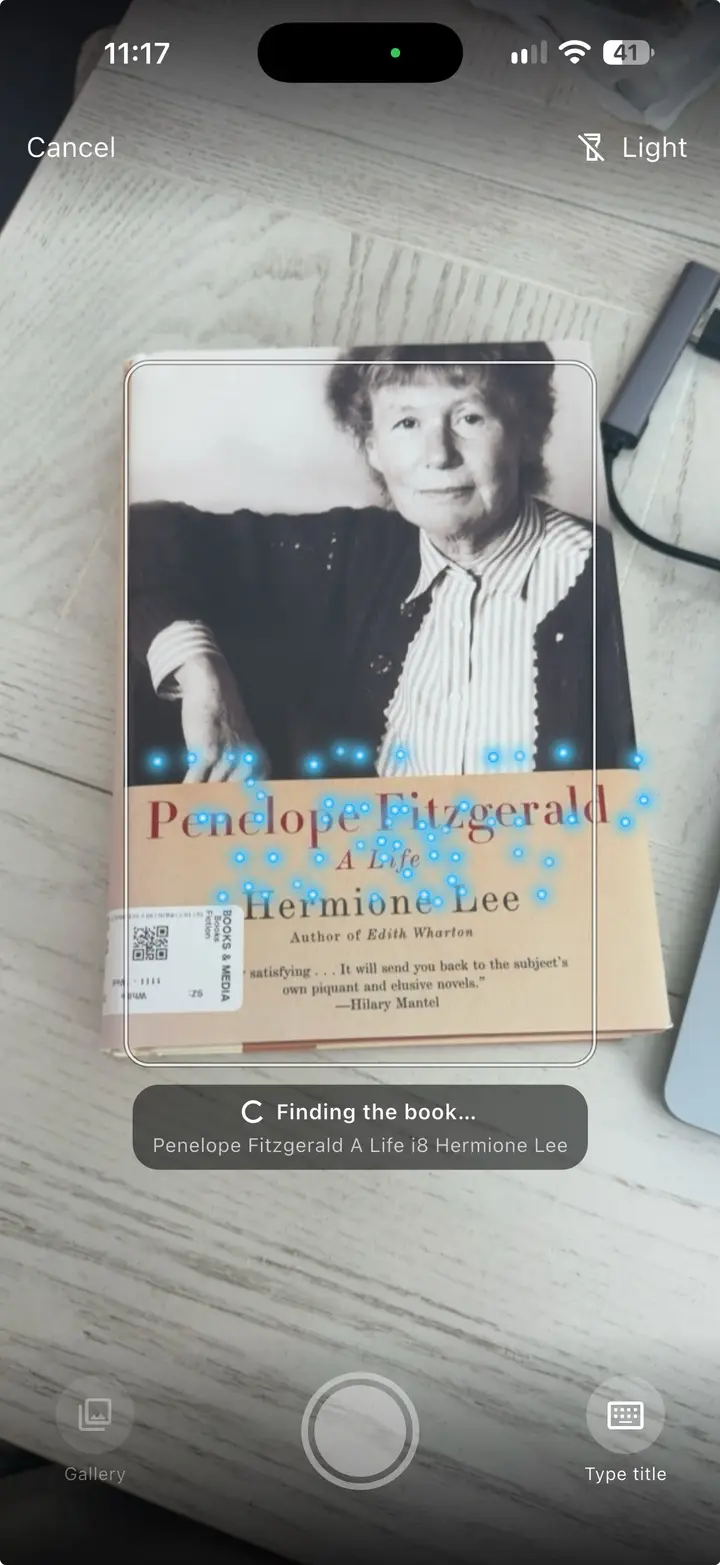
Fig. 1.3Cover scan: the camera reads the cover 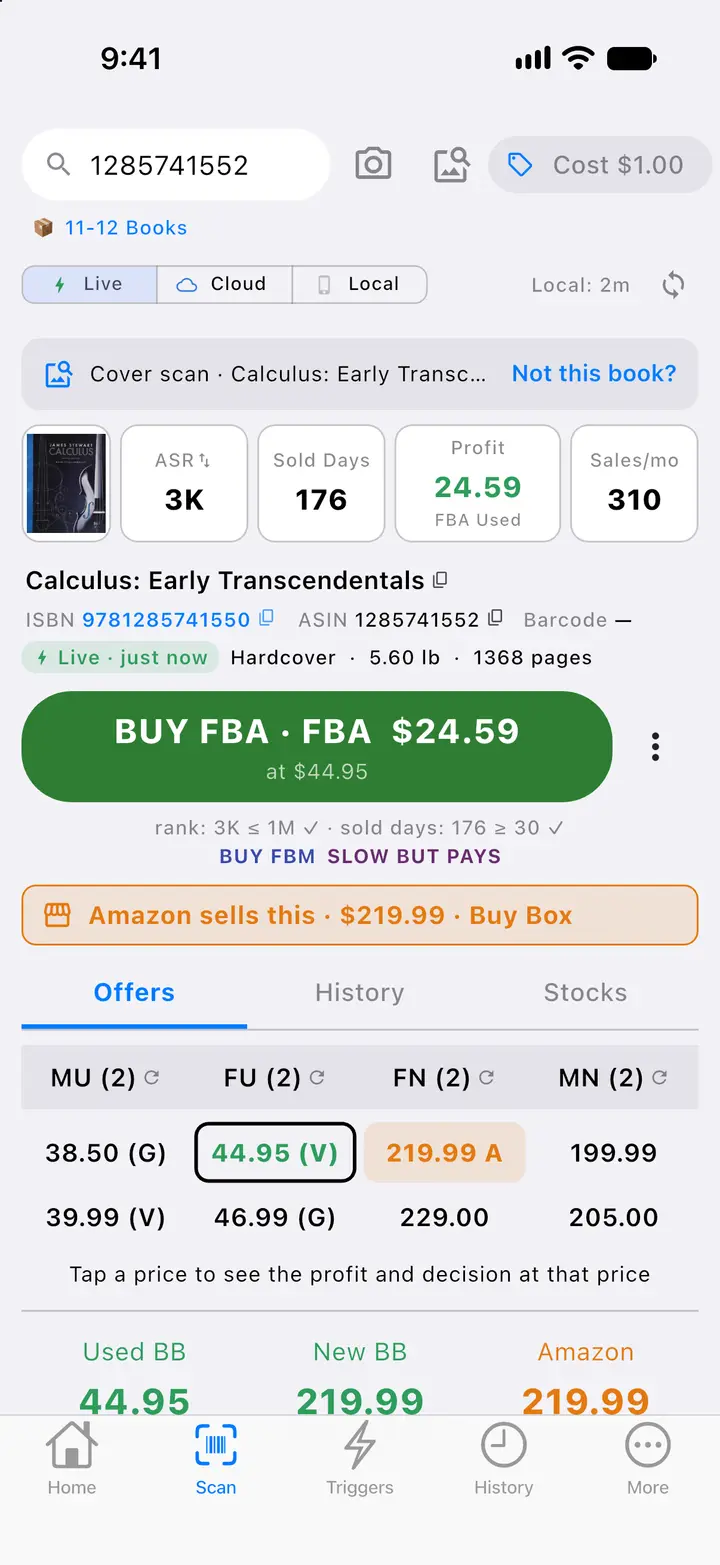
Fig. 1.4Book found by its cover 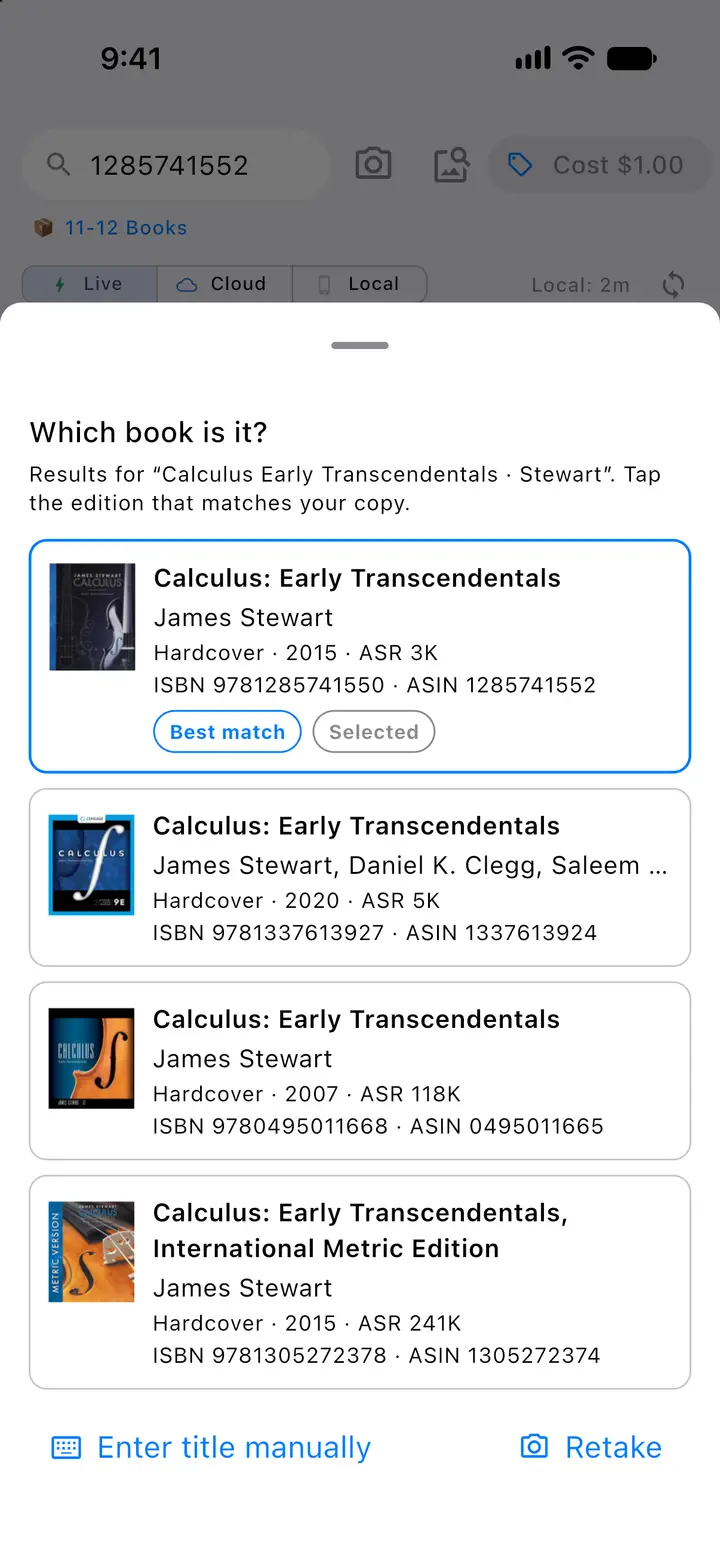
Fig. 1.5Cover scan: pick your edition 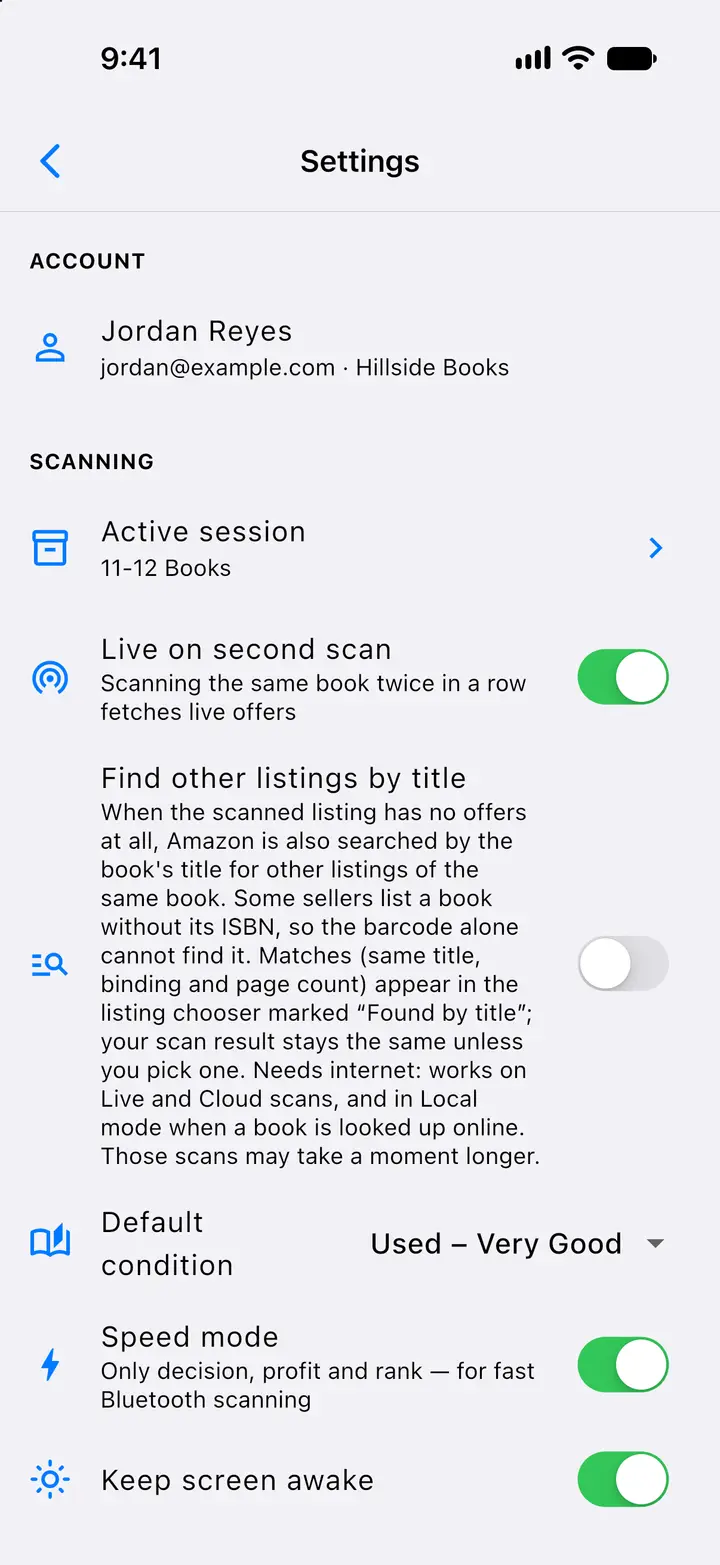
Fig. 1.6Settings: scanning 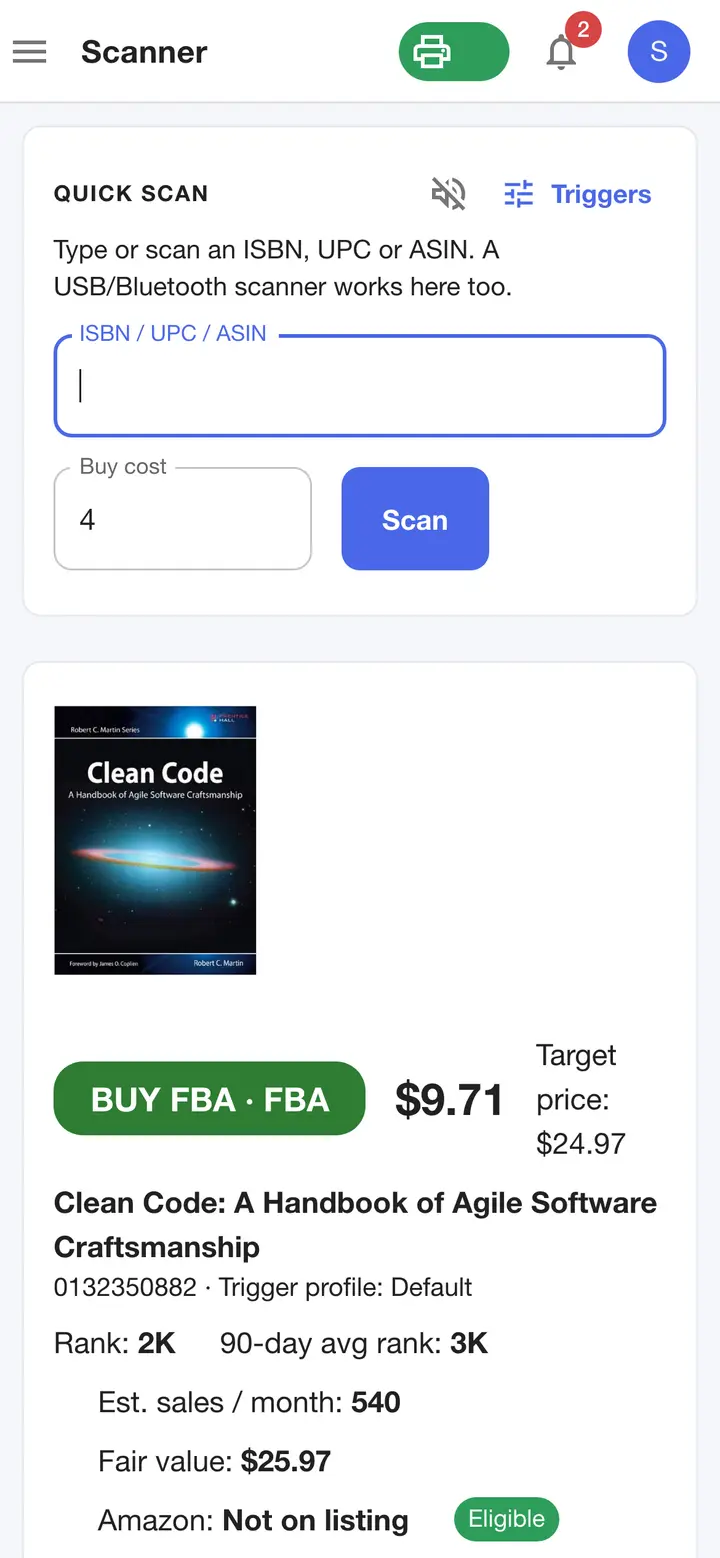
Fig. 1.7Scanner on a phone browser 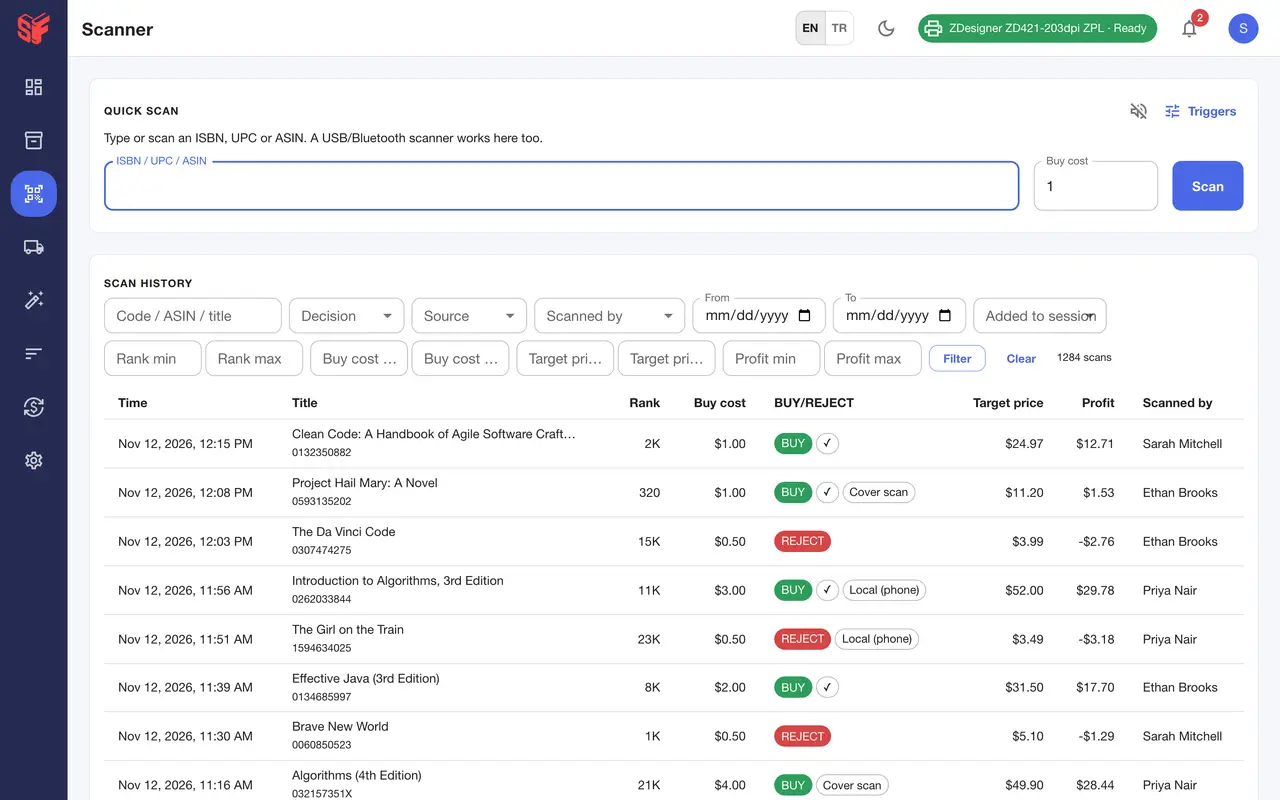
Fig. 1.8Scanner, scan history
Actual SpineFlip screens. Sample data.
Data modesPhone app
Choose where the answer comes from.
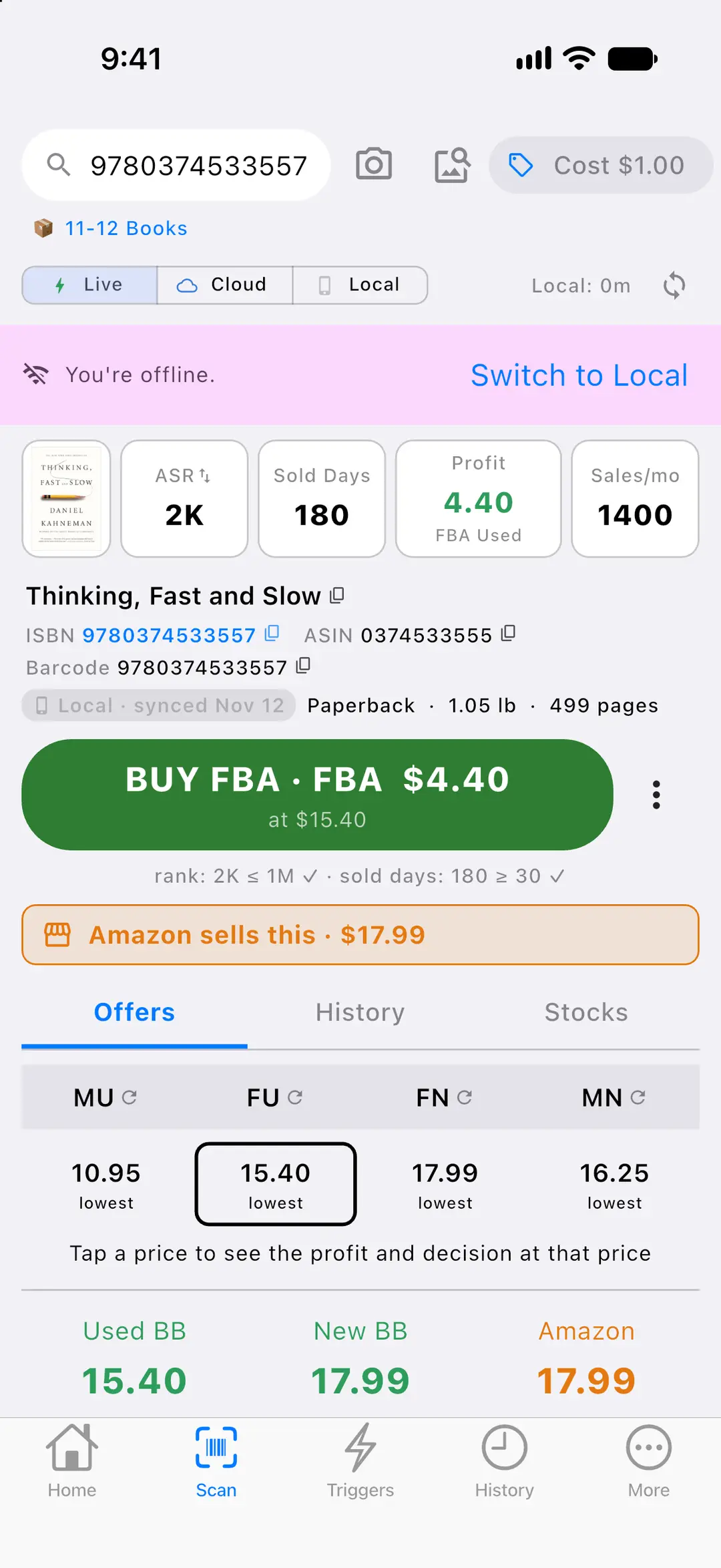
Live, Cloud or Local. Local keeps book data on the phone, so you can scan with no internet.
On the phone
- Live. Fresh from Amazon on every scan: live offers, selling restrictions and Amazon’s own fee estimate. If the book is also in the phone’s Local data, that answer shows first and live data replaces it.
- Cloud. The default: SpineFlip’s book database on the server. It falls back to live when a book is missing, and the result shows how old the data is.
- Local. Book data stored on the phone for scanning with no internet. The BUY or REJECT decision is made on the phone with your default trigger profile.
- Local data covers millions of books: one download, then small daily update files. It updates itself on Wi-Fi when it is older than 24 hours, and interrupted downloads resume.
- Books that are not in the Local data are looked up live when you are online; offline scans queue and upload later.
- Offline scanning keeps working for up to 72 hours after the app last connected.
- A Local BUY is re-checked live in the background when you are online.
- Prices a live scan finds are kept: a later Cloud scan of the same book shows them with their date, and they go into the next day’s Local data.
- Before a full download the app checks the phone’s free space, and on a mobile connection it asks first.
EvaluatePhone appWeb panel
See the real profit before you buy.
Each result shows how the book sells, who sells it and what it pays after Amazon’s fees.
On the phone
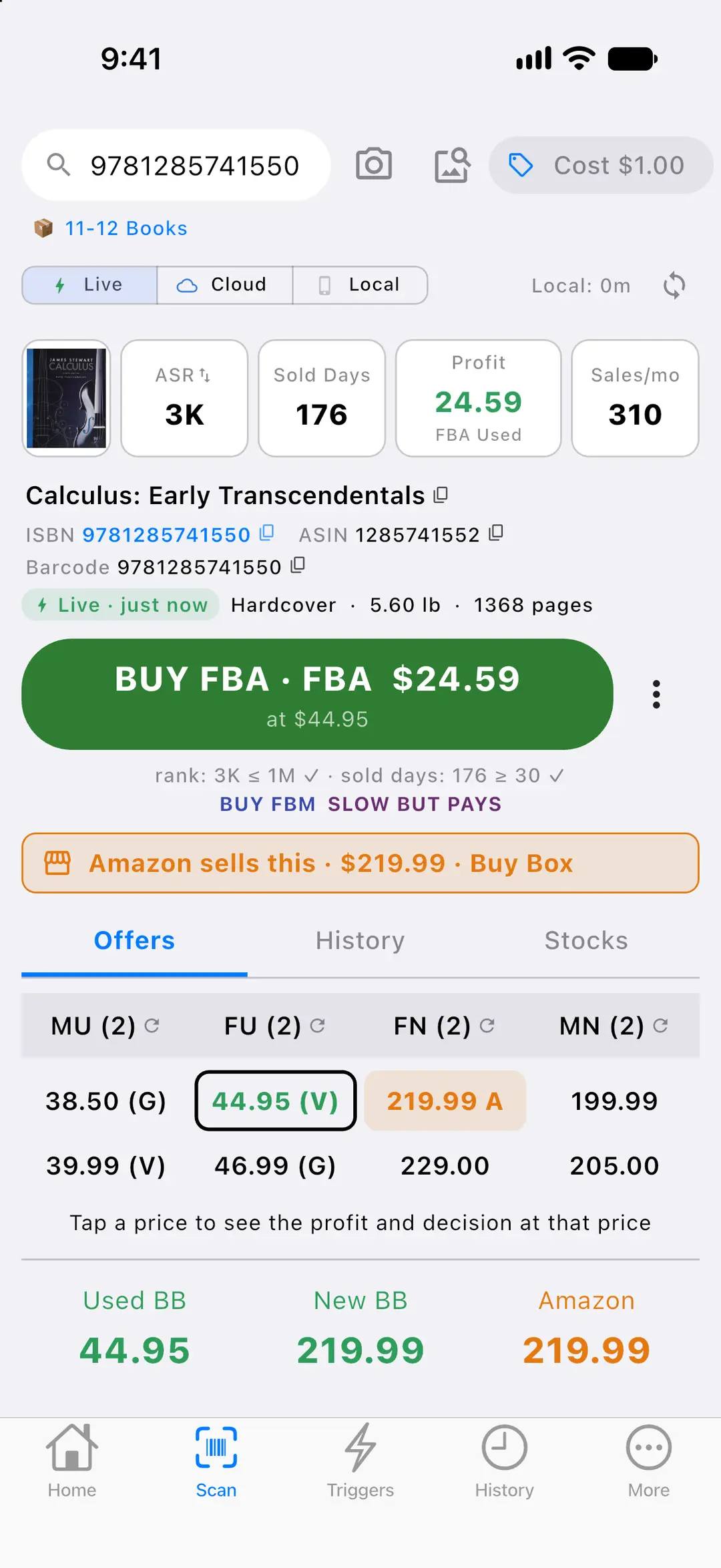
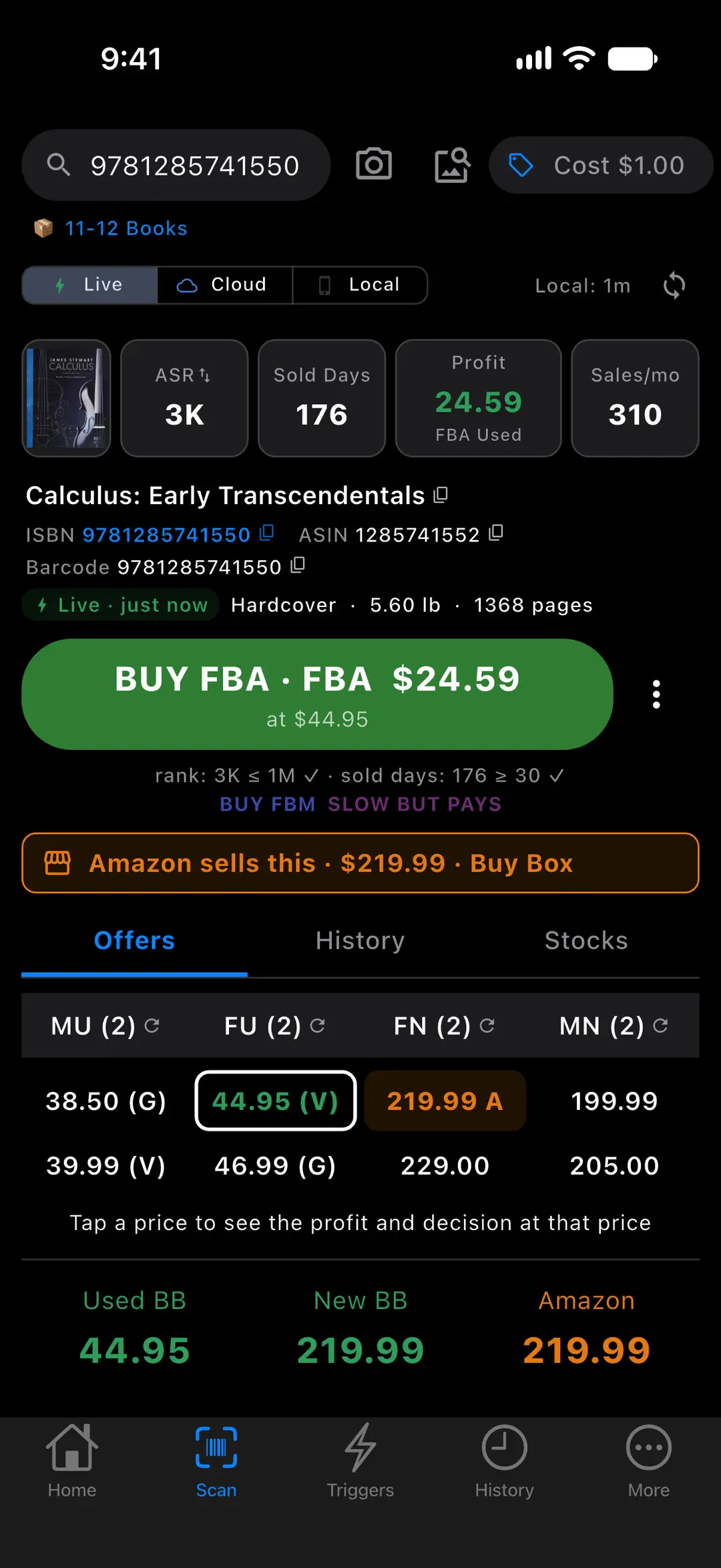
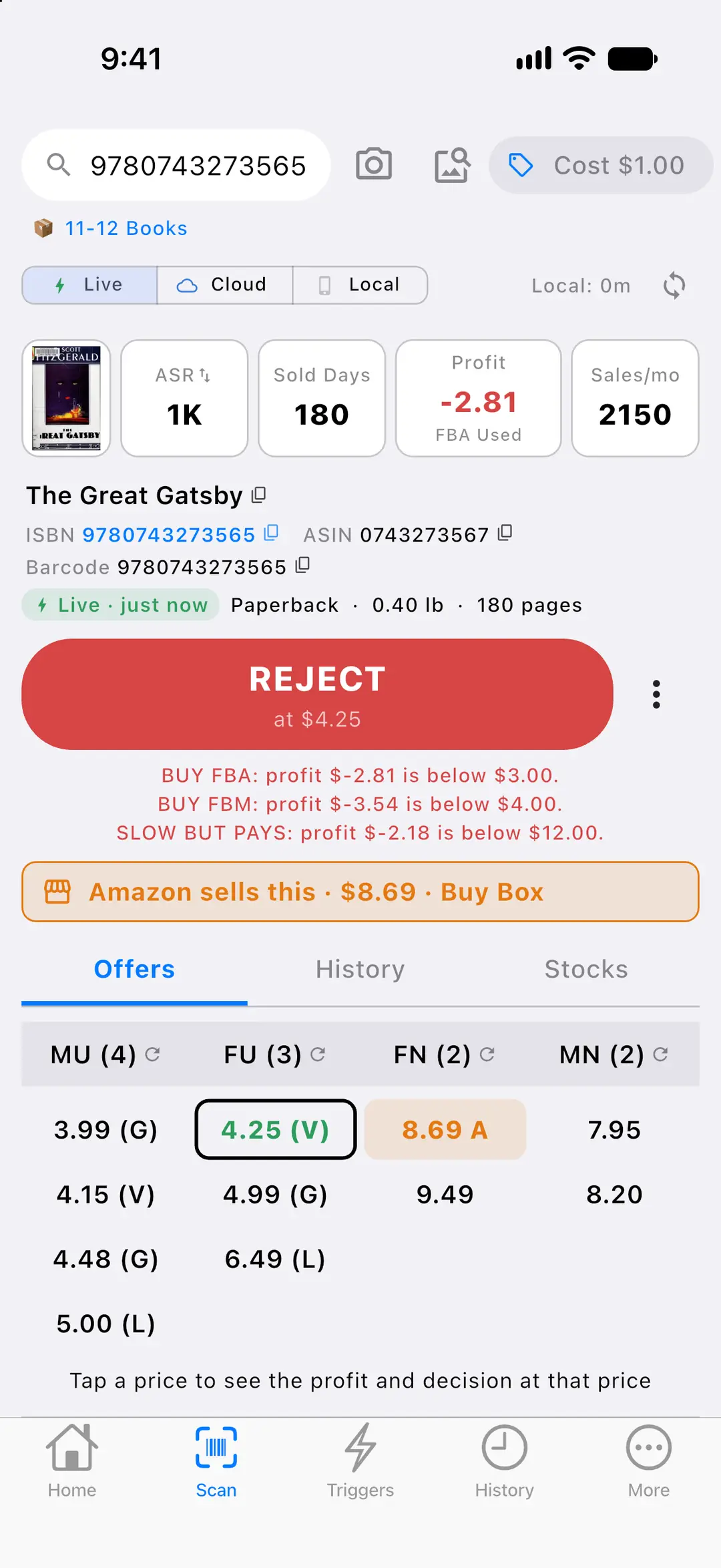
- ASR (average sales rank: the 90-day average by default; tap for the current rank), Sold Days (days with a sale in the last 180 days), Profit and Sales/mo (estimated monthly sales).
- An offers table with four columns, MF Used, FBA Used, FBA New and MF New (MU, FU, FN, MN), with counts and up to 12 prices each. The Buy Box winner is bold green, your own offer blue, Amazon orange and blacklisted sellers red.
- Tap any price to see the profit and the decision at that price.
- A Buy Box bar (Used BB, New BB, Amazon) and an orange banner when Amazon sells the book: “Amazon sells this” or “Amazon Warehouse”, with the price.
- Selling restrictions per condition from live data: “RESTRICTED” or “Brand approval needed”, Amazon’s message and a “Request approval” link, for example “You can list it as Used without approval.”
- Several listings on one barcode? The best-selling one is picked, and the others show their own decision and eligibility.
- Optional, off by default: when a scanned listing has no offers at all, SpineFlip also searches Amazon by the book’s title for other listings of the same book (same title, binding and page count), marked “Found by title”. Needs an internet connection.
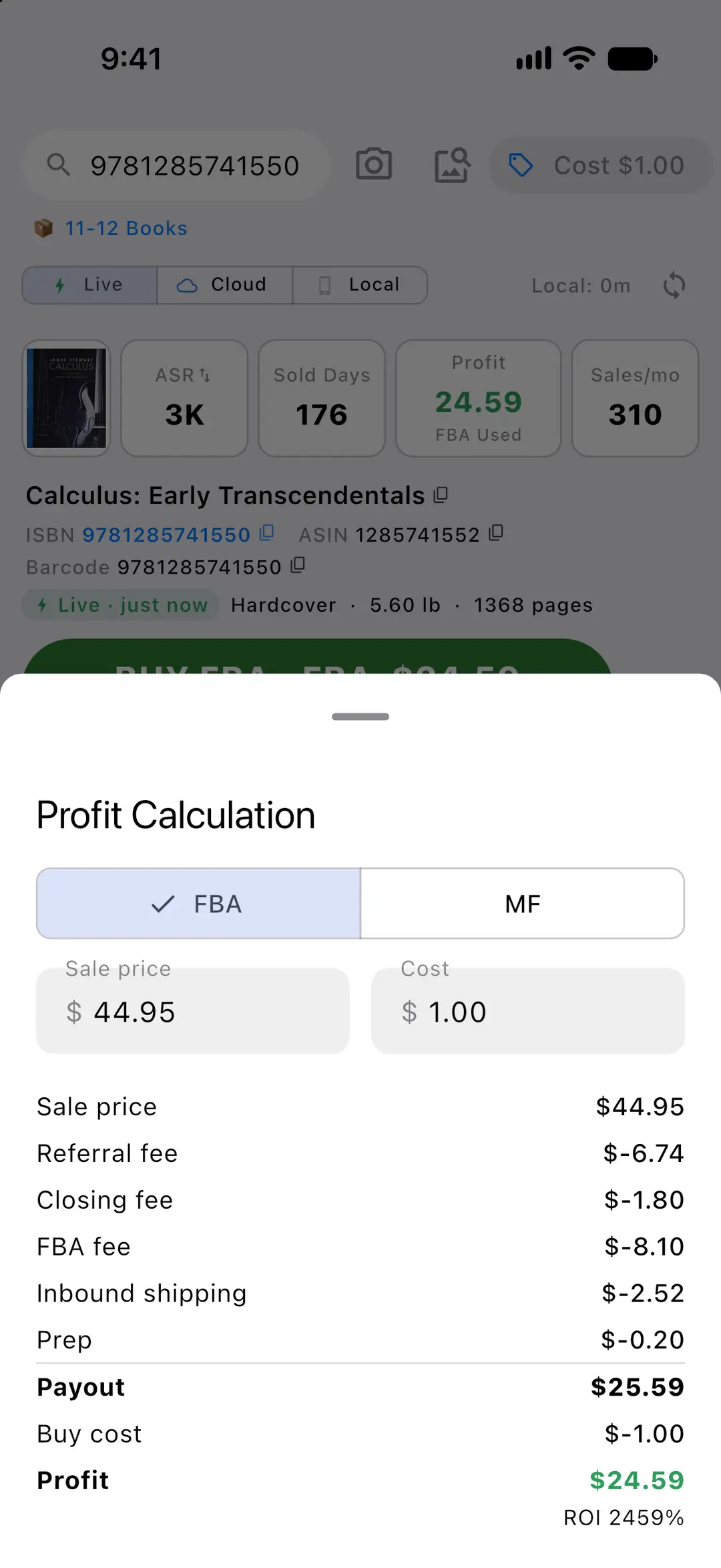
- The Profit Calculation sheet: sale price, referral fee, closing fee, FBA fee, inbound shipping, prep, payout, buy cost, profit and ROI, for FBA or merchant-fulfilled.
- Live scans use Amazon’s own fee estimate; otherwise SpineFlip’s 2026 US fee table: the FBA fee by weight and price band, including the 3.5% fuel and logistics surcharge, a 15% referral fee and the $1.80 closing fee for books.
- Inbound shipping per item or per pound, prep cost and a default weight are account settings that feed every profit figure.
- Sales rank and price history with the 180-day Buy Box range, plus look-up links to BookFinder, Amazon, Amazon reviews and eBay sold.
In the web panel
- A scan in the web panel shows the decision, the expected profit, offers by channel and 12 months of price and rank history.
More screens
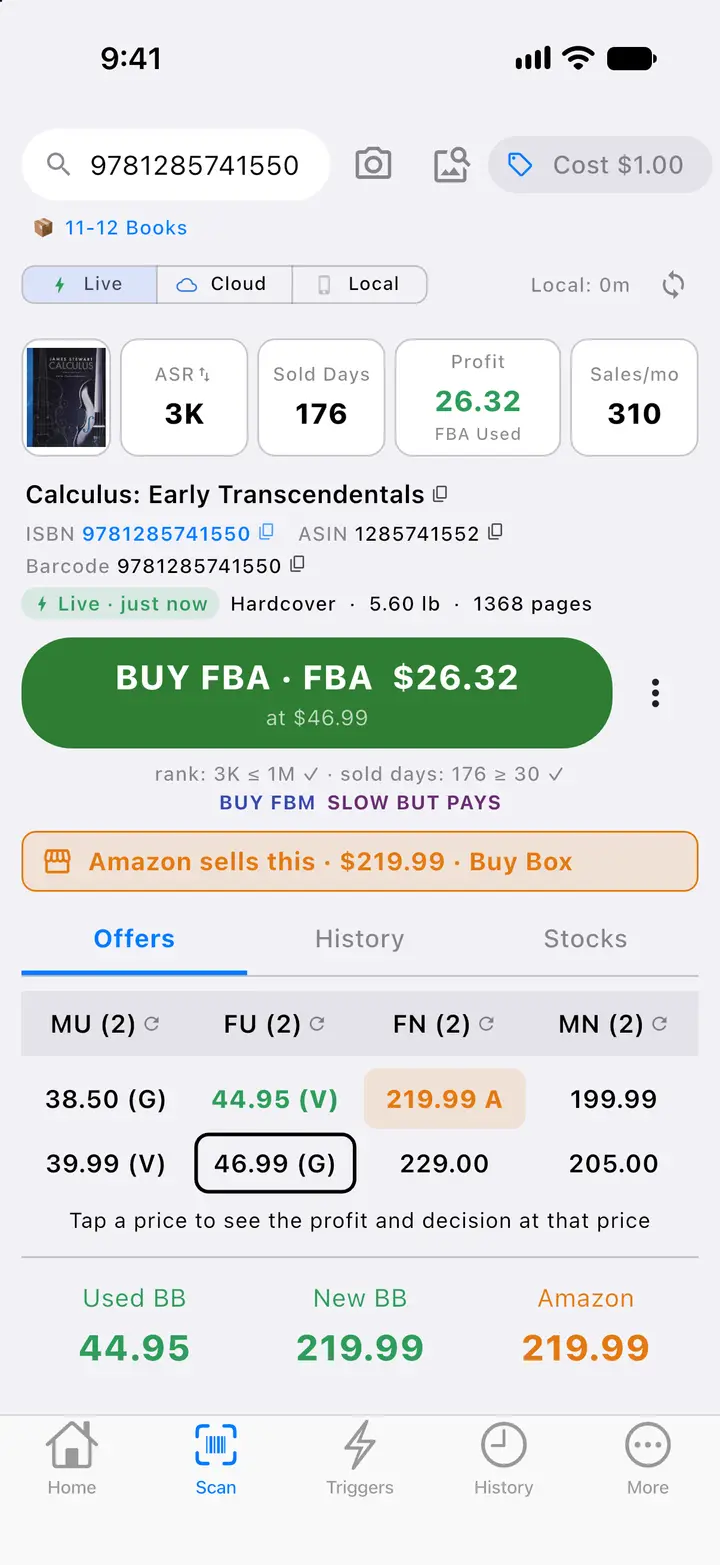
Fig. 3.3Profit at a tapped price 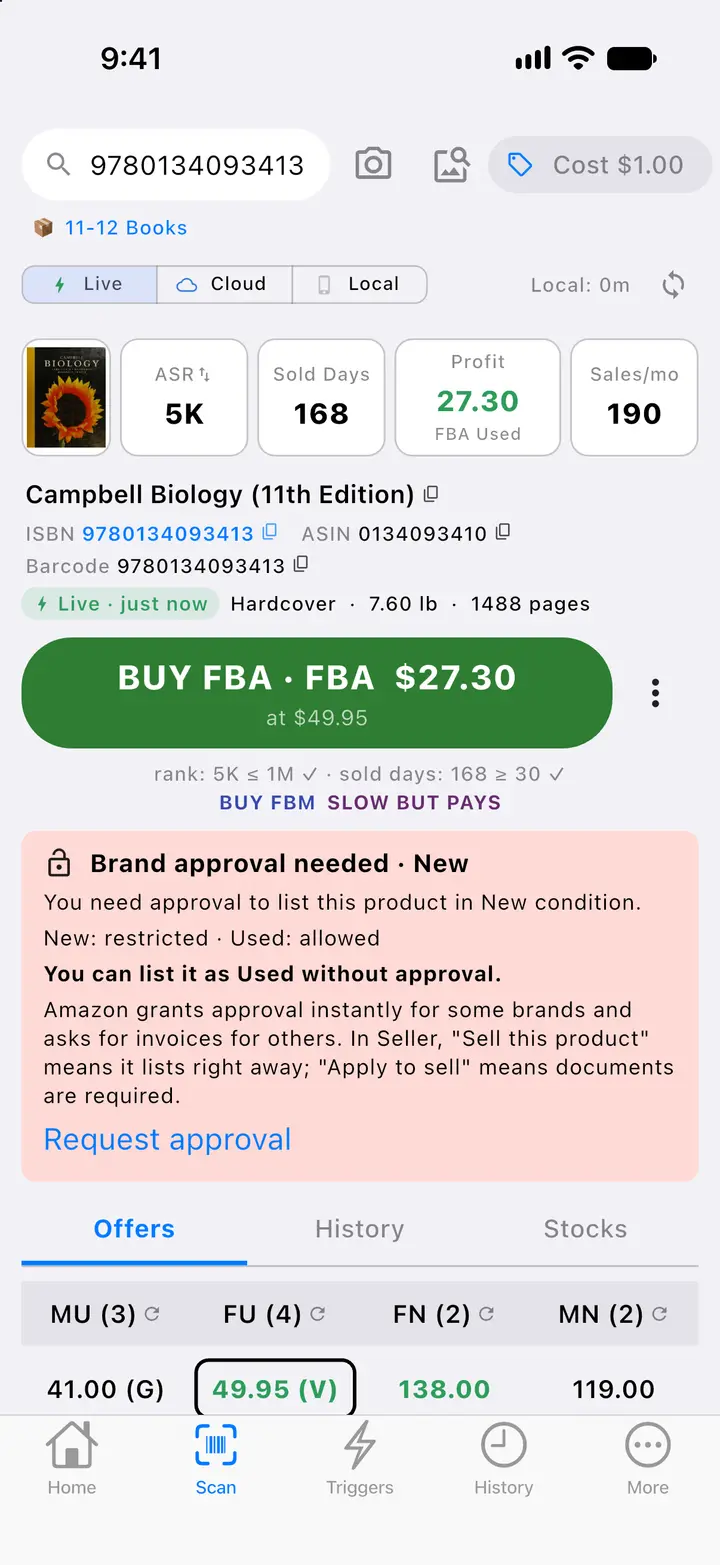
Fig. 3.4Selling restrictions 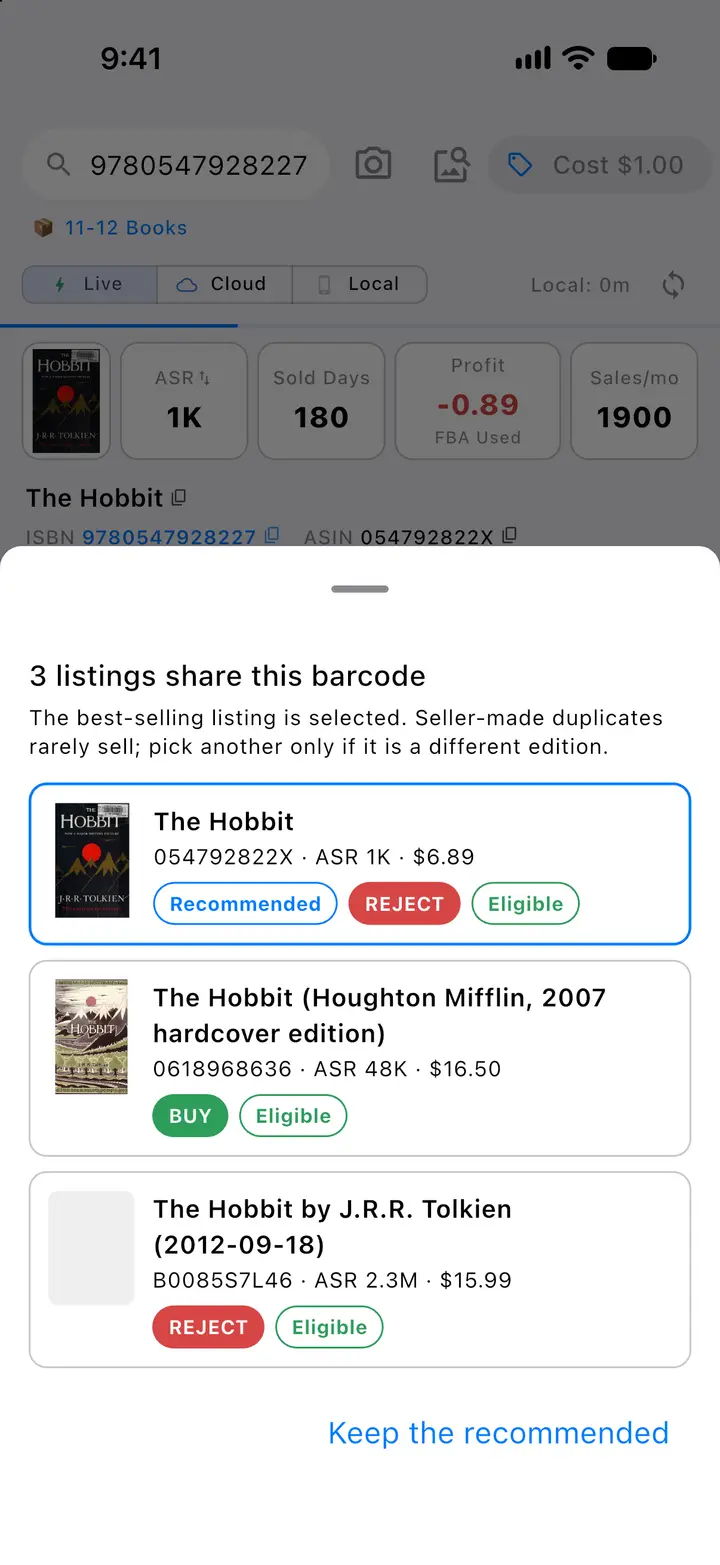
Fig. 3.5Several listings on one barcode 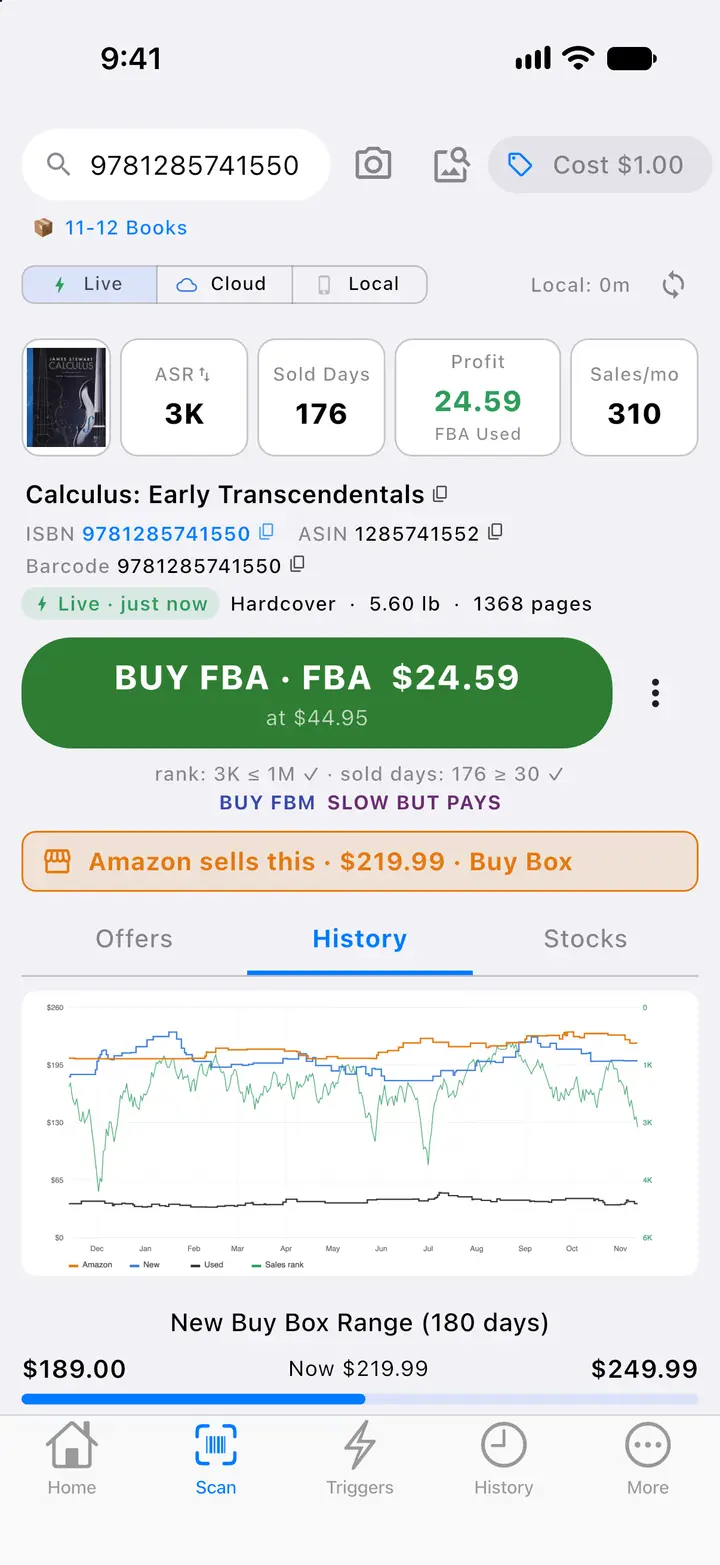
Fig. 3.6Price and rank history
Actual SpineFlip screens. Sample data.
DecidePhone appWeb panel
Your rules make the call.
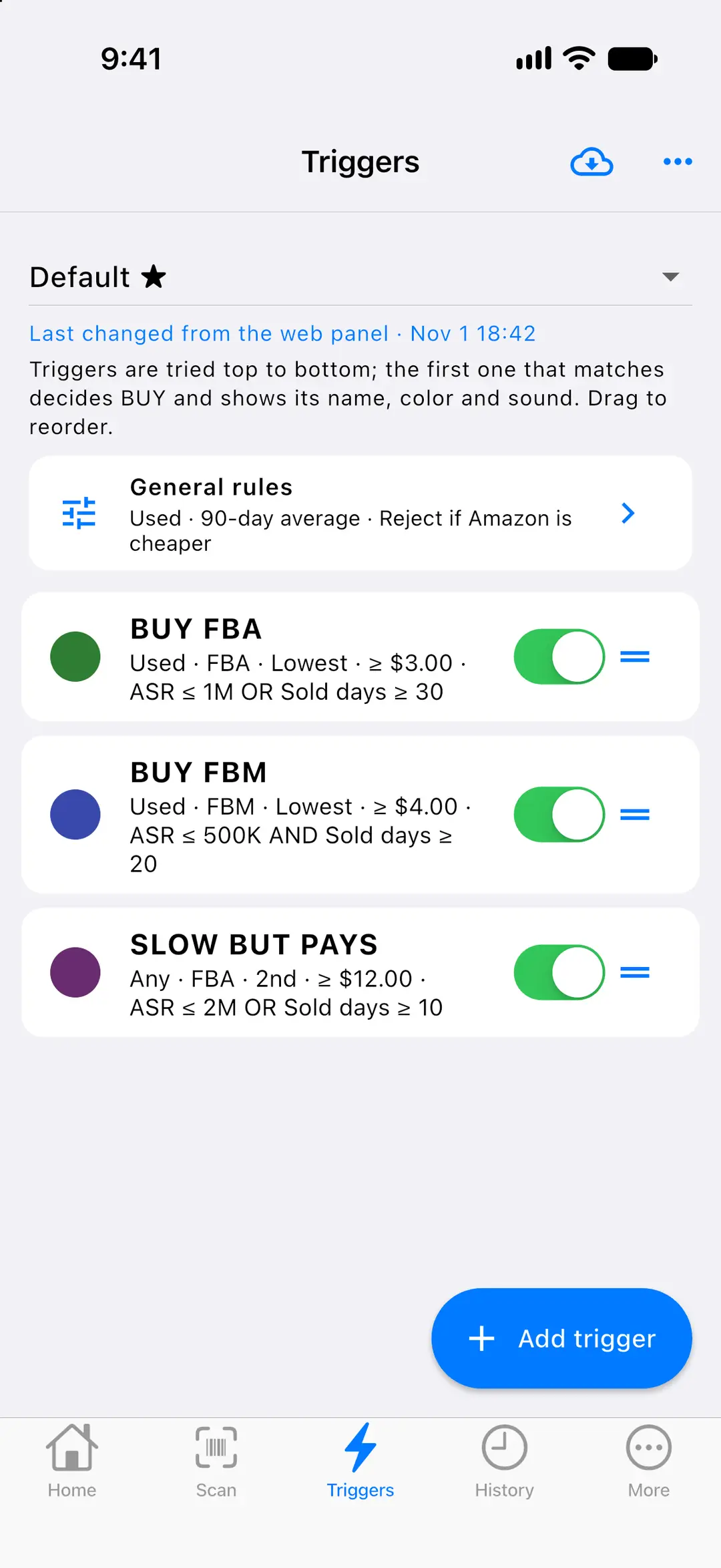
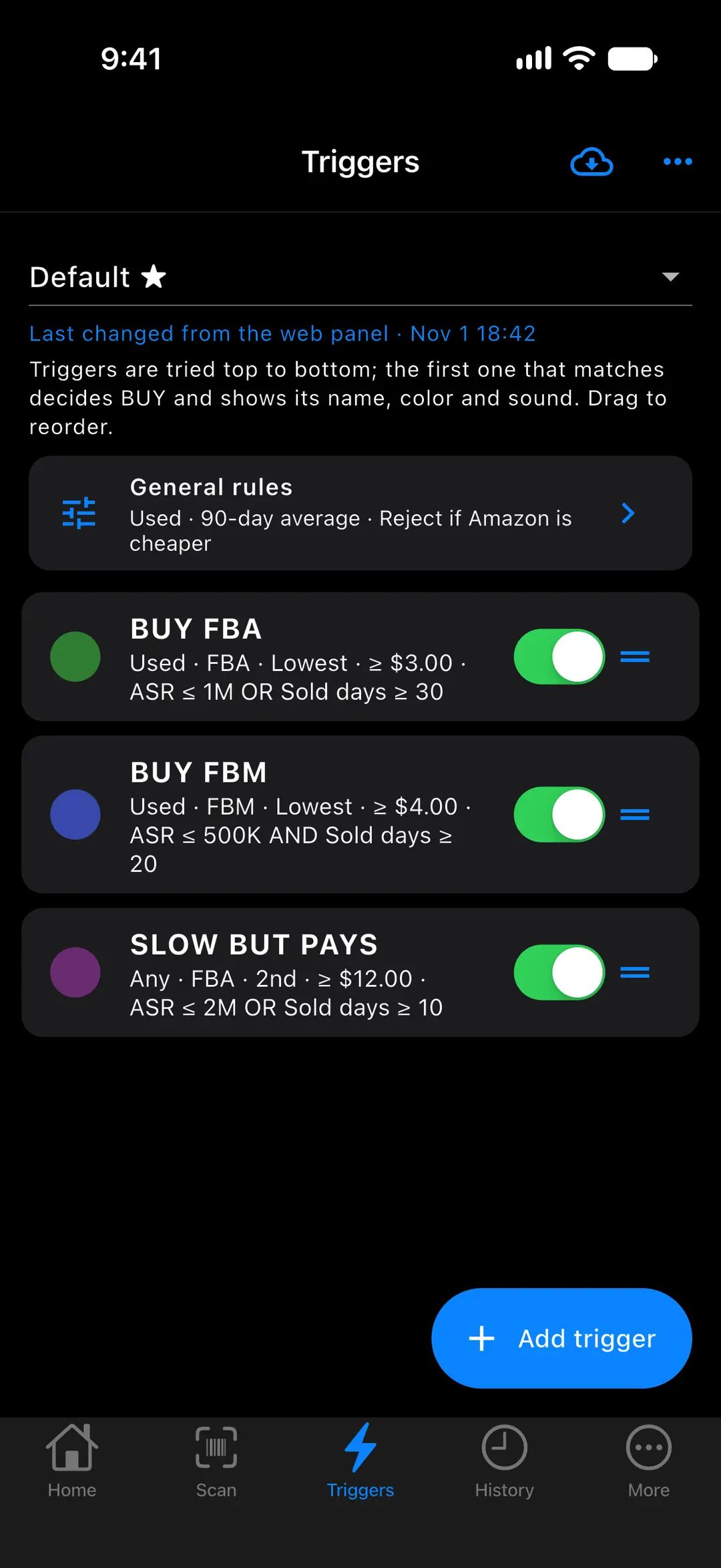
Triggers are your buy rules. They are tried from top to bottom, and the first match decides: BUY or REJECT, with the reasons.
On the phone
- The result shows BUY or REJECT with the matching trigger’s name, color and sound, the channel (FBA or MF) and the expected profit, plus reason lines such as “profit $1.20 is below $3.00.”
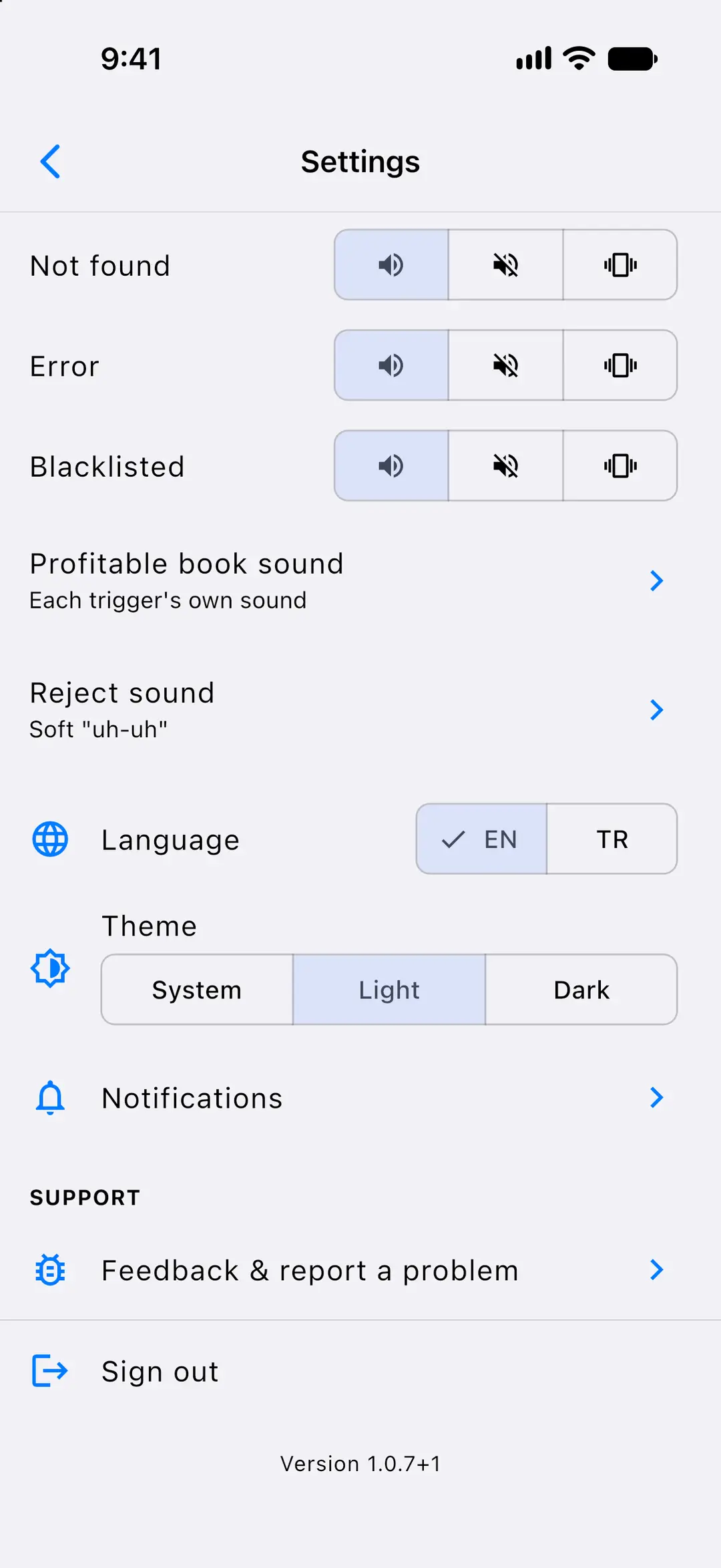
- Each outcome can be set to sound, silent or vibrate.
- Up to 20 triggers per profile, and several profiles with one default.
- Per trigger: a target price (lowest, 2nd or 3rd offer, by channel and condition), optional Amazon and Buy Box price rules, a target profit, a minimum ROI and “buy when there’s no FBA seller”.
- A demand check with presets (Safe: ASR ≤ 500K and sold on ≥ 20 days; Balanced: ASR ≤ 1M or sold on ≥ 30 days; Aggressive: ASR ≤ 2M or sold on ≥ 10 days) or your own AND / OR rules, plus 11 sounds and 8 colors.
- Profile rules: the rank basis (current, 90-day or 180-day), Amazon as a seller (ignore, reject if Amazon is cheaper, or reject whenever Amazon sells), a minimum sale price, a maximum weight, a maximum number of offers and whether to accept books with no sales data.
- New accounts start with ready-made rules named BUY FBA, BUY FBM and SLOW BUT PAYS that you can change.
- The blacklist warns you about books or sellers, with a reason (IP complaint, restricted, counterfeit risk, high returns, hazmat, low profit, problem seller…), a scope and a severity, a suggested list curated by SpineFlip and its own alert sound on the phone.
In the web panel
- Triggers are shared between the phone and the web panel, with a prompt if the same one was edited in both places.
- “Preview on recent scans” replays your recent scans against edited rules.
More screens
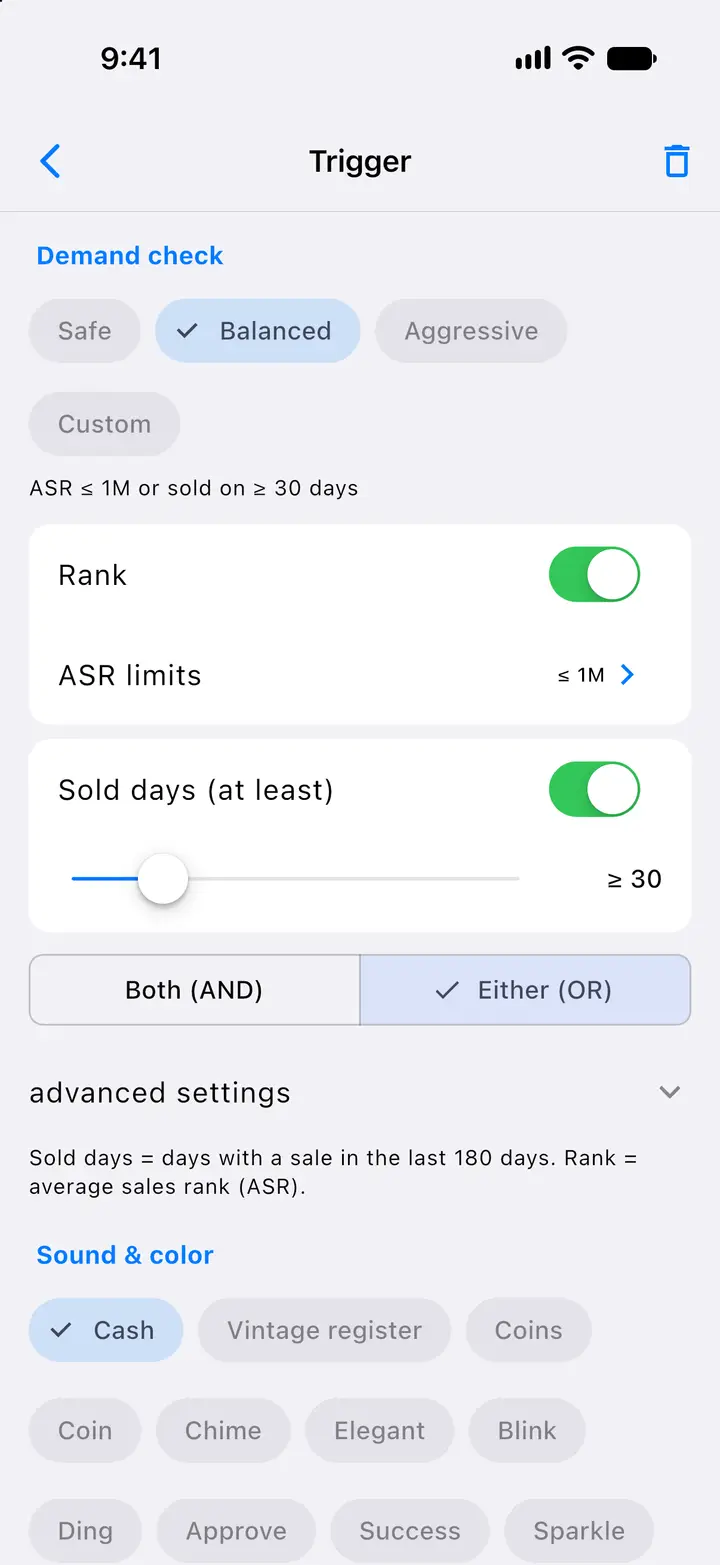
Fig. 4.3Trigger editor: demand check 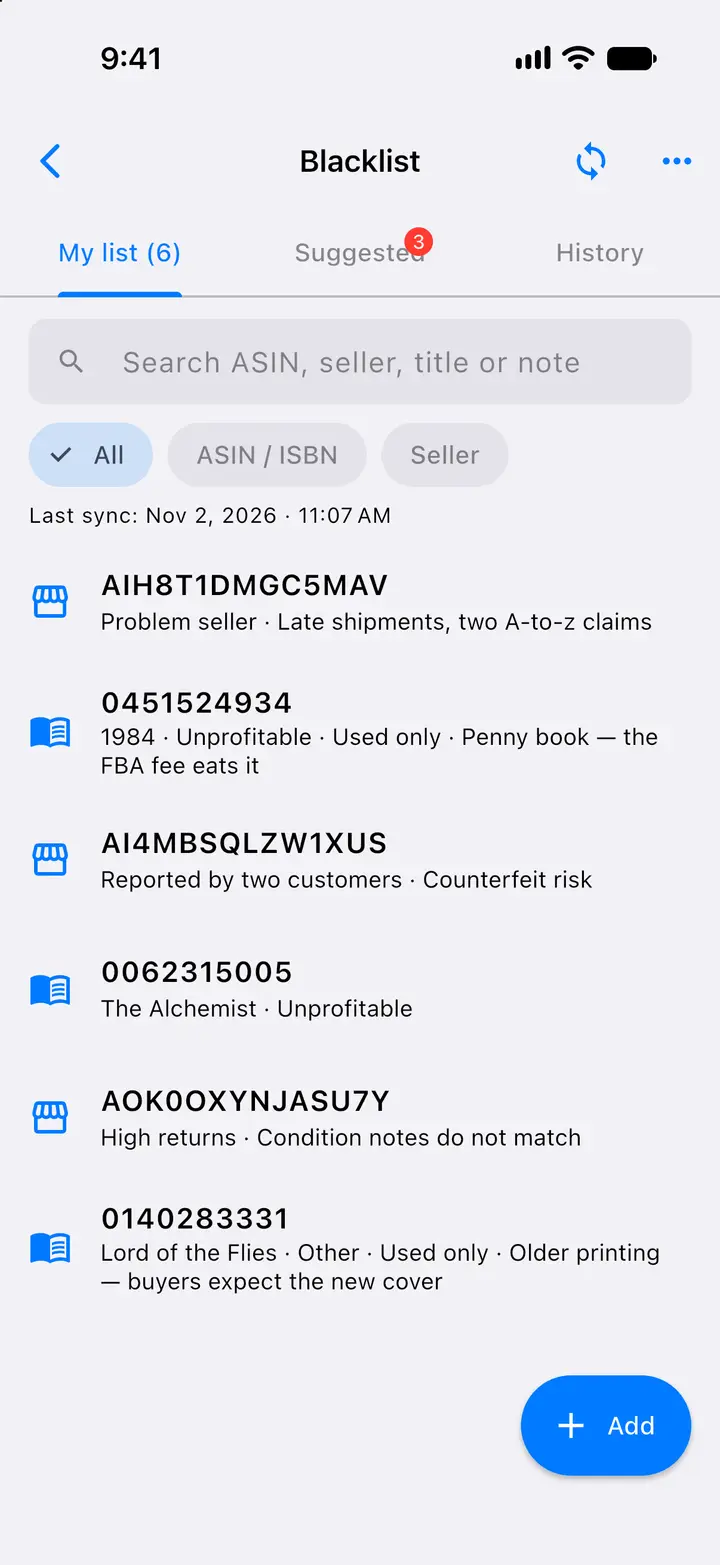
Fig. 4.4Blacklist 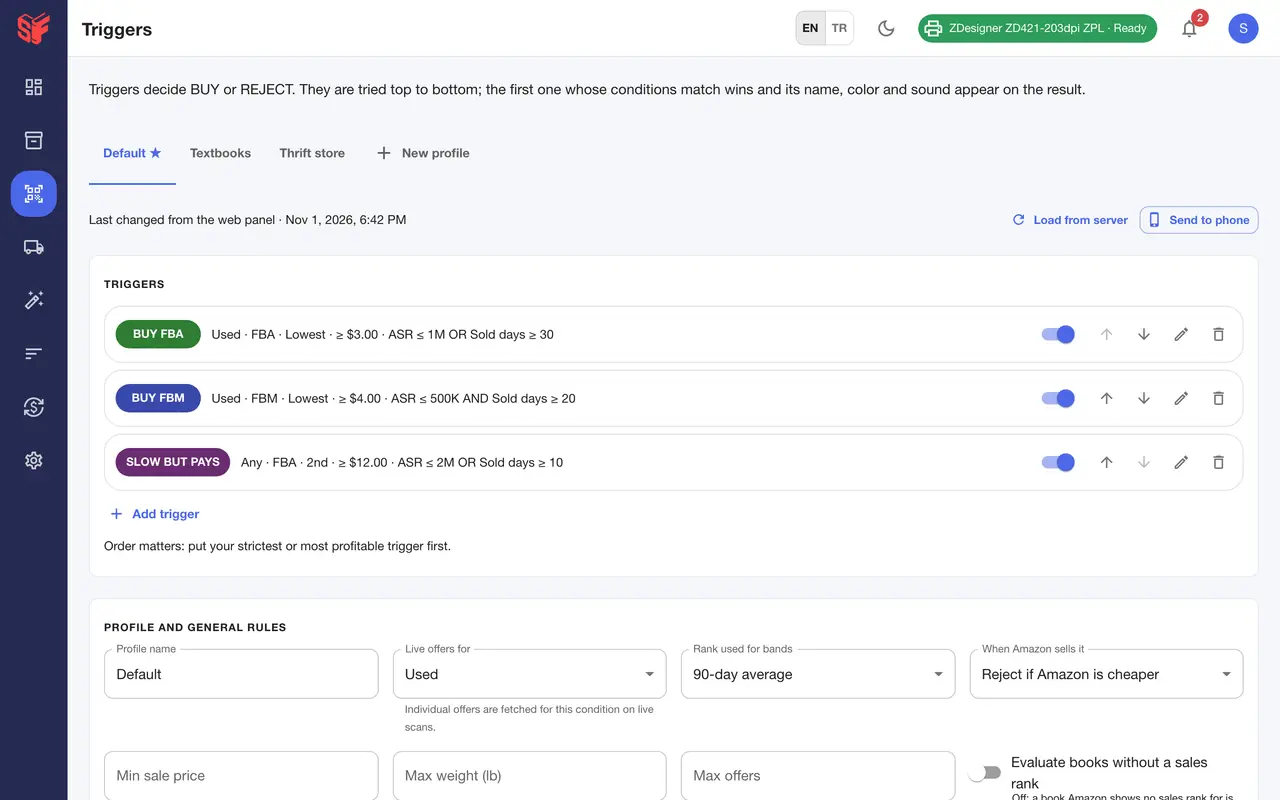
Fig. 4.5Triggers
Actual SpineFlip screens. Sample data.
ListPhone appWeb panel
Collect what you bought in a session.
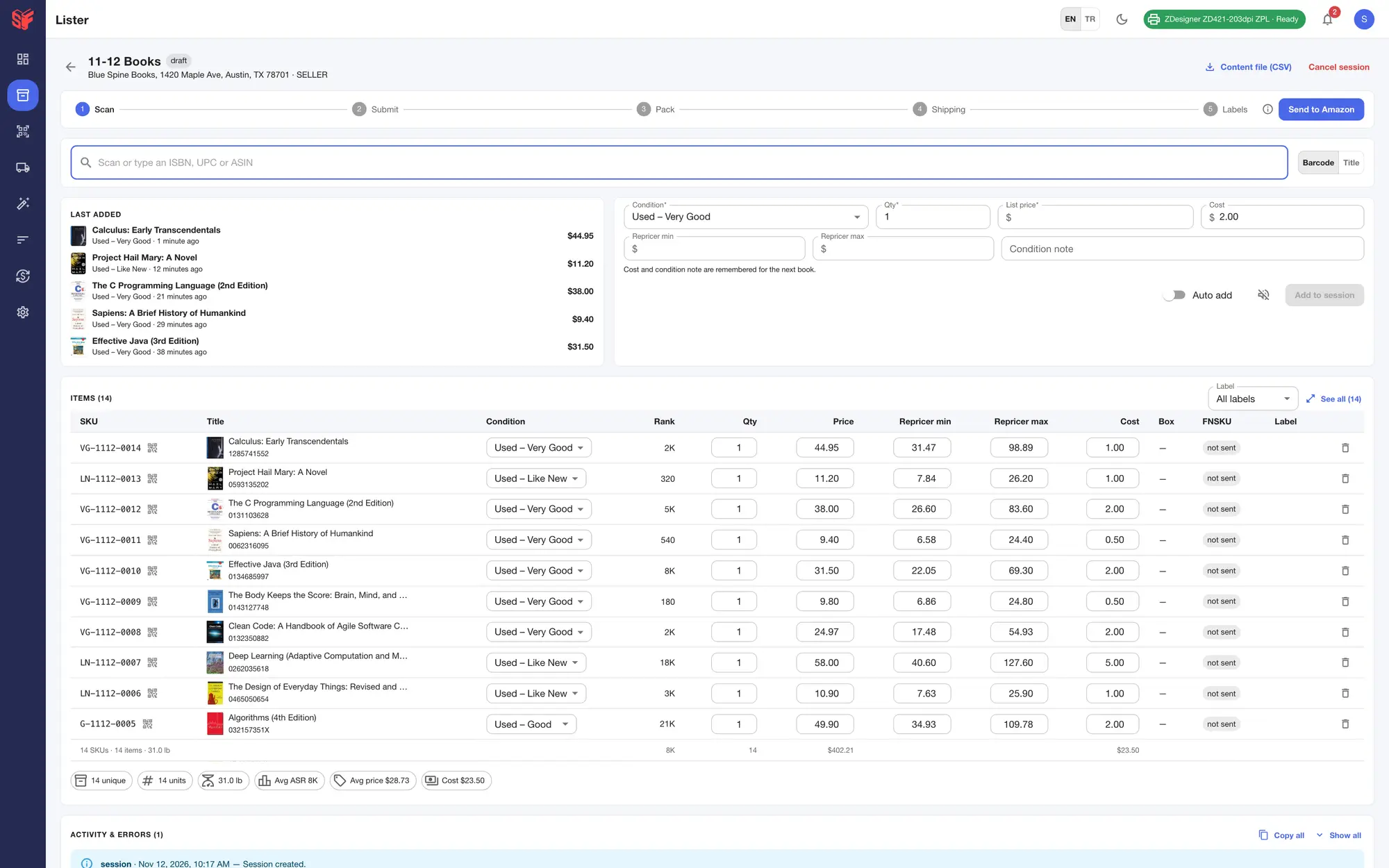
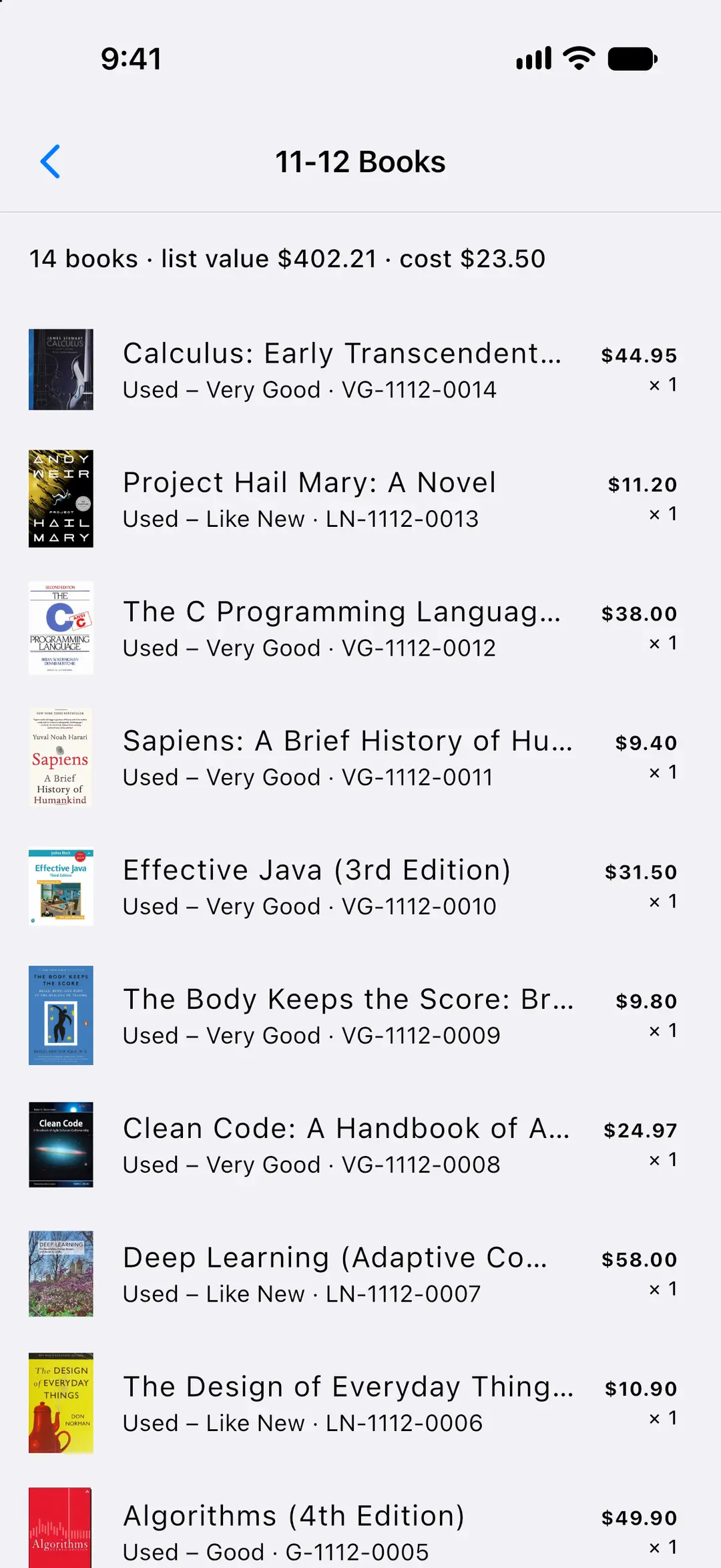
A session holds the books you will send to Amazon. Add them on the phone at the shelf or in the web panel at the desk; they land in the same session.
On the phone
- Tap “Add to session” on a result, or add every BUY to the active session automatically.
- The same FBA check applies to books added from the phone.
In the web panel
- Add books by barcode or title search, with auto add.
- When you add a book to an FBA session, SpineFlip asks Amazon whether the book can go into an FBA shipment. If Amazon says no, you see its reason in red and the book is not added, because one such book stops Amazon from creating the shipment plan for every book in the session. Restricted books are not added automatically.
- The session screen keeps the steps, the scan box and your newest books in view while you scan; the row of the book you just added flashes green. The list shows the newest 50 books, and “See all” opens every book.
- When the book database has a cut-off title or no weight for a book, the Lister takes Amazon’s full title, package weight and cover, so the label prints Amazon’s title instead of a cut-off one and the profit uses the real weight.
- If the book database shows no offers in the condition you list, the Lister checks Amazon’s live offers first; if there is still none, it says so and leaves the price box ready for you to type a price.
- Conditions New and Used – Like New, Very Good, Good or Acceptable, a quantity and a suggested list price (the trigger target or the market). The buy cost and condition note are remembered between books, and the repricer min and max come from your default price rules.
- SpineFlip lists offers on existing Amazon product pages (ASINs); it does not create new catalog pages.
- Amazon listing errors are explained in plain language, with “Retry listing”. Restricted books are flagged with an approval link, and books you already list are detected.
- Hold leftovers for the next batch, or carry a cancelled session over to a new one with the same SKUs and FNSKUs, so printed labels stay valid.
- Print an ISBN barcode for books without one, and build SKUs from a template with tokens.
More screens
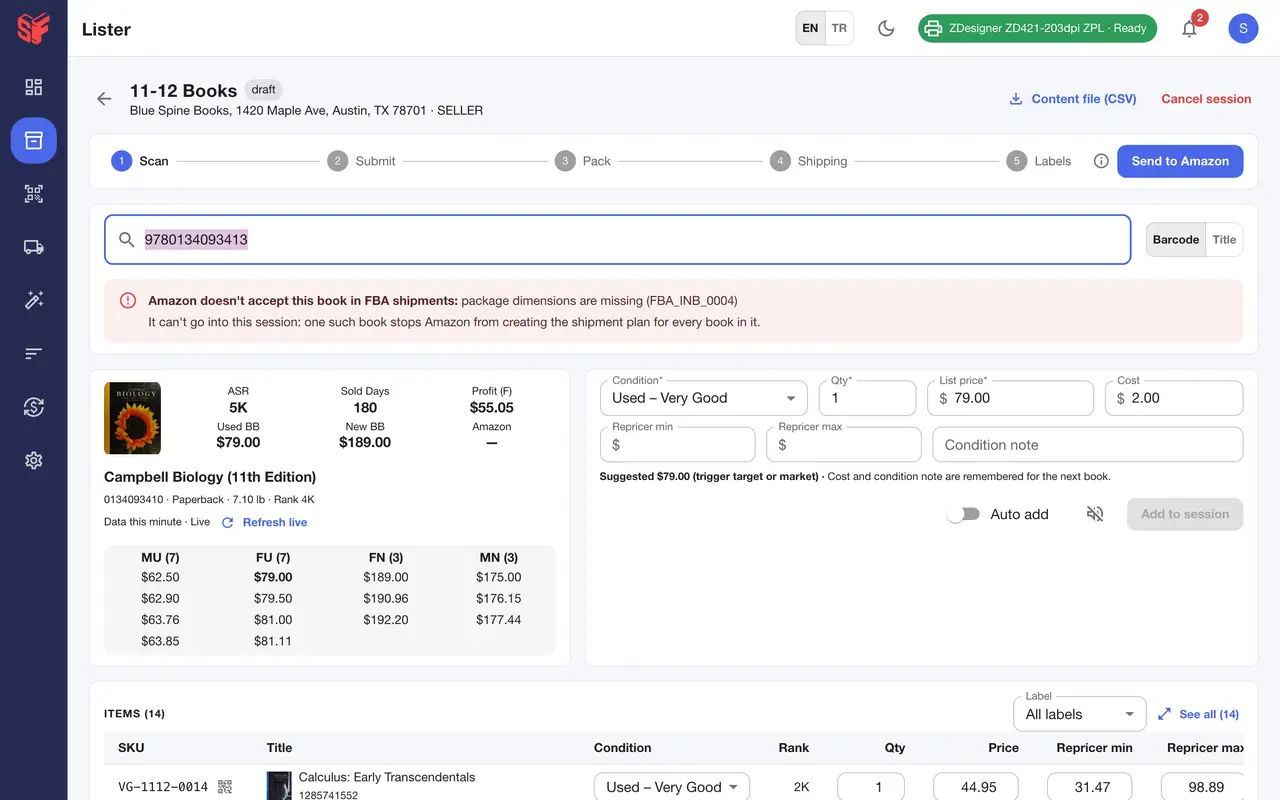
Fig. 5.3Session, book Amazon will not take into FBA 
Fig. 5.4Lister, sessions 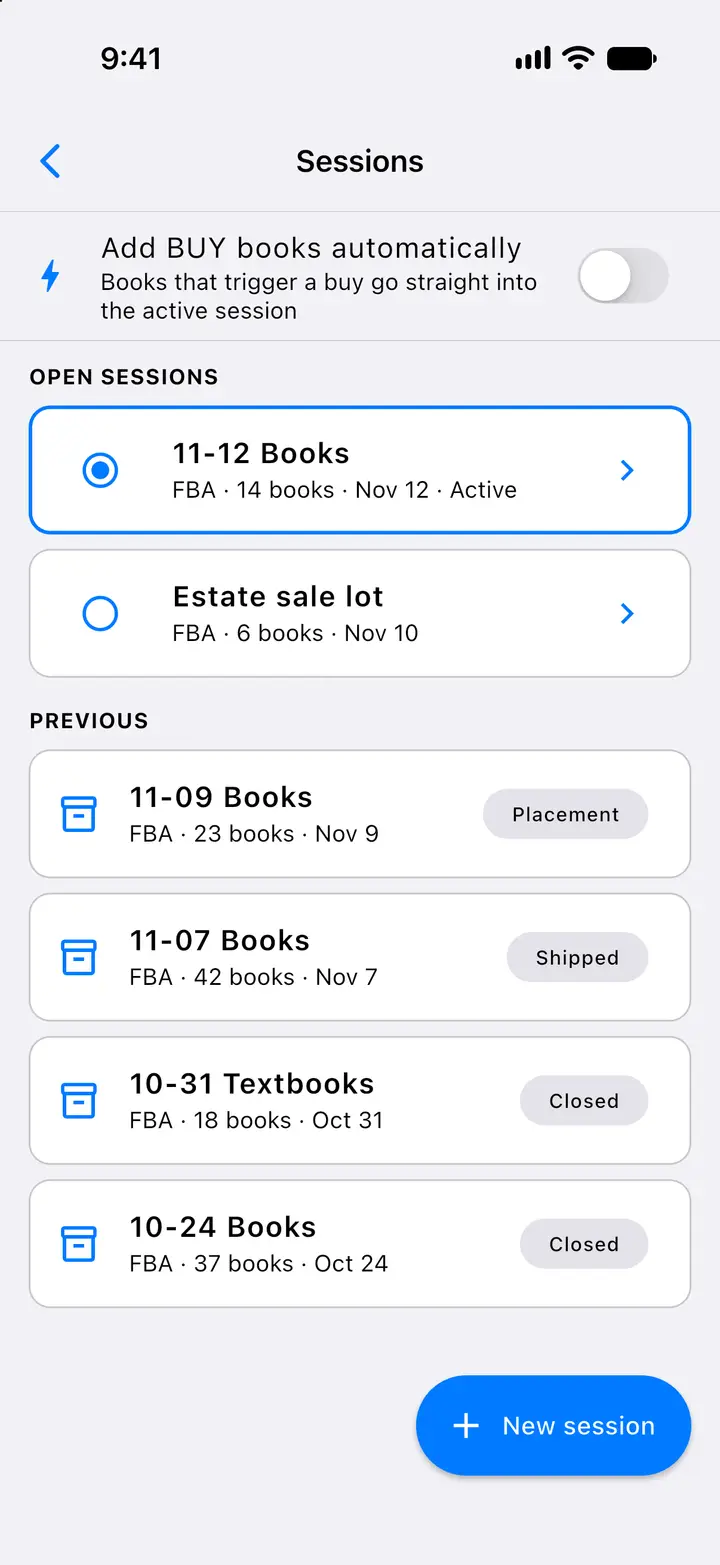
Fig. 5.5Sessions
Actual SpineFlip screens. Sample data.
Ship to FBAWeb panel
Ship to FBA in five steps.
One wizard takes a session from the scan to the box labels. You can leave the page; SpineFlip keeps going in the background and notifies you as the shipment moves.
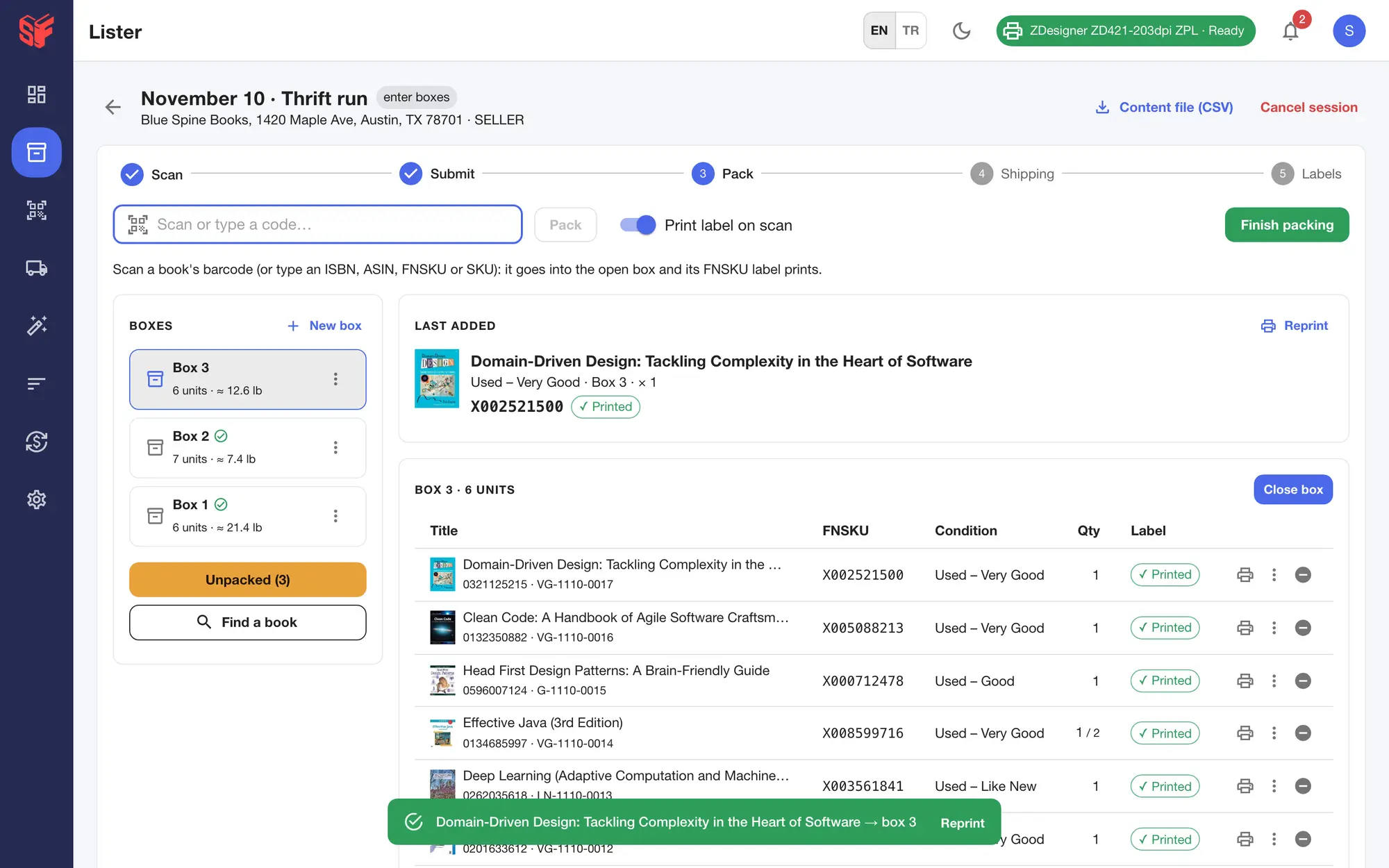
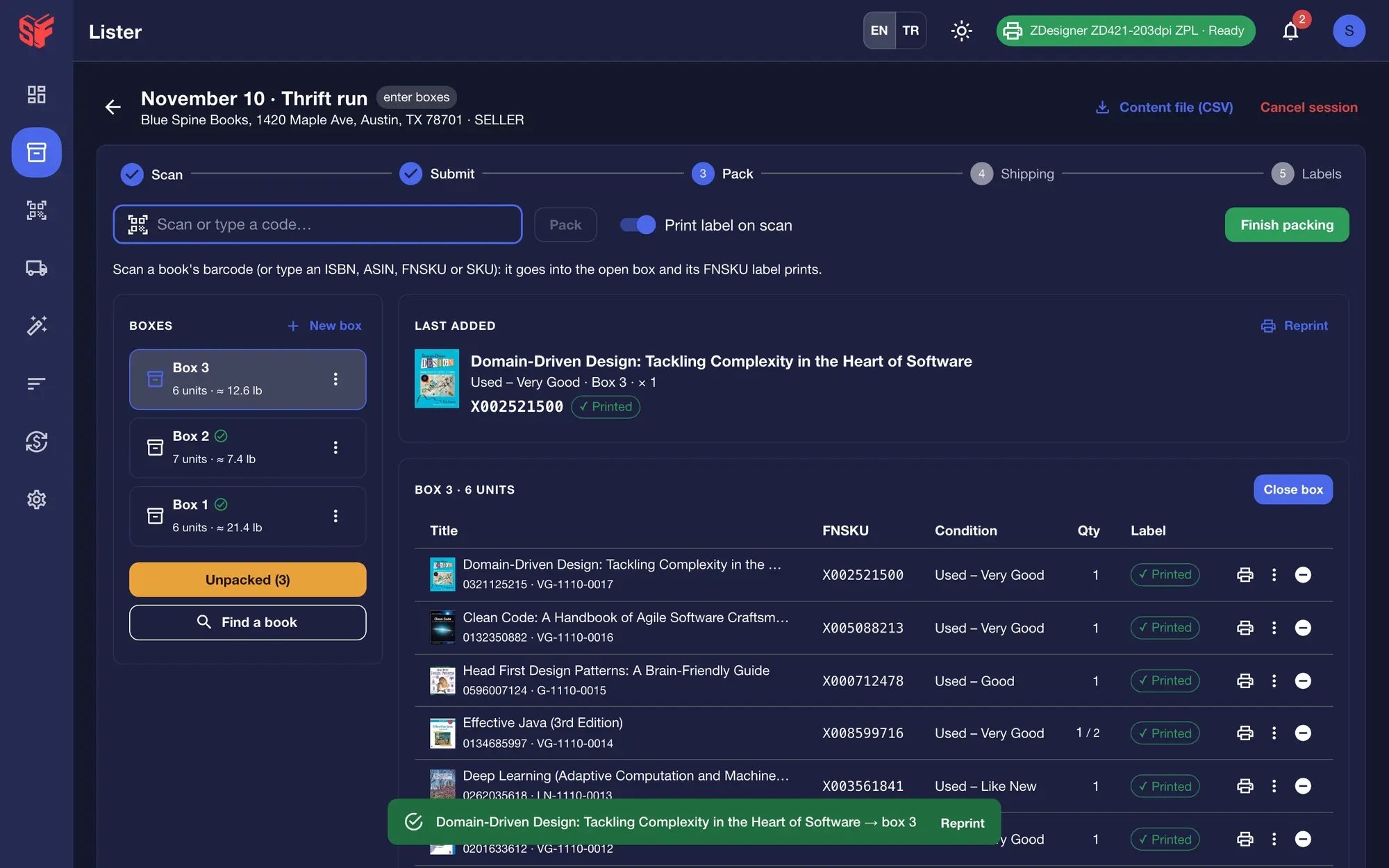
In the web panel
- Scan. Scan or search each book into the session.
- Submit. SpineFlip lists every book on Amazon and builds the shipment plan, showing progress and explaining Amazon’s delays. You pick among Amazon’s packing options.
- Pack. Scan each book (ISBN, ASIN, FNSKU or SKU) to put it in the open box and print its FNSKU label. A short sound confirms each book, a softer chime says it is already in a box, and a book that is not in the session plays the error sound. The newest box is at the top of the list. Copies of a title can go in different boxes. Box weight is estimated from the books’ package weights; a book with no weight counts as the session’s average (or your default book weight), and closing a box tells you how many weights are estimated, so you know to weigh it. Amazon’s 50 lb and 25 in limits are enforced. You can also pack and label while scanning.
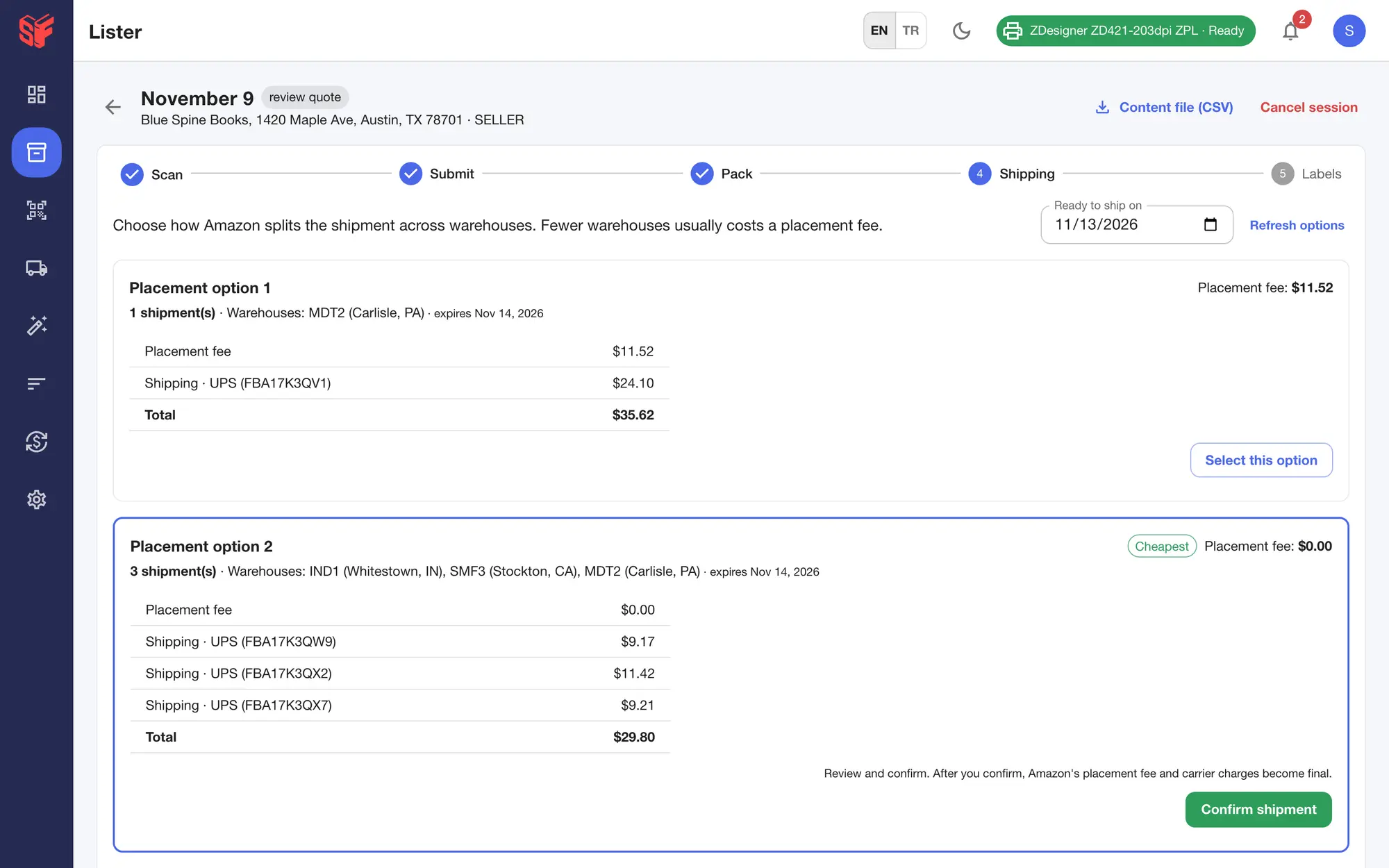
- Shipping. Amazon’s placement options side by side (placement fee, number of shipments, destination warehouses, estimated shipping and total), exact quotes for every option in one tap, a “Cheapest” tag and the ready-to-ship date. Amazon Partnered Carrier, small parcel.
- Labels. Box labels on 4×6 thermal, Letter with 2, 4 or 6 per sheet, or plain paper; Amazon item labels as PDF in several layouts; then “Mark as shipped”. A confirmed shipment can be cancelled within 24 hours.
- Notifications as the shipment moves: ready to pack, item labels ready, confirmed, needs attention.
More screens
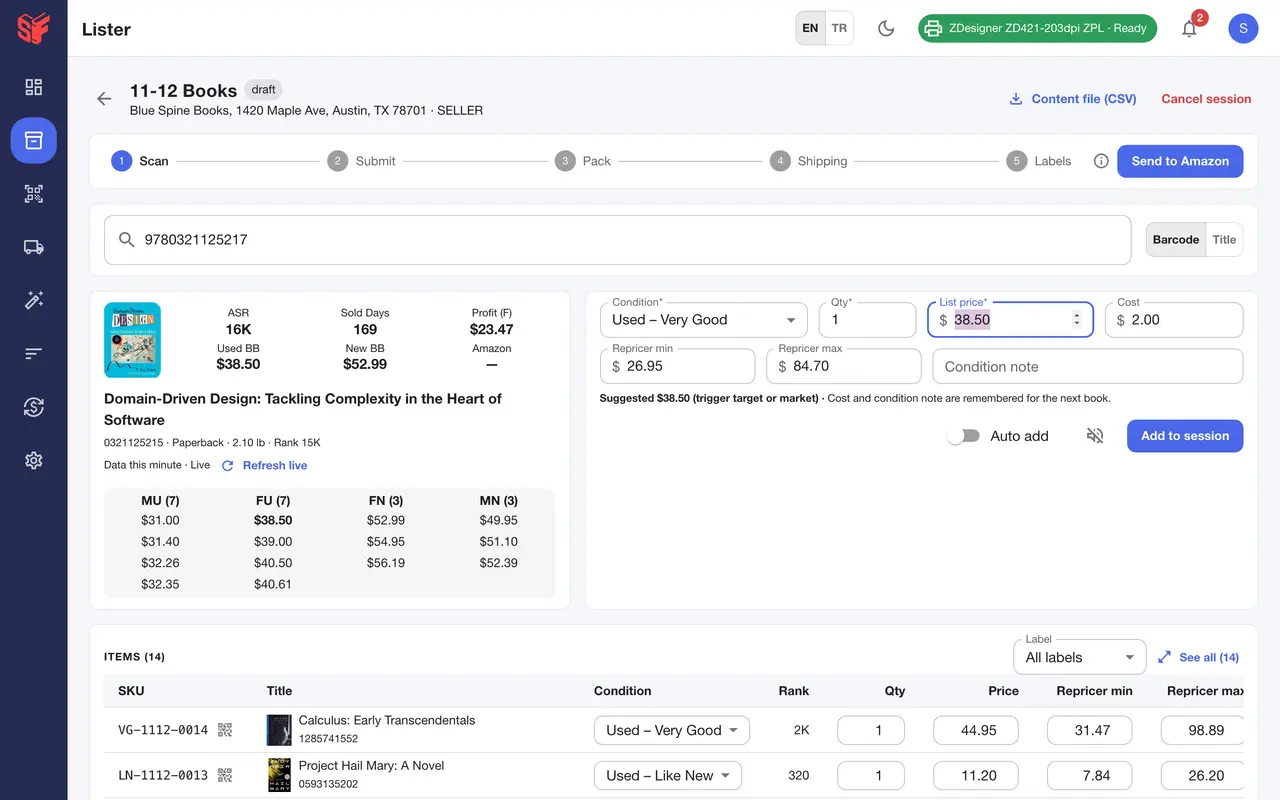
Fig. 6.3Session, adding a book 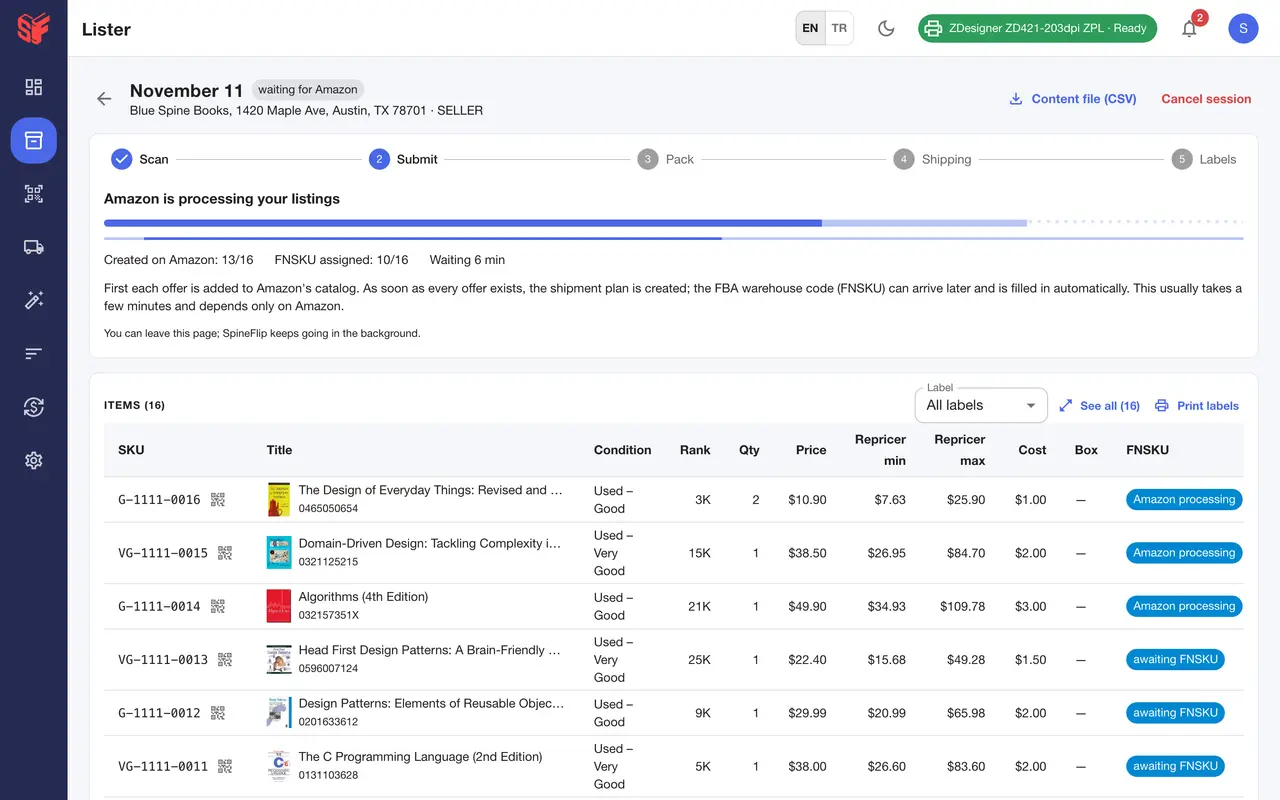
Fig. 6.4FBA wizard, Submit 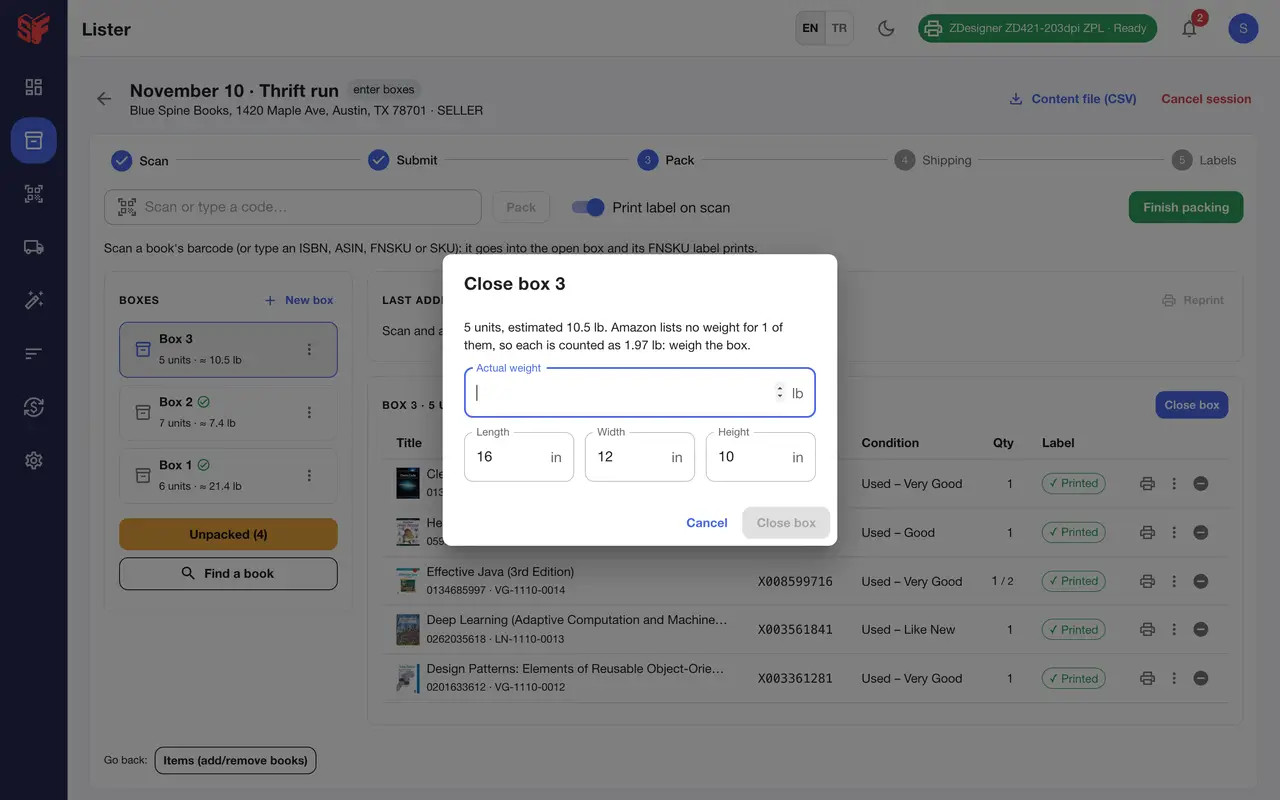
Fig. 6.5FBA wizard, Close box 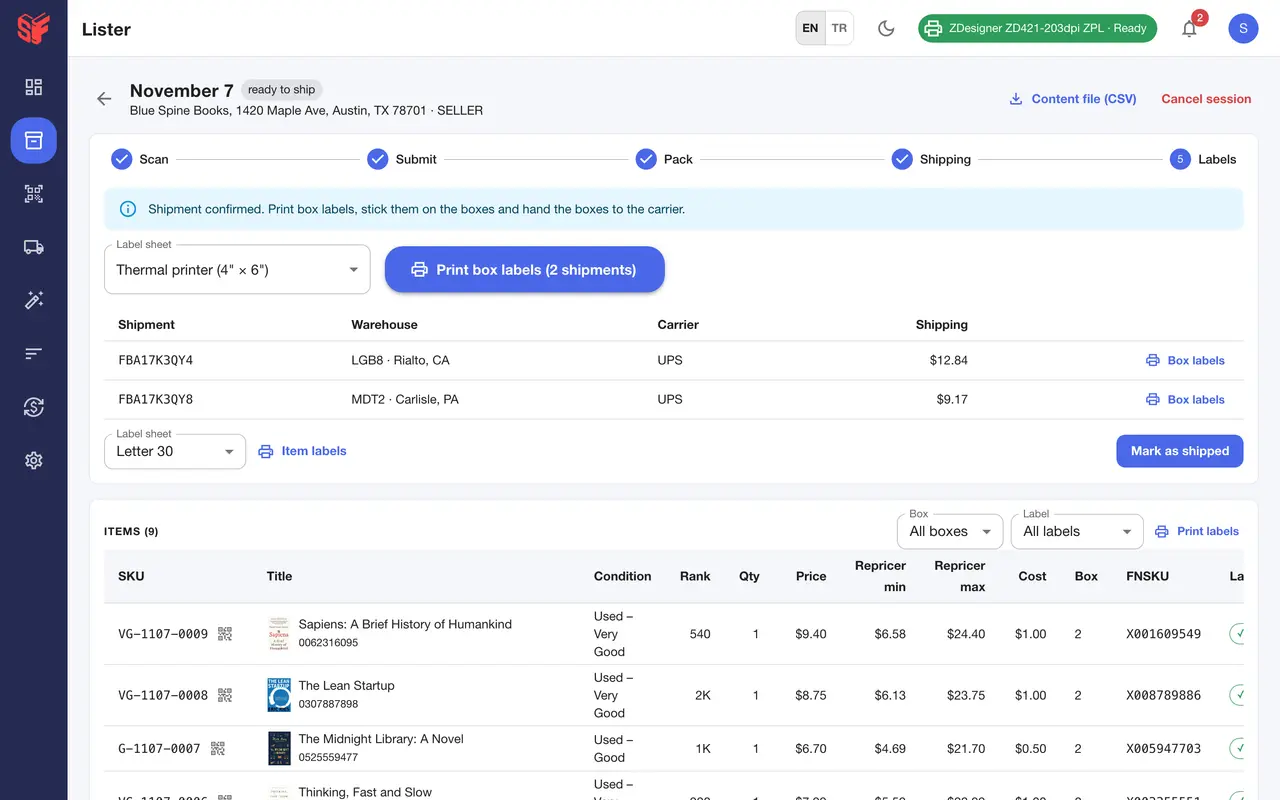
Fig. 6.6FBA wizard, Labels
Actual SpineFlip screens. Sample data.
Labels & printersWeb panel
Labels that print as you pack.
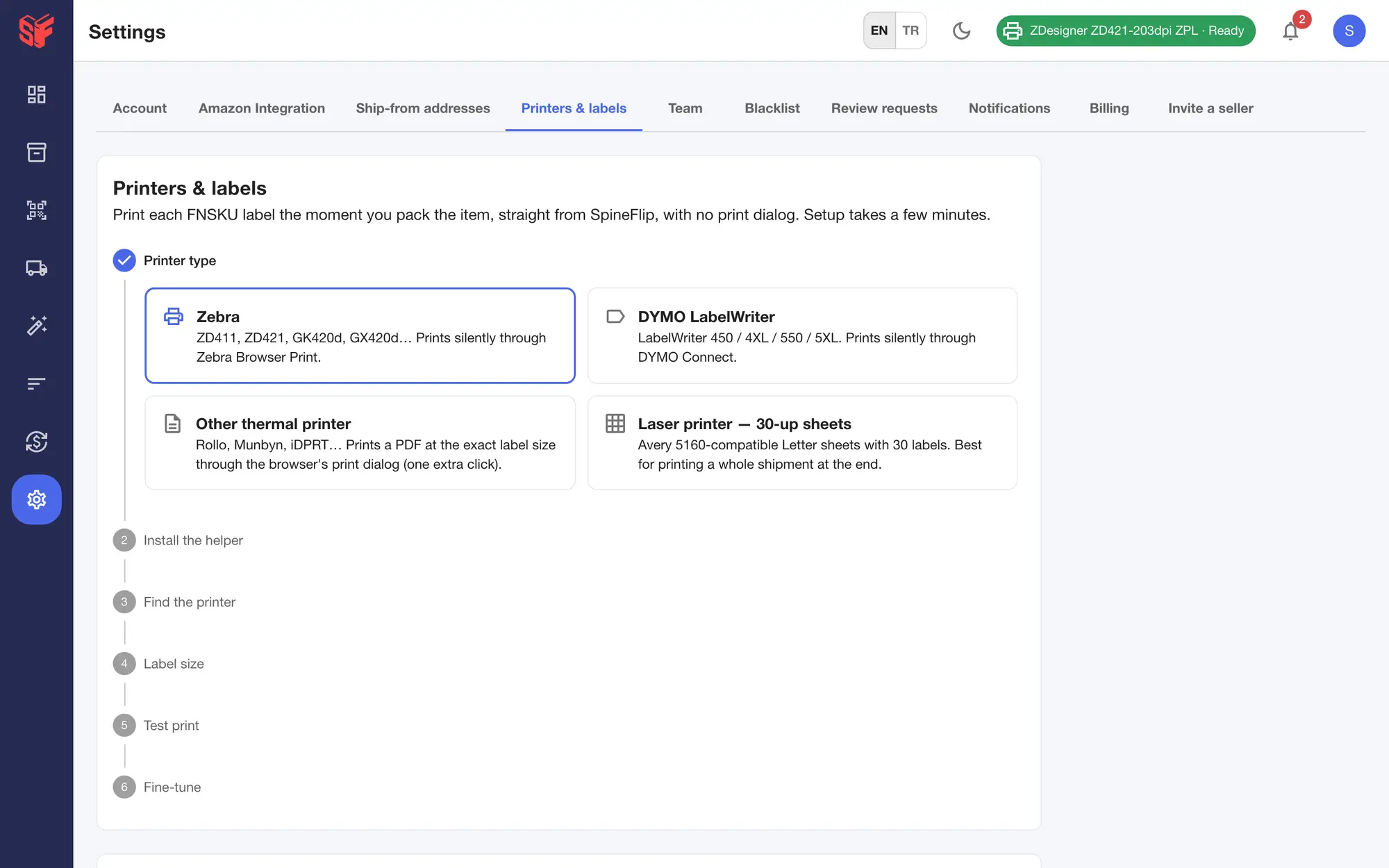
SpineFlip prints each FNSKU label itself: silently on Zebra and DYMO printers, as an exact-size PDF for other thermal printers, or on Letter sheets.
In the web panel
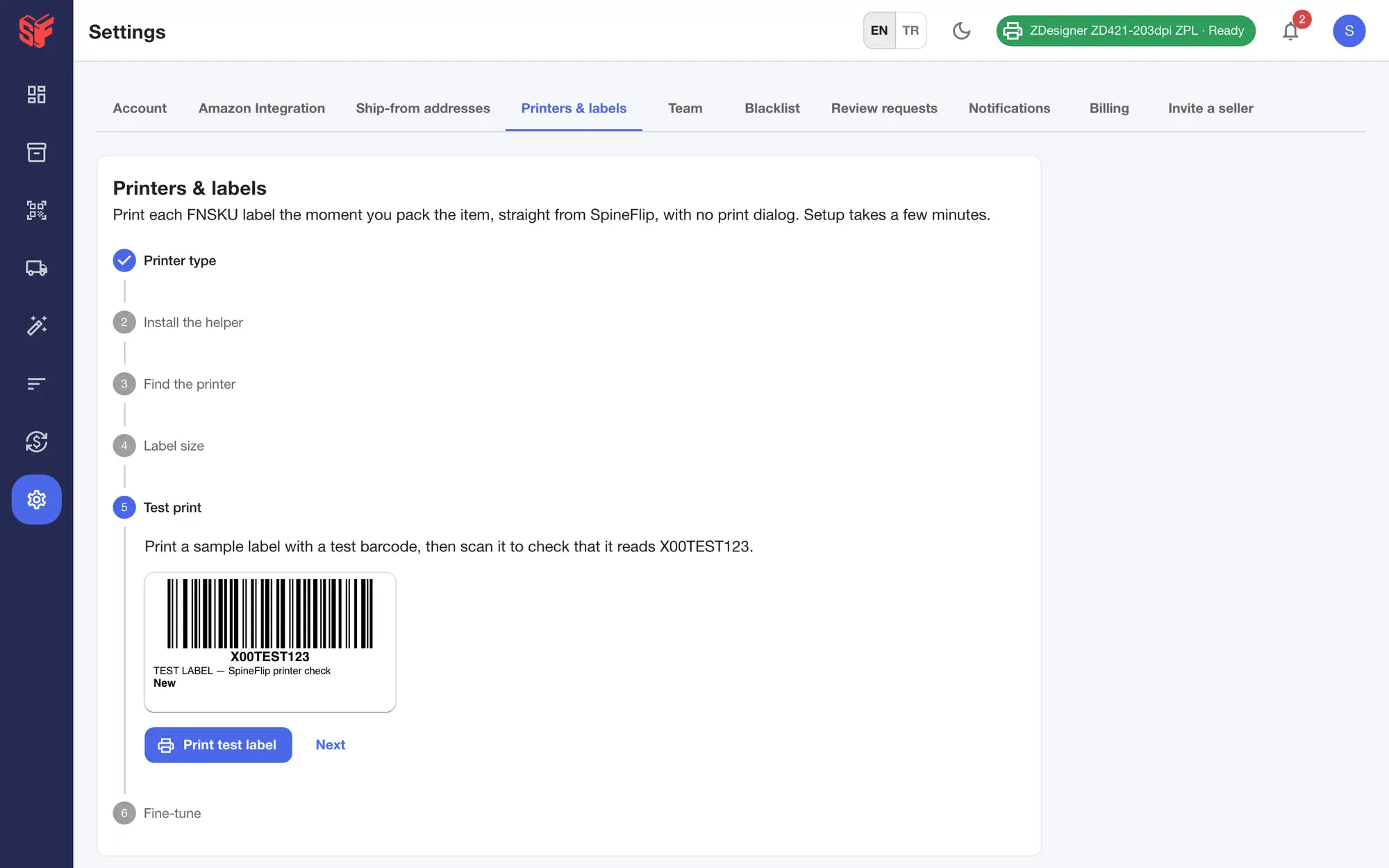
- FNSKU labels with a Code 128 barcode, the FNSKU, the title and the condition, at 2.25 × 1.25 in (recommended), 2 × 1 in or a custom size up to 3 × 2 in.
- Zebra printers such as the ZD411, ZD421 and GK420d print silently through Zebra Browser Print.
- DYMO LabelWriter 450, 4XL, 550 and 5XL print silently through DYMO Connect.
- Other thermal printers, such as Rollo or Munbyn, use an exact-size PDF; laser and inkjet printers use 30-up Letter sheets (Avery 5160 compatible).
- A guided printer setup ends with a test print.
- FNSKU labels print the book’s title from Amazon’s catalog instead of a cut-off one.
- On a Mac, a Zebra printer that reconnects (unplugged, switched off and on, or woken from sleep) is recognized by its serial number, and a label that was rejected while it reconnected is sent again.
RepriceWeb panelPhone app
Repricing you can check.
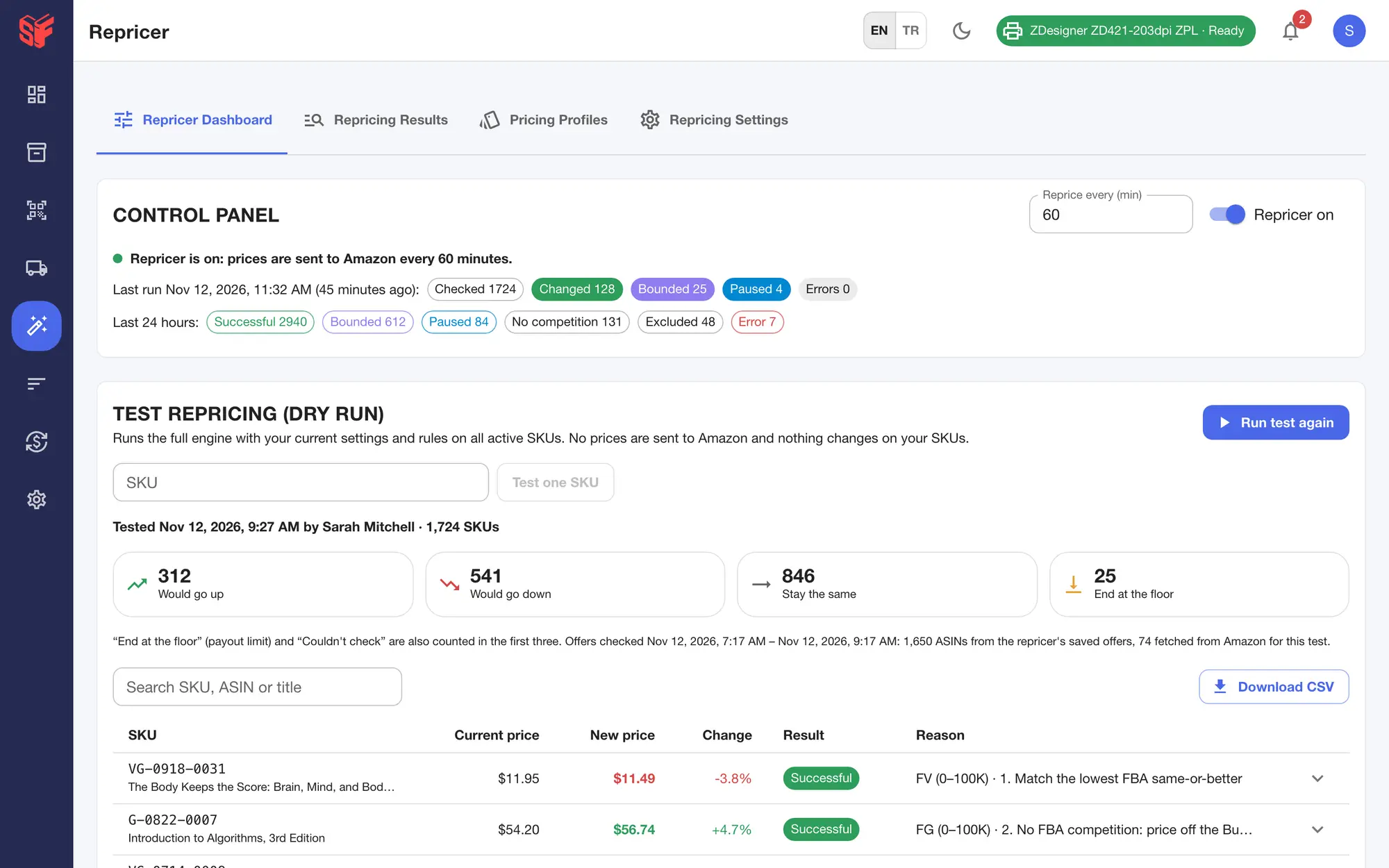
The repricer runs on a schedule you choose, from every 15 minutes to every 24 hours, and shows its work for every price.
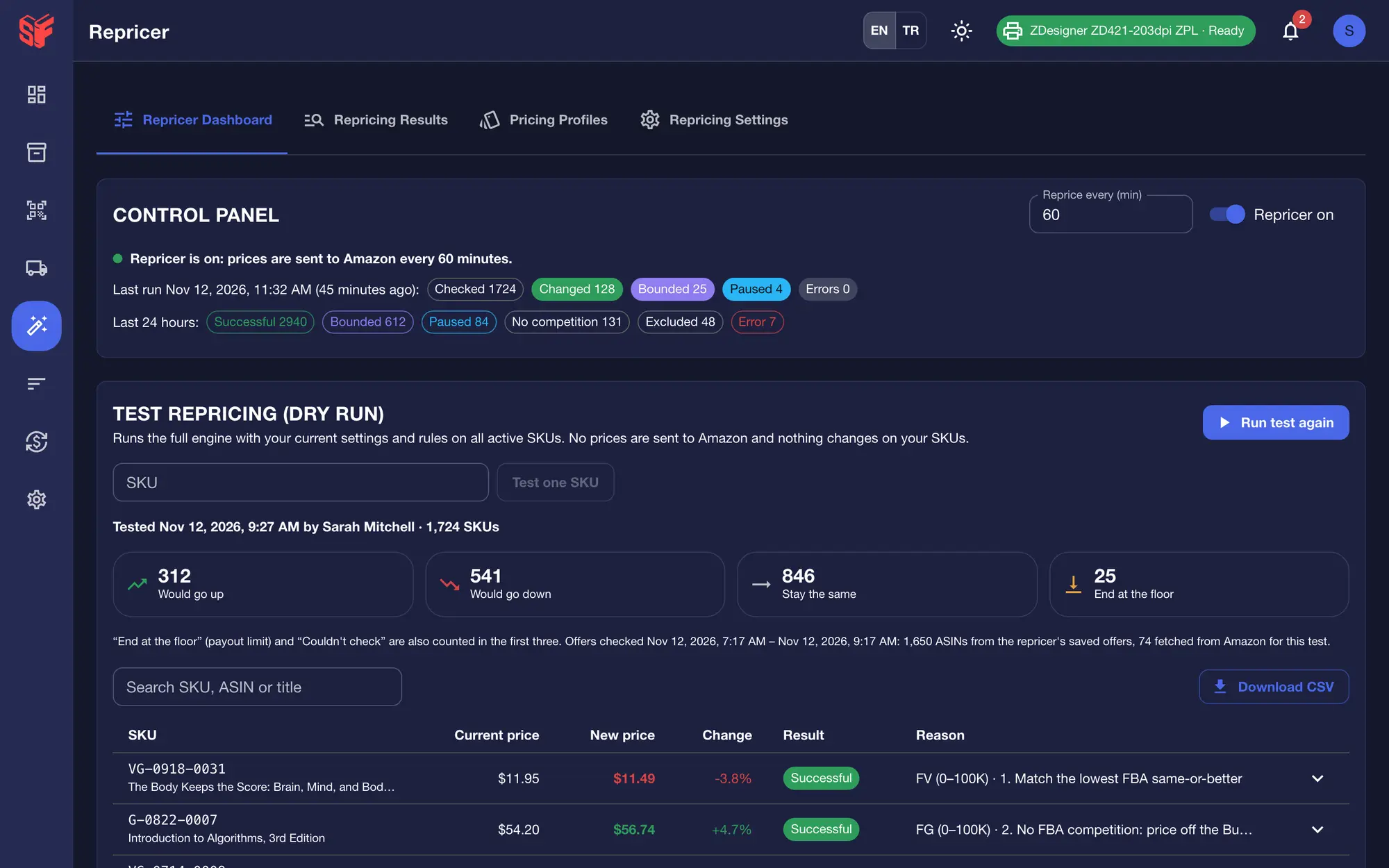
In the web panel
- Scheduled repricing every 15 minutes to 24 hours (60 minutes by default). It is off until you turn it on.
- 10 groups (FBA and Merchant × New, Like New, Very Good, Good, Acceptable) with rules by sales-rank range that compare offers (the lowest, the Buy Box, Amazon, your own price or a fixed amount) with channel and condition filters. Start from the “SpineFlip Standard” rule set or write your own.
- Settings cards: payout limits (a floor as payout, profit or ROI, by inventory age), Buy Box increase, what to do with no competition, price-war protection (a pause after repeated undercuts), a daily drop limit, outlier protection, how to treat Amazon (including Amazon Warehouse), exclusions (SKU patterns, seller IDs, low-rated sellers, slow FBM offers), the FBM shipping basis and alerts in the app.
- “Review impact” runs a dry run before you save, and the change history lets you revert.
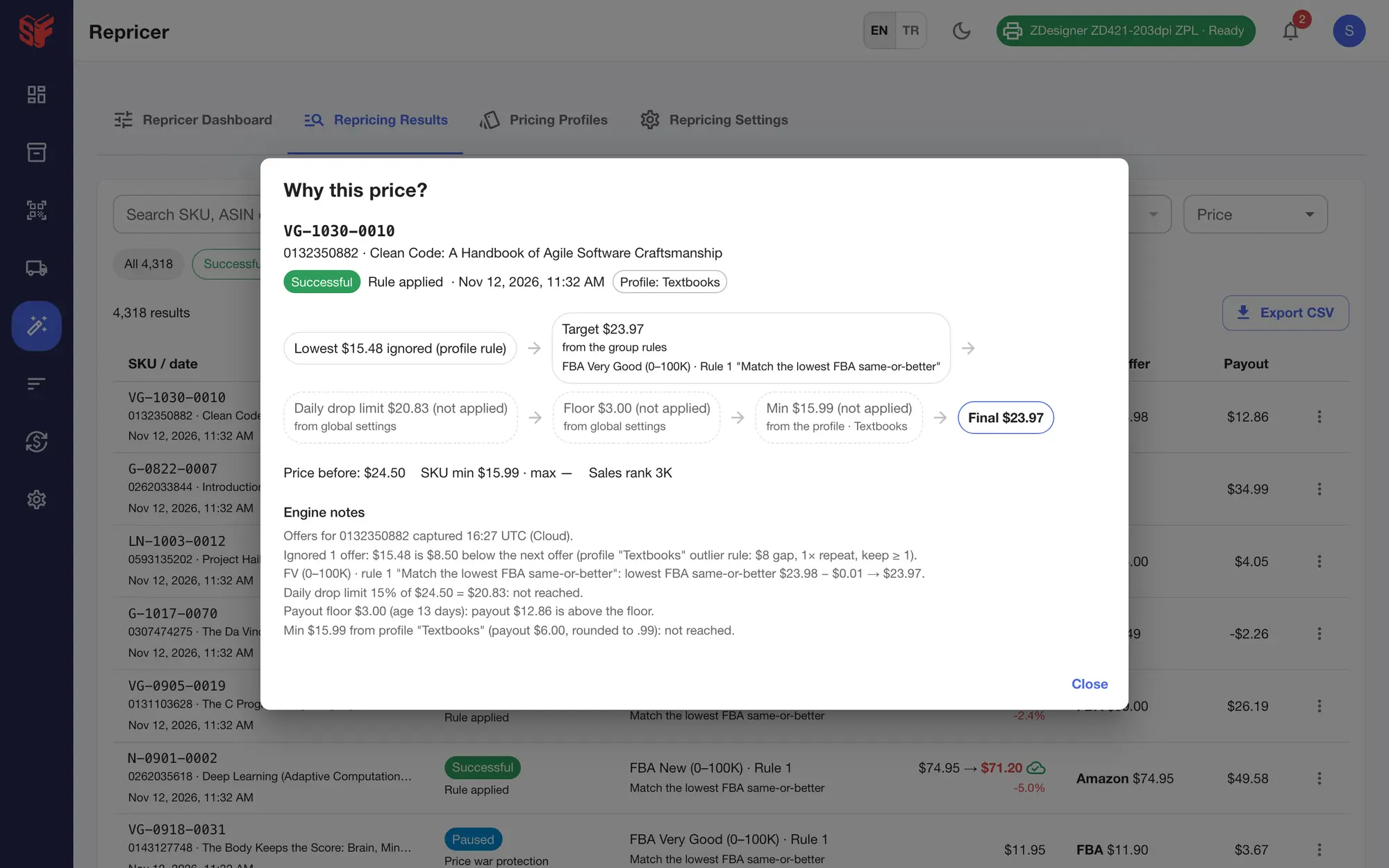
- “Why this price?” shows a step-by-step trace for every price.
- Test repricing on all SKUs or on one, and export the results to CSV.
- Pricing profiles: named groups of SKUs with their own rules, auto-assigned from saved Stock Manager views.
On the phone
- Switch the repricer on or off, set the interval, switch groups, read the results and run a test.
More screens
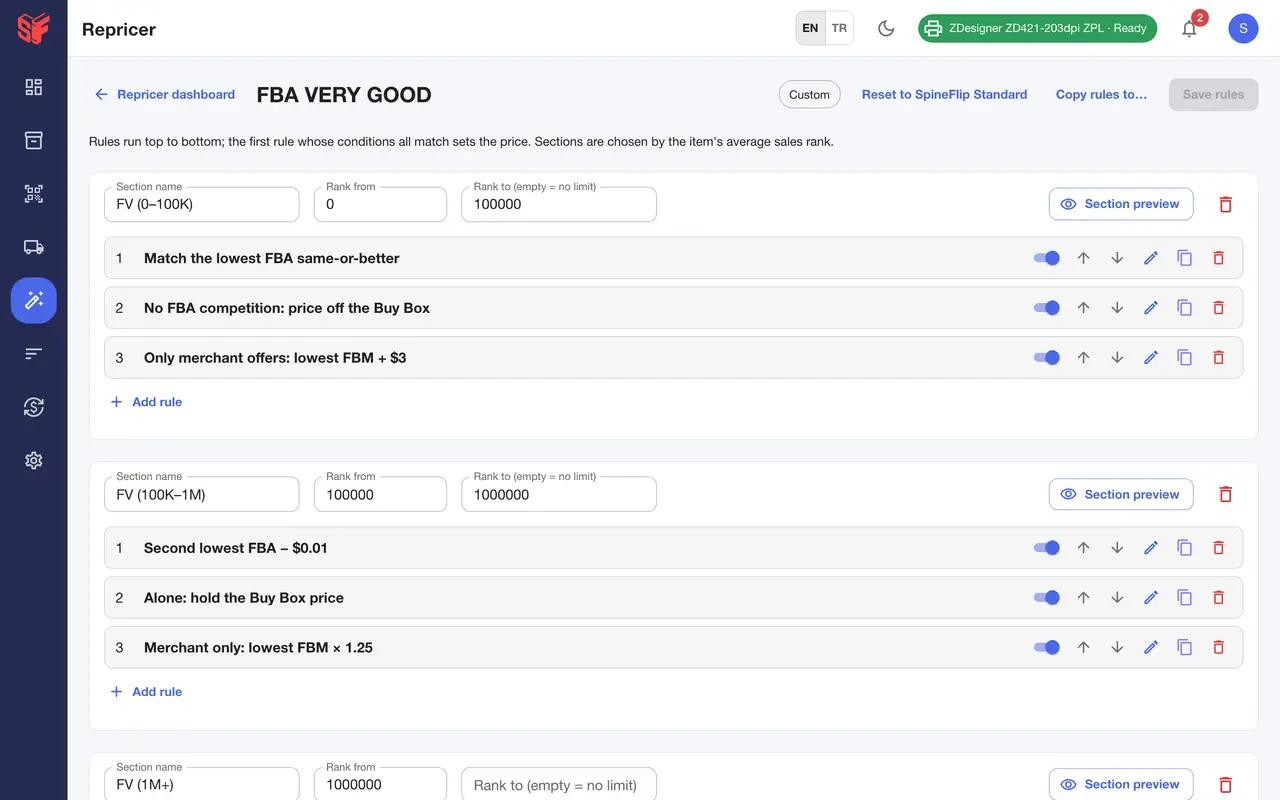
Fig. 8.3Repricer, rule editor 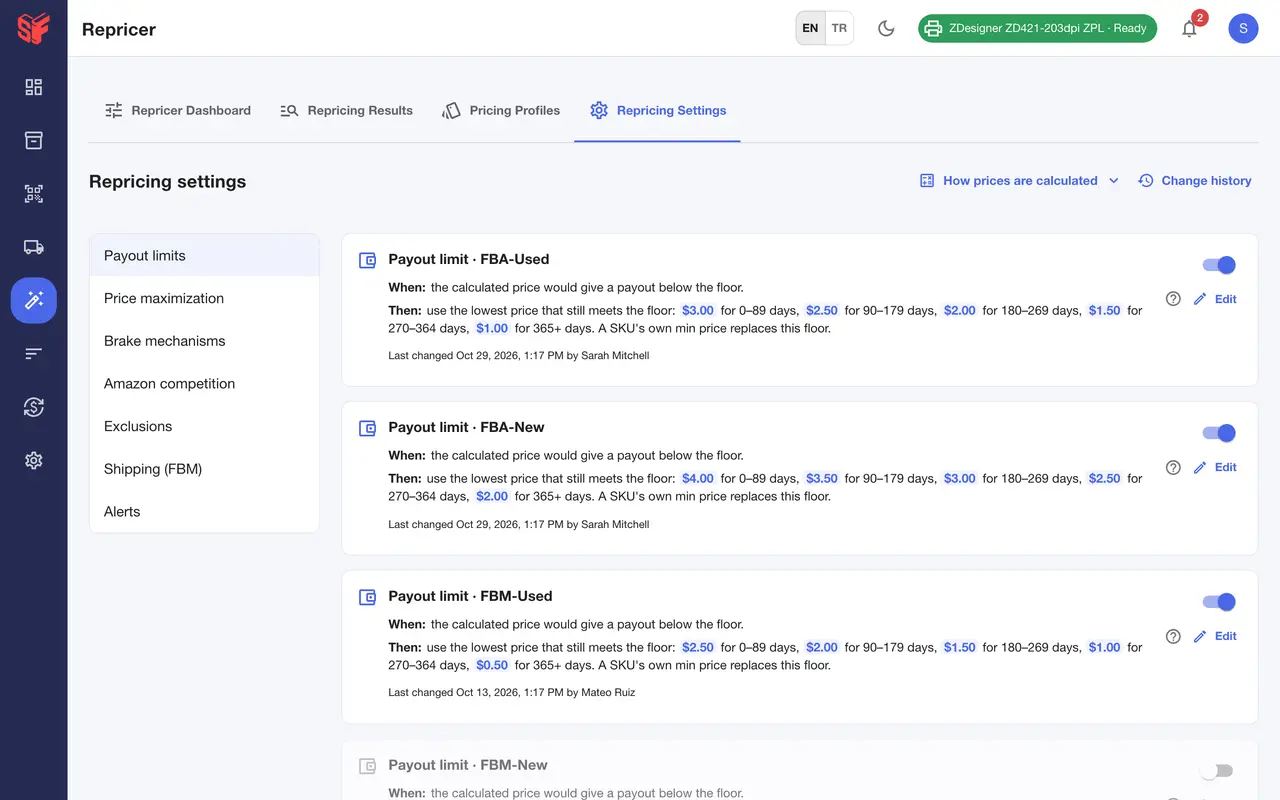
Fig. 8.4Repricer, settings 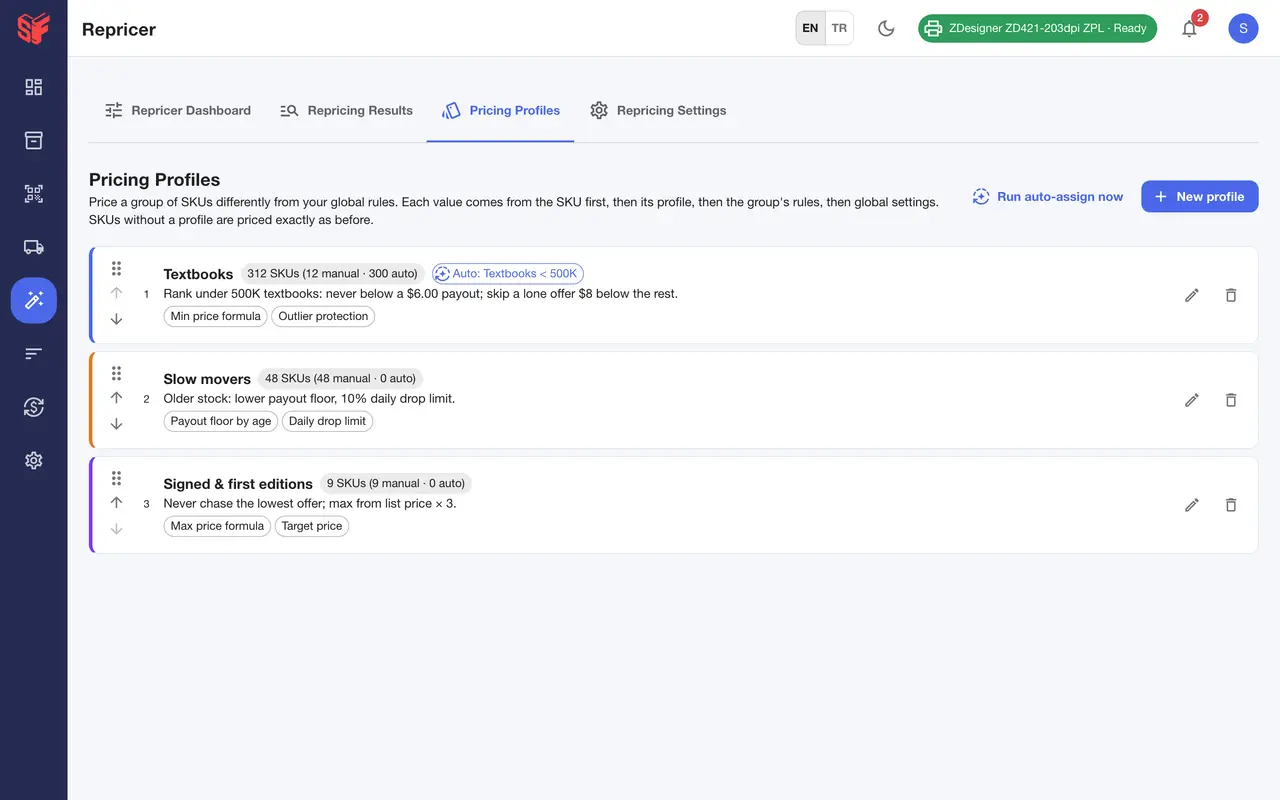
Fig. 8.5Repricer, pricing profiles 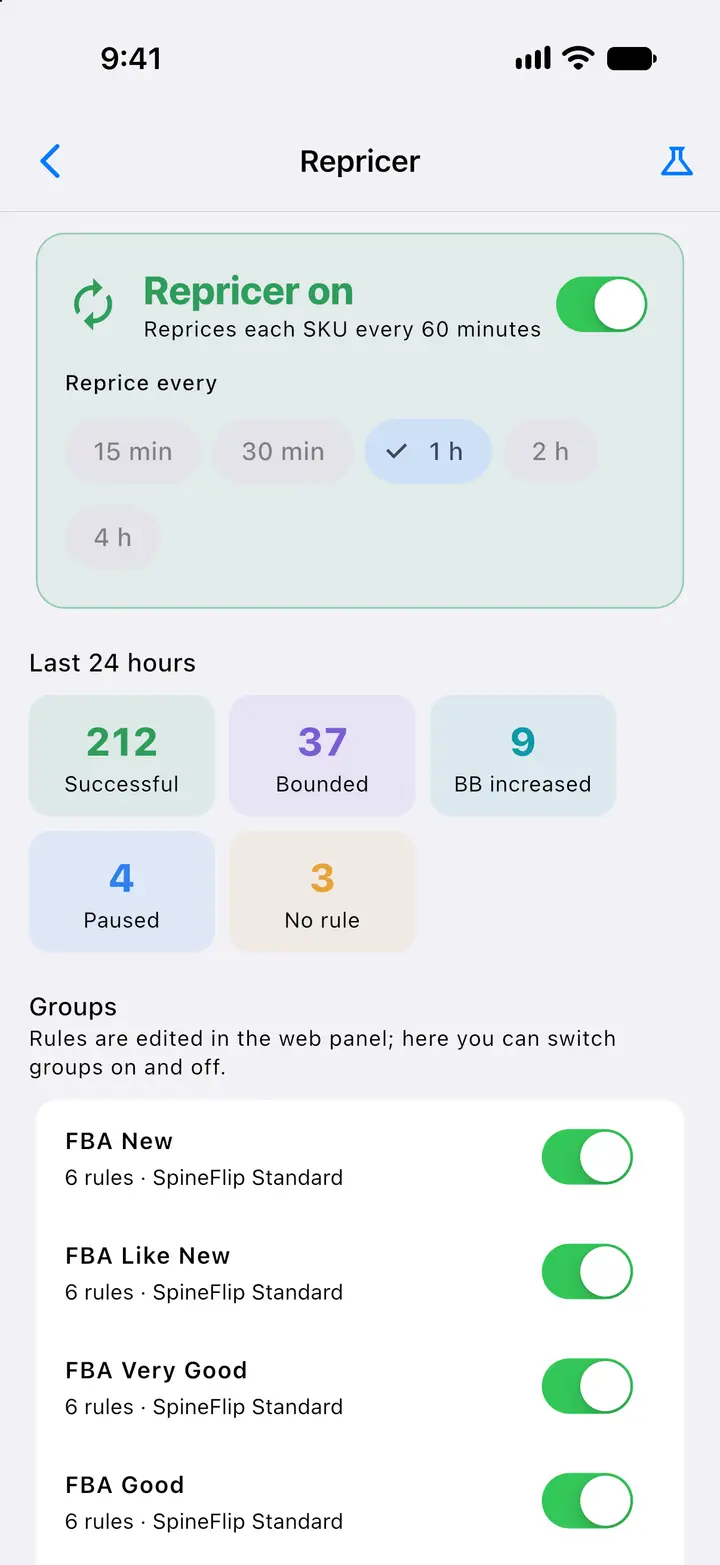
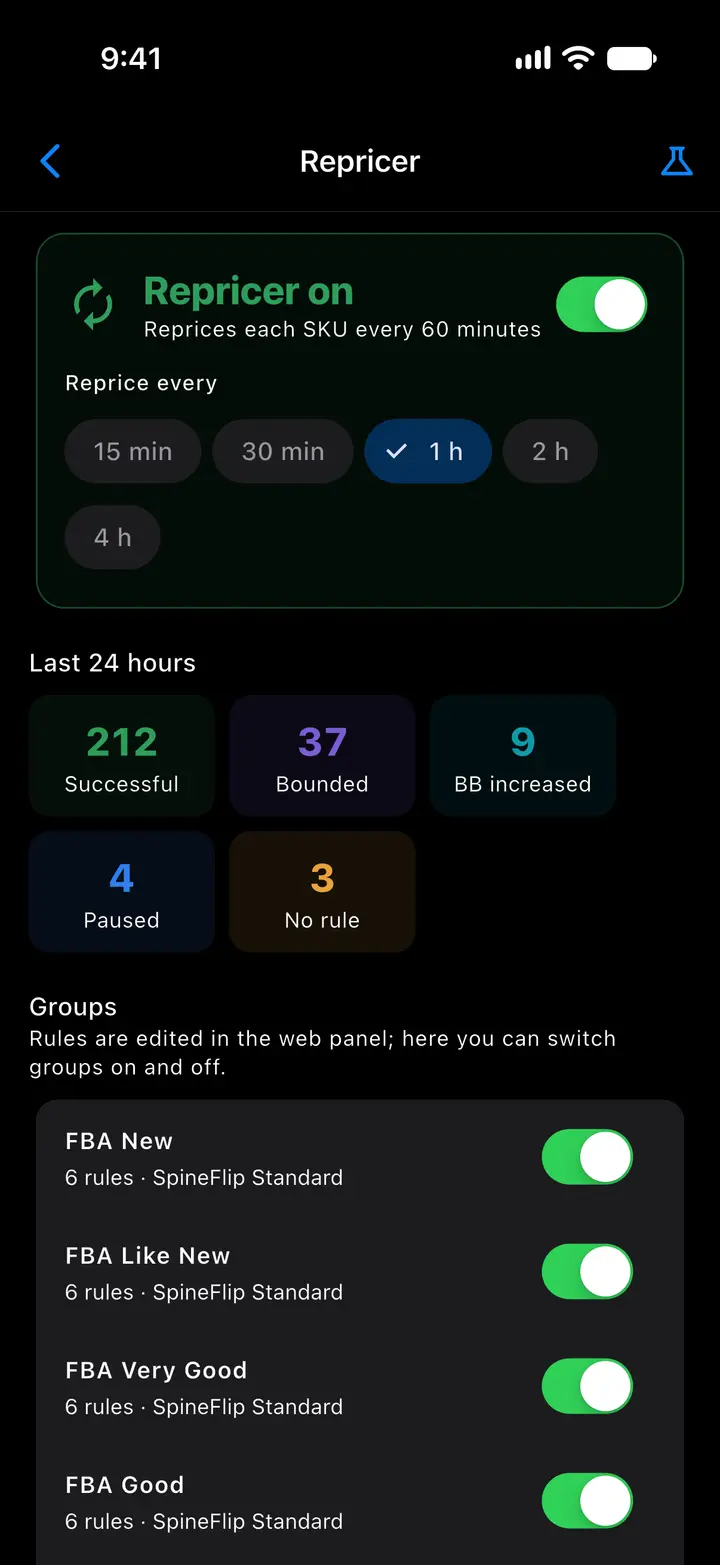
Fig. 8.6Repricer 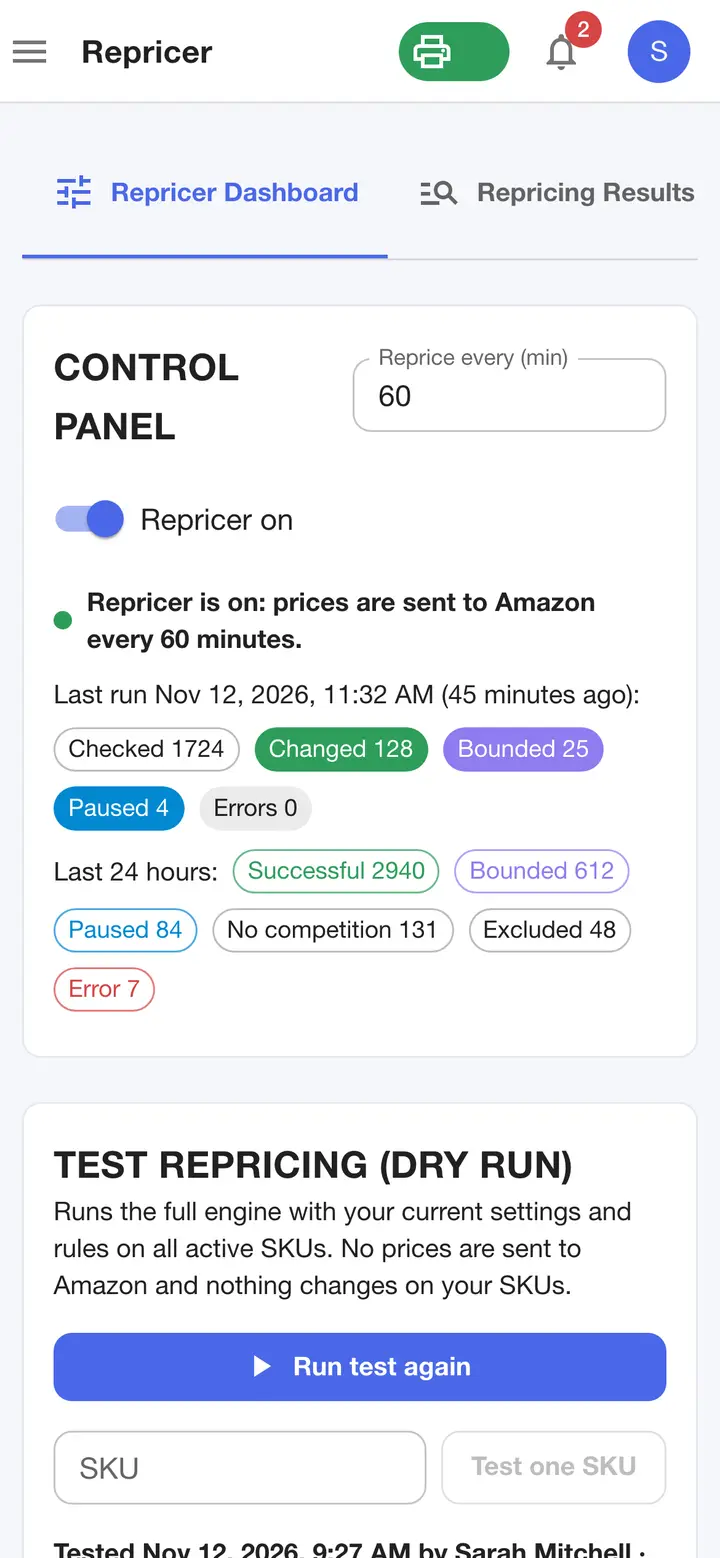
Fig. 8.7Repricer on a phone browser
Actual SpineFlip screens. Sample data.
StockWeb panelPhone app
Manage stock in bulk, with a preview and an undo.
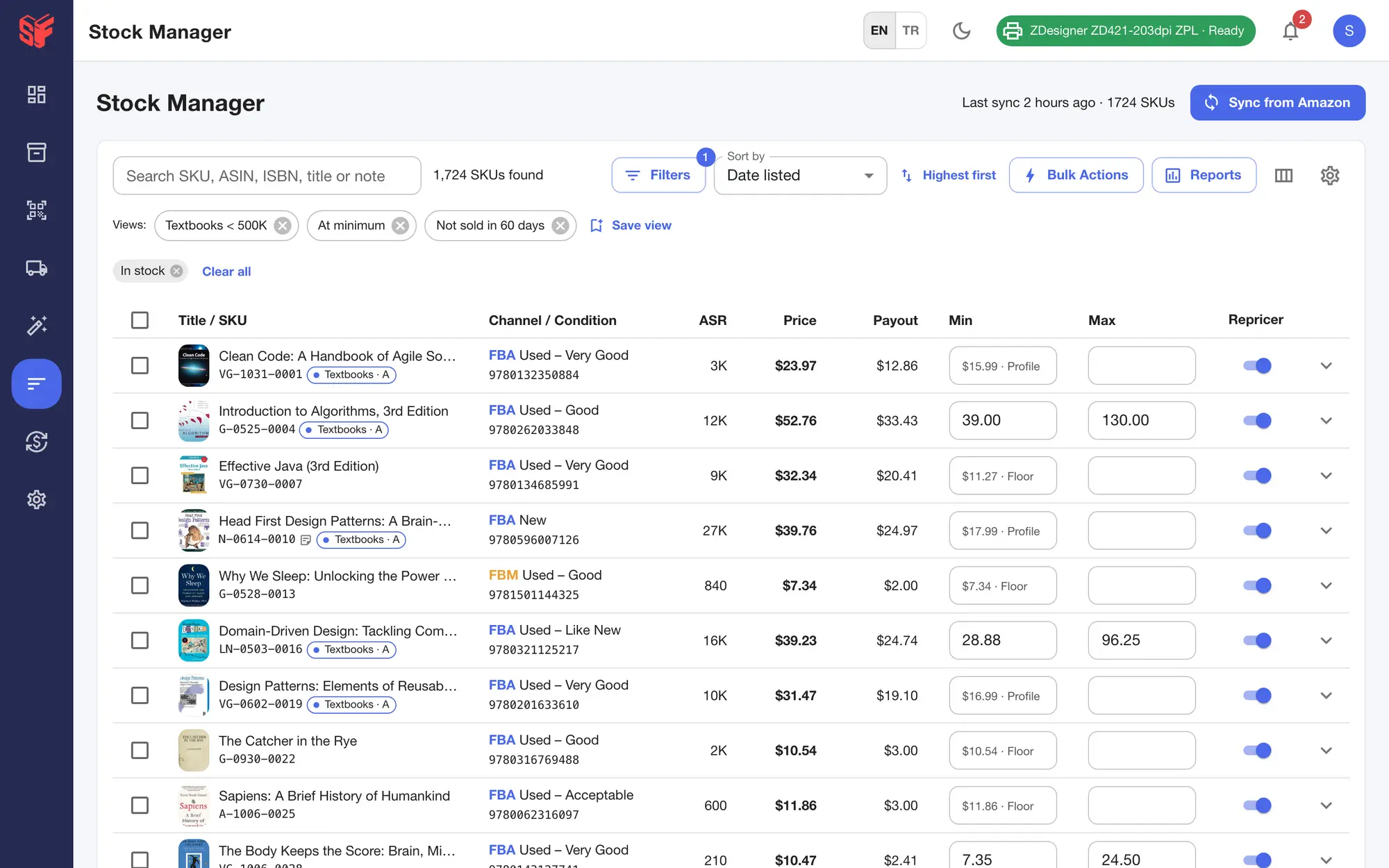
Stock Manager keeps your Amazon inventory in one table. Find any SKU, edit it in place, or change many at once with a preview first and an undo for 30 days.
In the web panel
- Sync from Amazon, also automatically every day.
- Search by SKU, ASIN, ISBN or title, with many filters plus an AND / OR builder, saved views shared with the team and a column chooser.
- Edit min, max and cost inline, with undo.
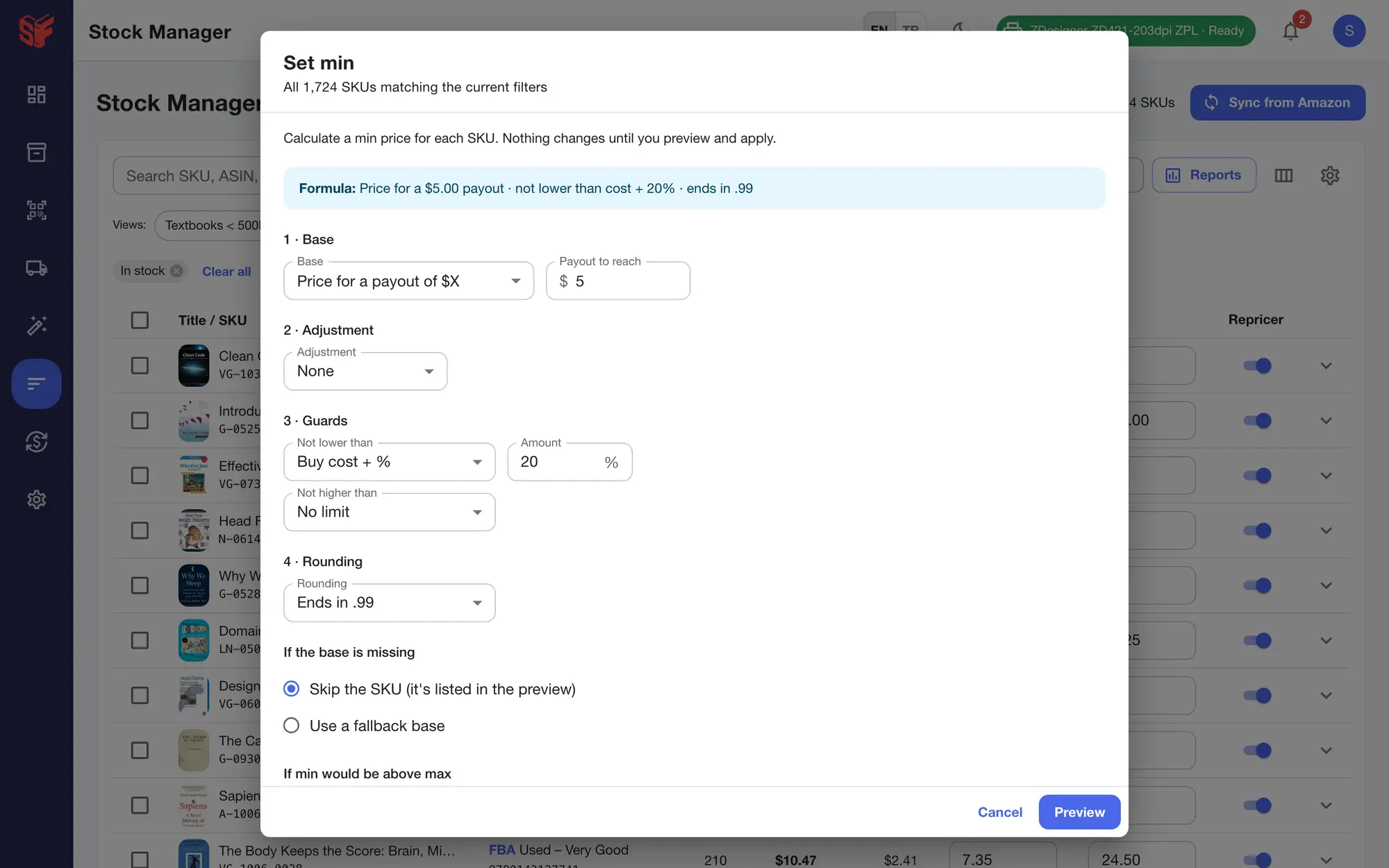
- Bulk actions (set min, max or a fixed price, exclude from or include in the repricer, reprice now, assign a pricing profile, delete from Amazon) need a preview, and they can be undone for 30 days.
- Price formulas, such as the price for a payout of $X, the price for an ROI of X% or rounding to .99.
- CSV export, inventory download and feed-file upload.
On the phone
- A simple stock list with min, max and cost, and the repricer switch.
More screens
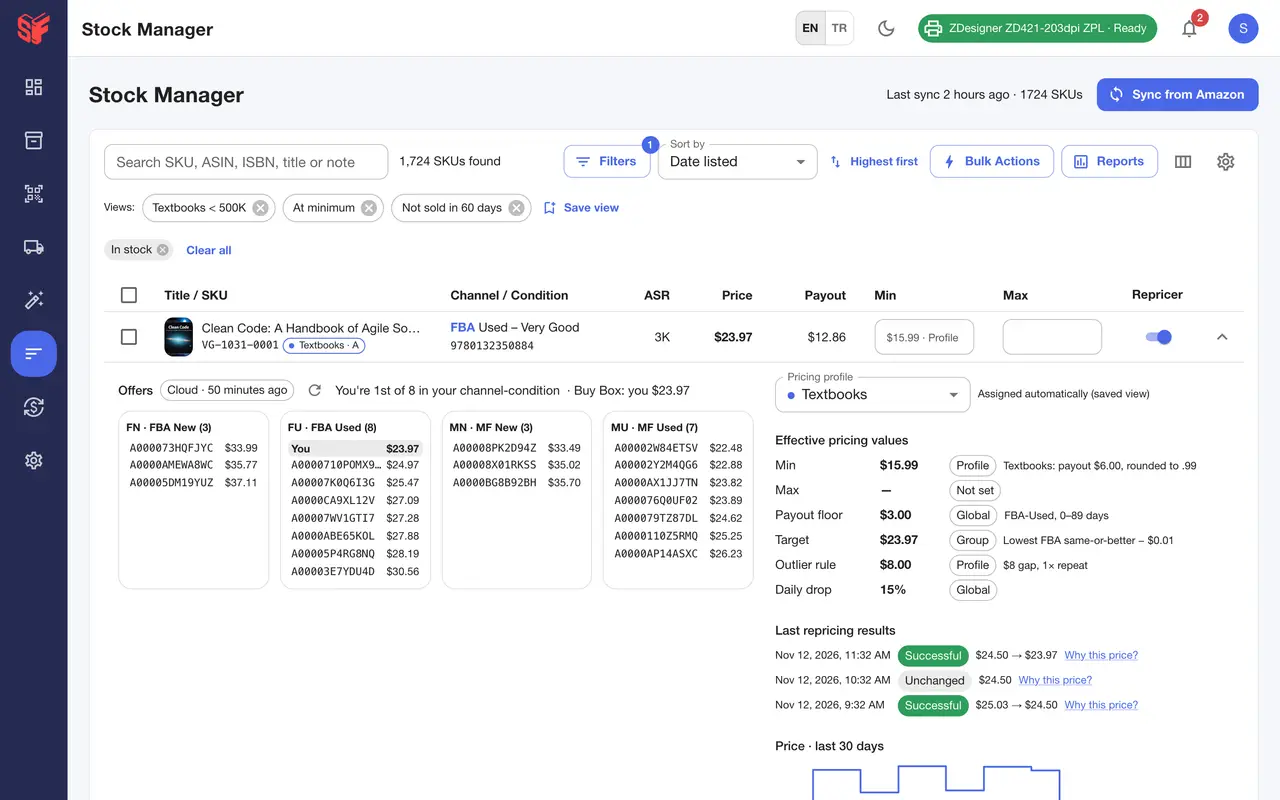
Fig. 9.3Stock Manager, row details 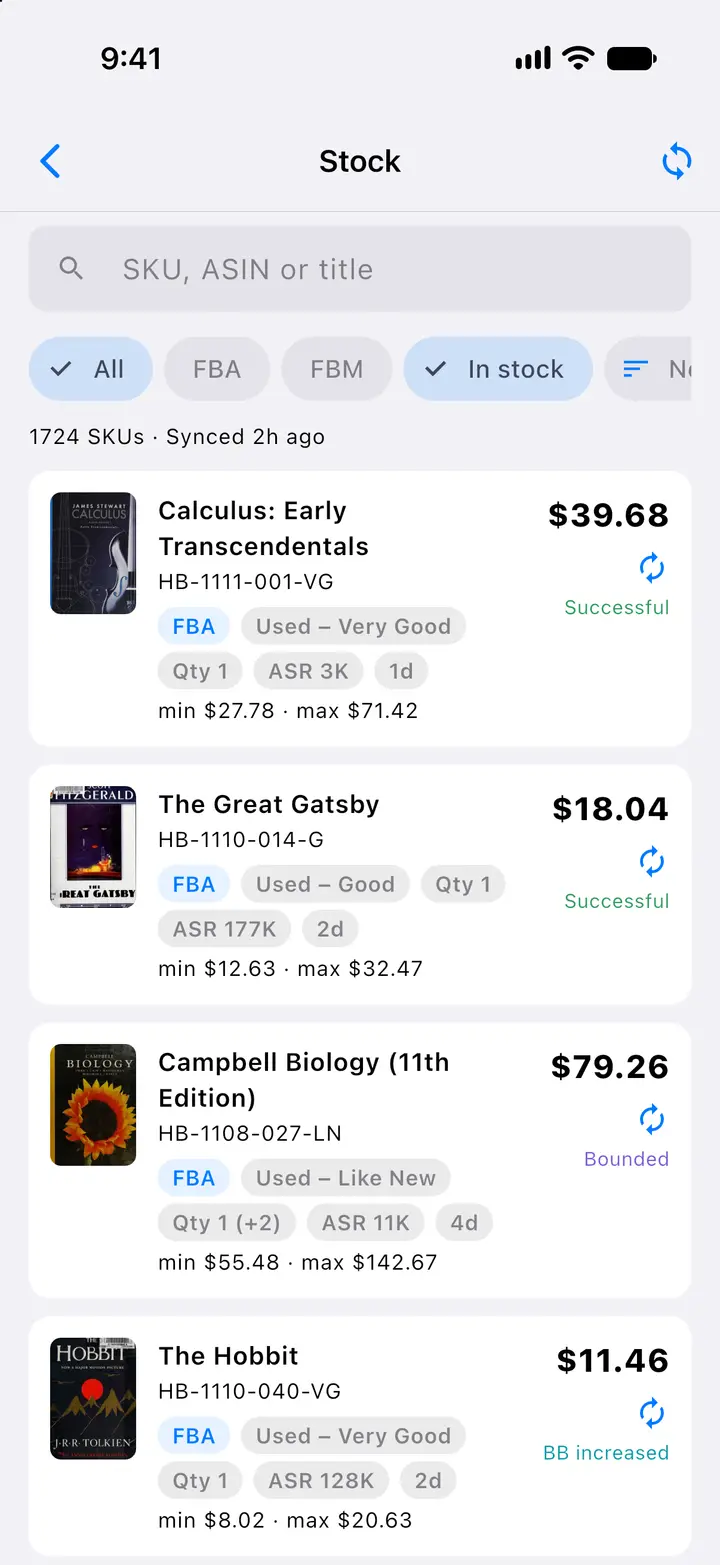
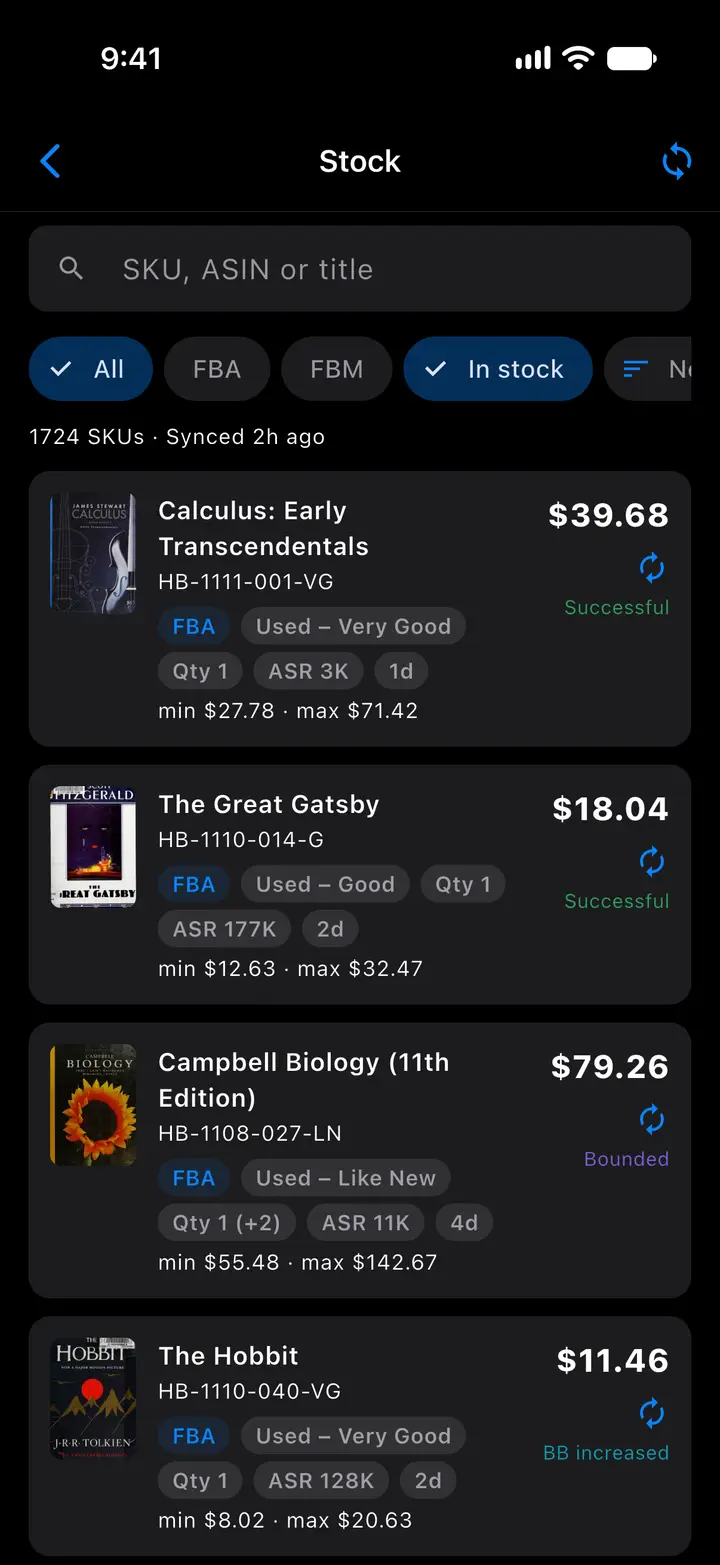
Fig. 9.4Stock
Actual SpineFlip screens. Sample data.
Sales & feedbackPhone appWeb panel
Sales on the phone, feedback at the desk.
See what sold from anywhere, keep an eye on pricing alerts and negative feedback, and send review requests through Amazon’s own “Request a Review”.
On the phone
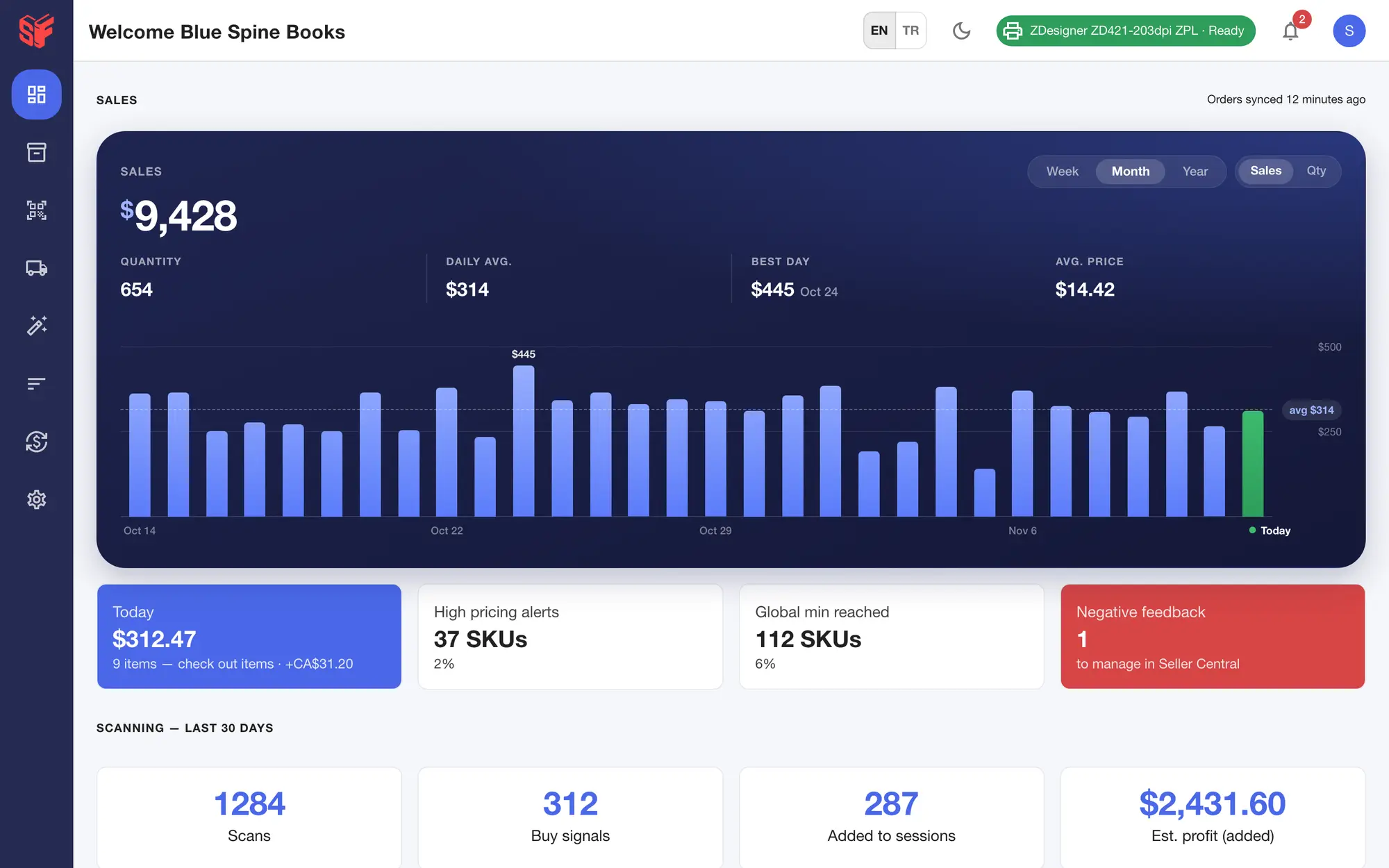
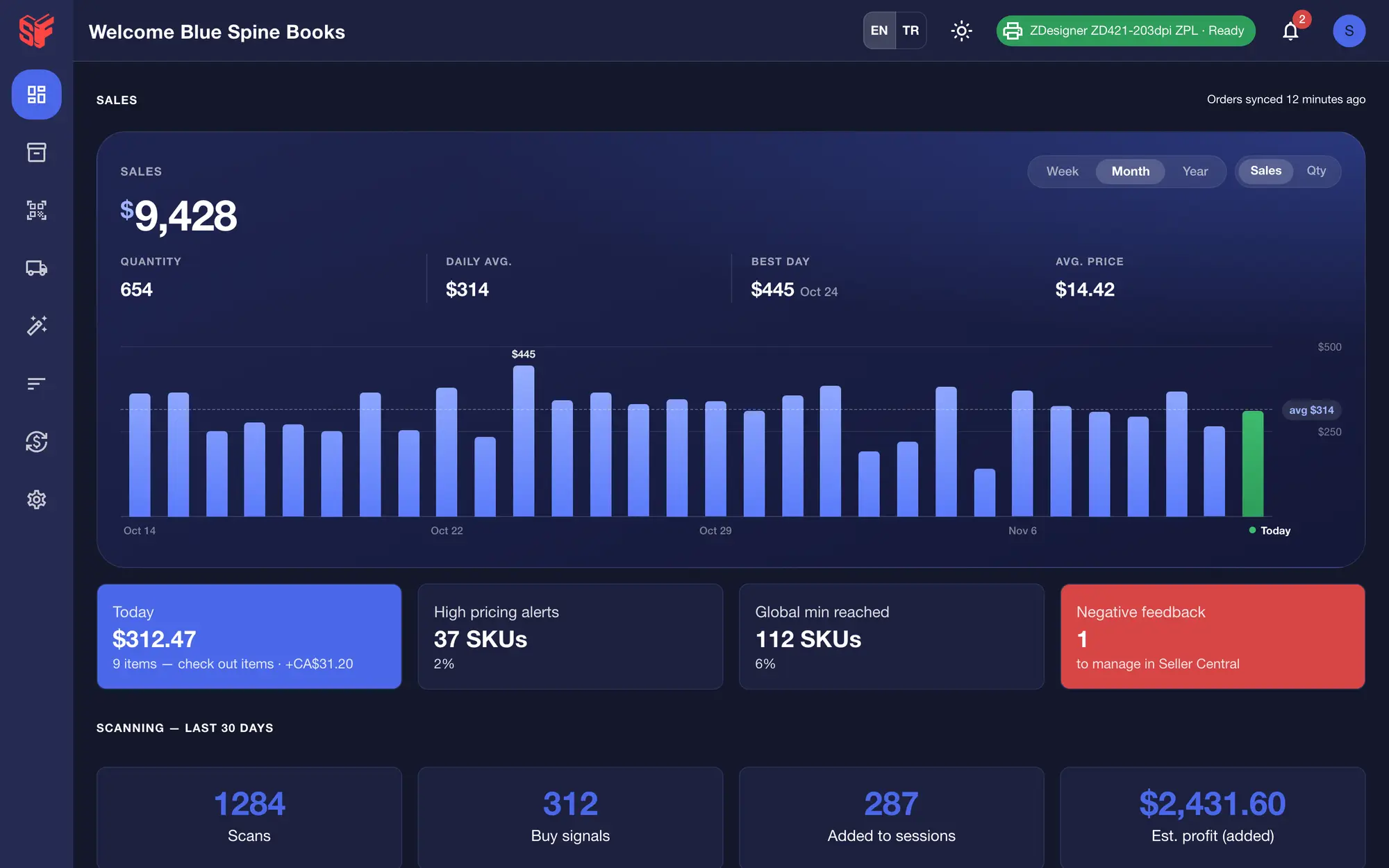
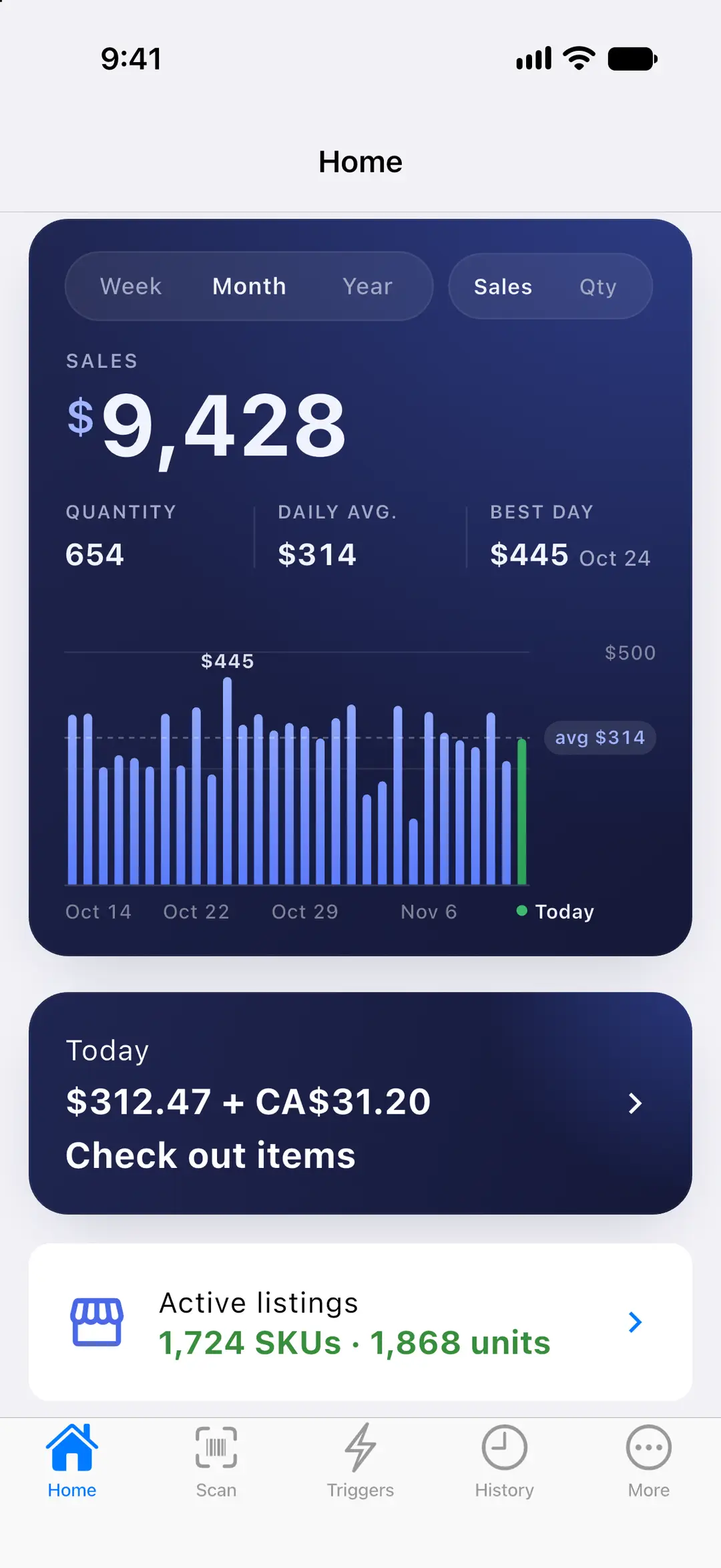
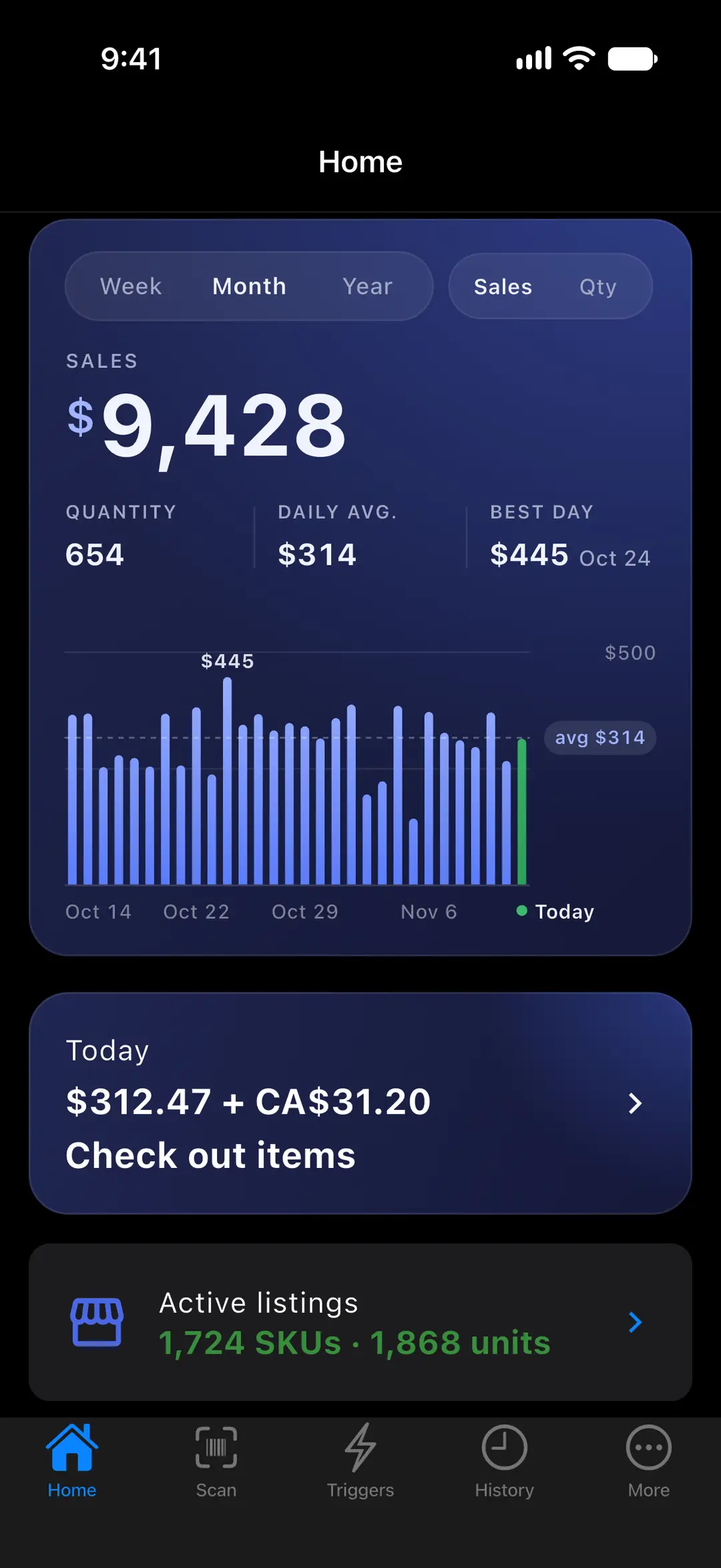
- One sales card for the week, month or year: switch between sales and quantity, with your daily average and best day (the monthly average and best month in the Year view), a bar for each day (each month in the Year view), today’s bar in green and a dashed line at the average. Then the Today card.
- Active listings with their SKUs and units, and the units on their way to Amazon in your FBA shipments.
- Sold items for today, any past day or a date range up to a year back.
- Sales from Amazon.ca, Amazon.com.mx and other marketplaces are listed separately, in their own currency, and are not added to the dollar totals.
In the web panel
- The dashboard: one sales card (switch between sales and quantity, with your daily average and best day, or the monthly average and best month in the Year view, and the average price), Today, high pricing alerts (SKUs at their maximum price) and global min reached (SKUs at their minimum).
- A negative feedback list with “Mark as managed” and a link to Seller Central’s Feedback Manager.
- Automatic review requests through Amazon’s own “Request a Review”: once per shipped order, 5 to 30 days after the order (7 by default), for FBA and / or merchant orders. It is off until you turn it on.
More screens
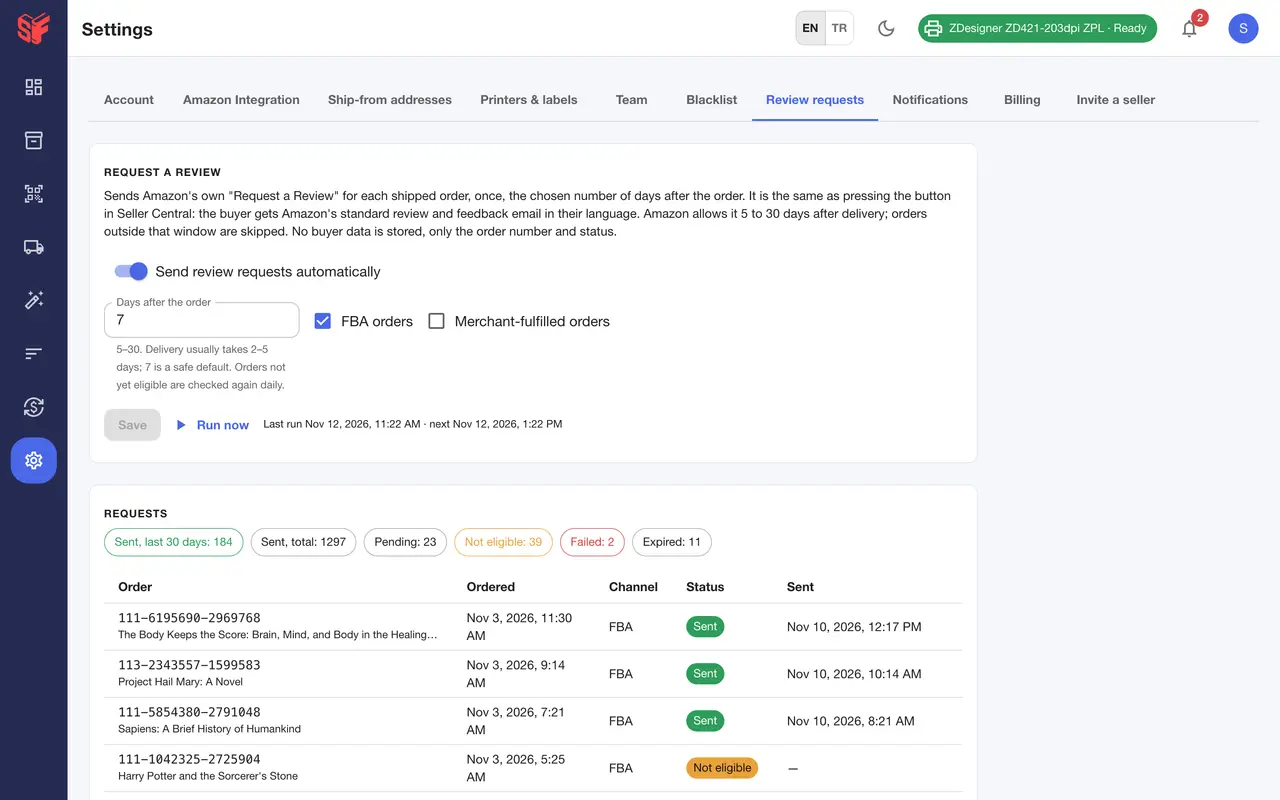
Fig. 10.3Settings, review requests 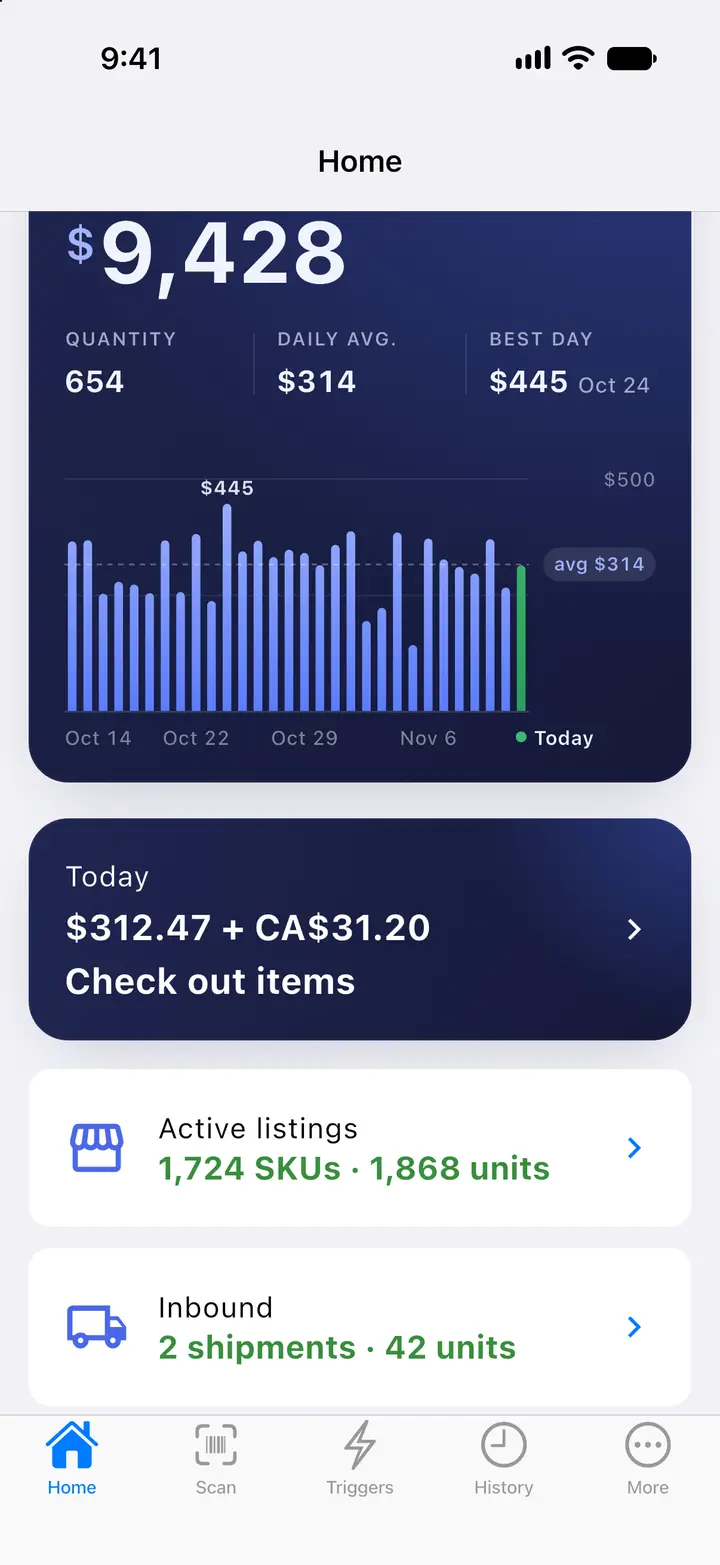
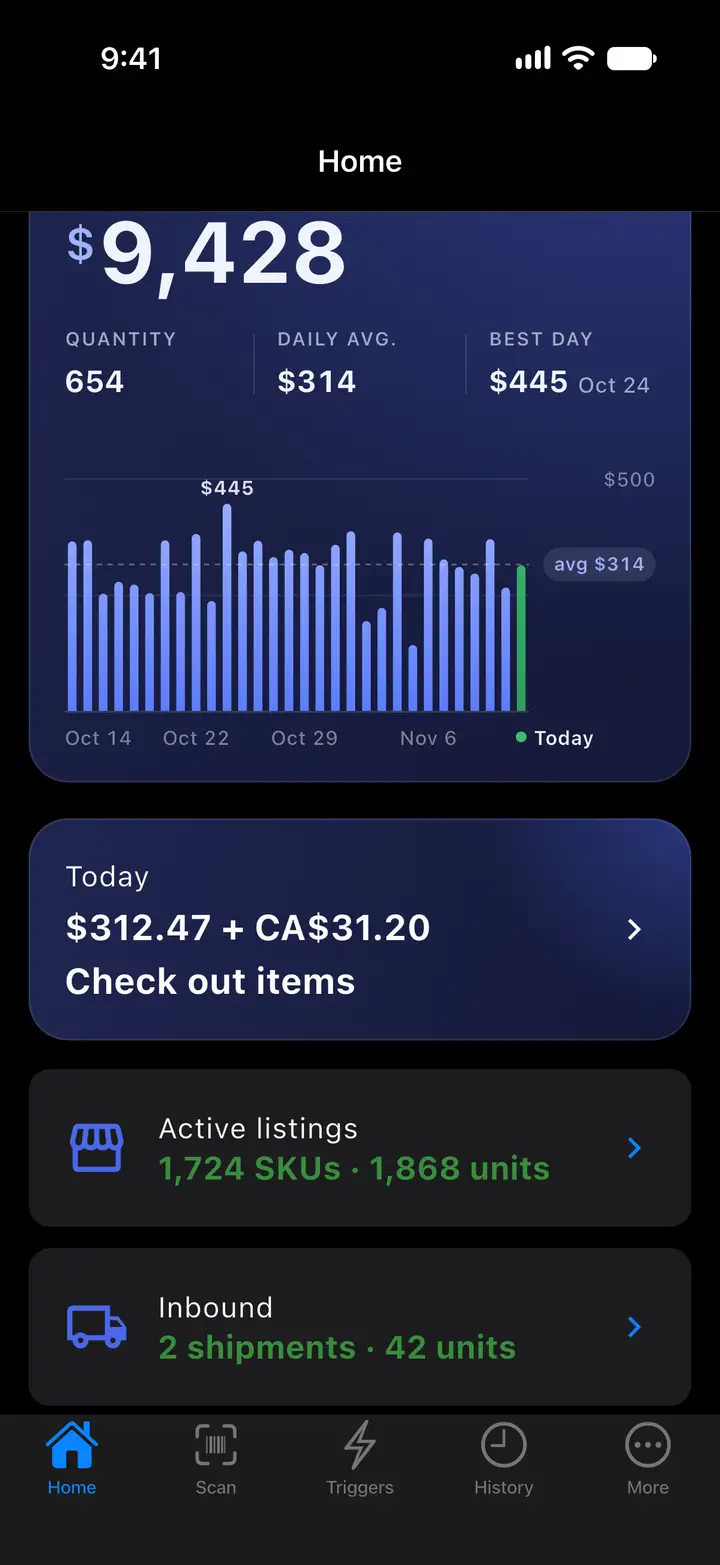
Fig. 10.4Home: today, listings and inbound 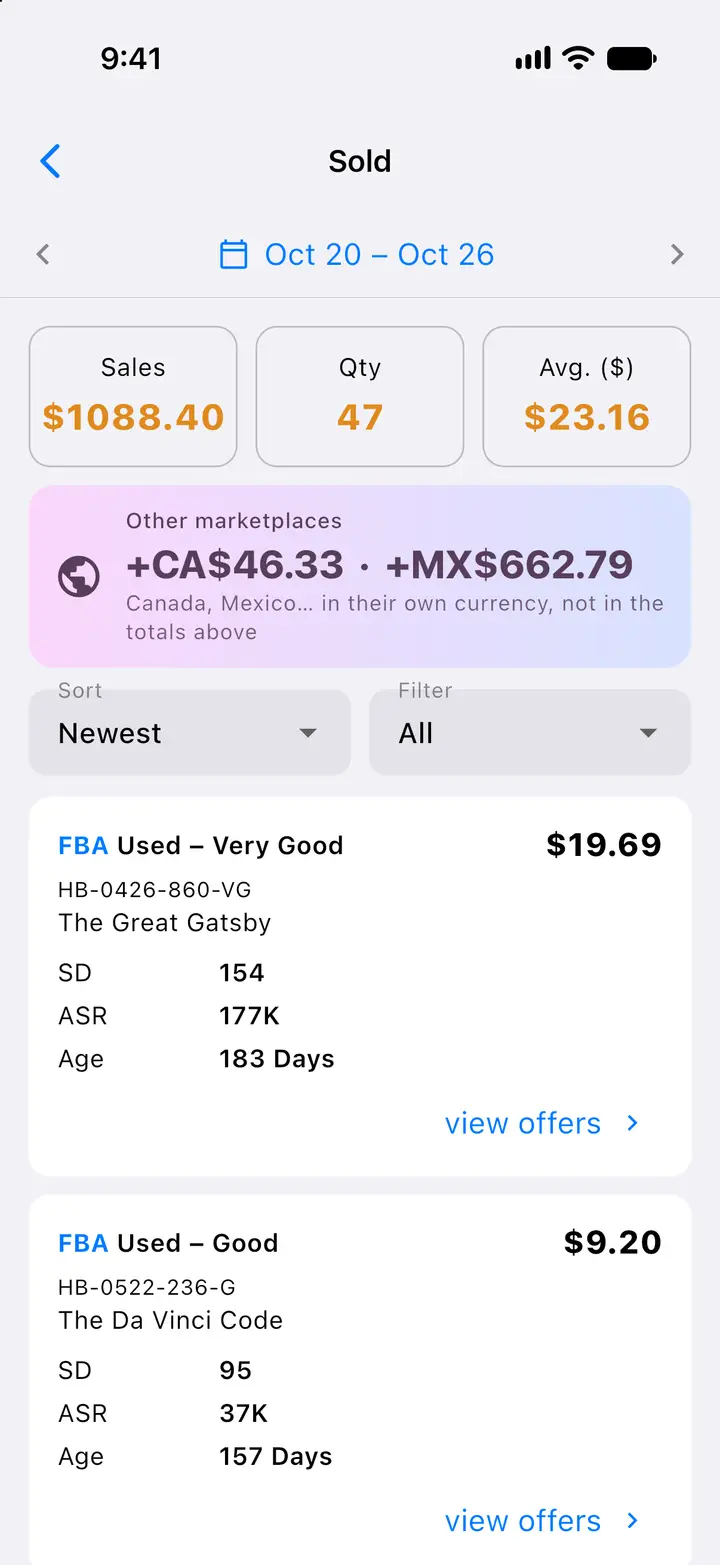
Fig. 10.5Sold items for a date range 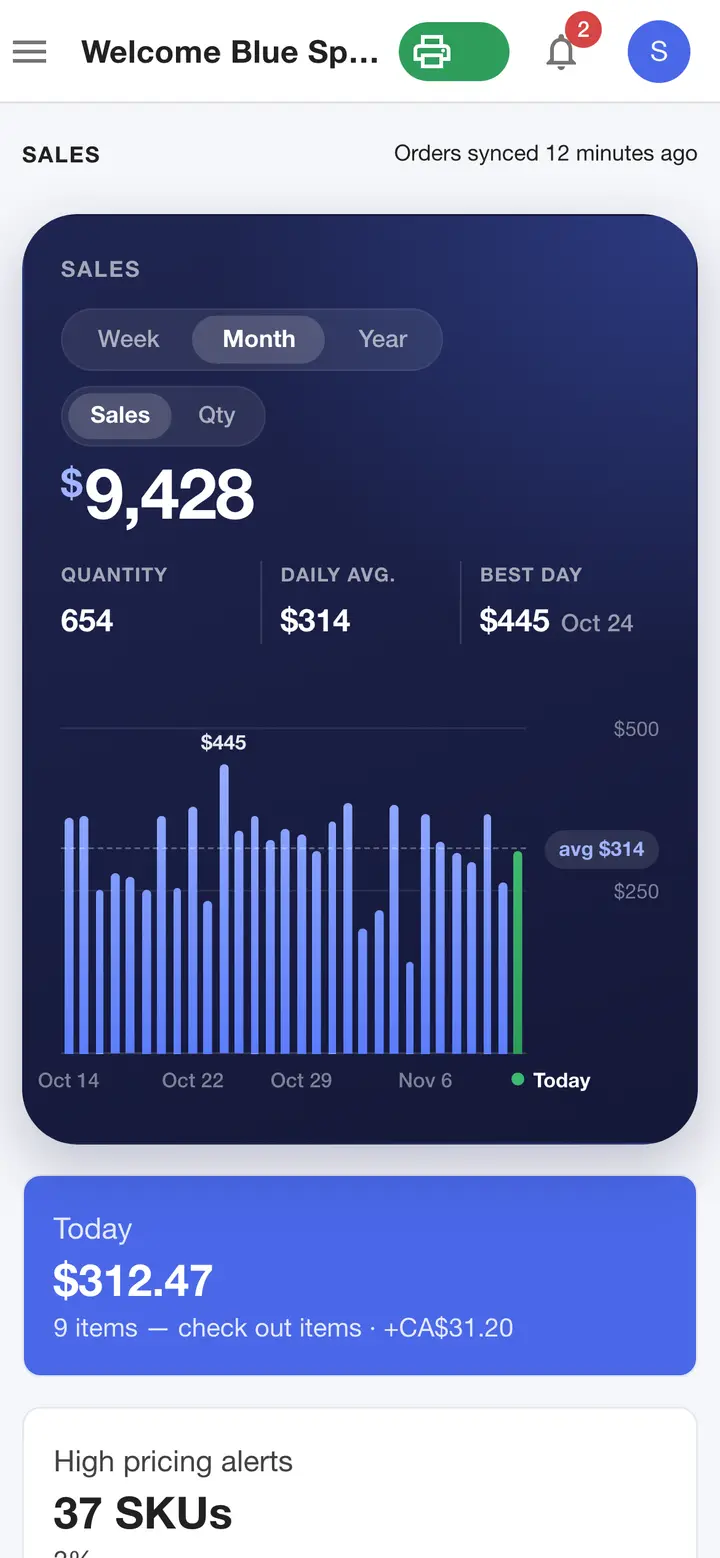
Fig. 10.6Dashboard on a phone browser
Actual SpineFlip screens. Sample data.
ReimbursementsWeb panel
Find what Amazon owes you.
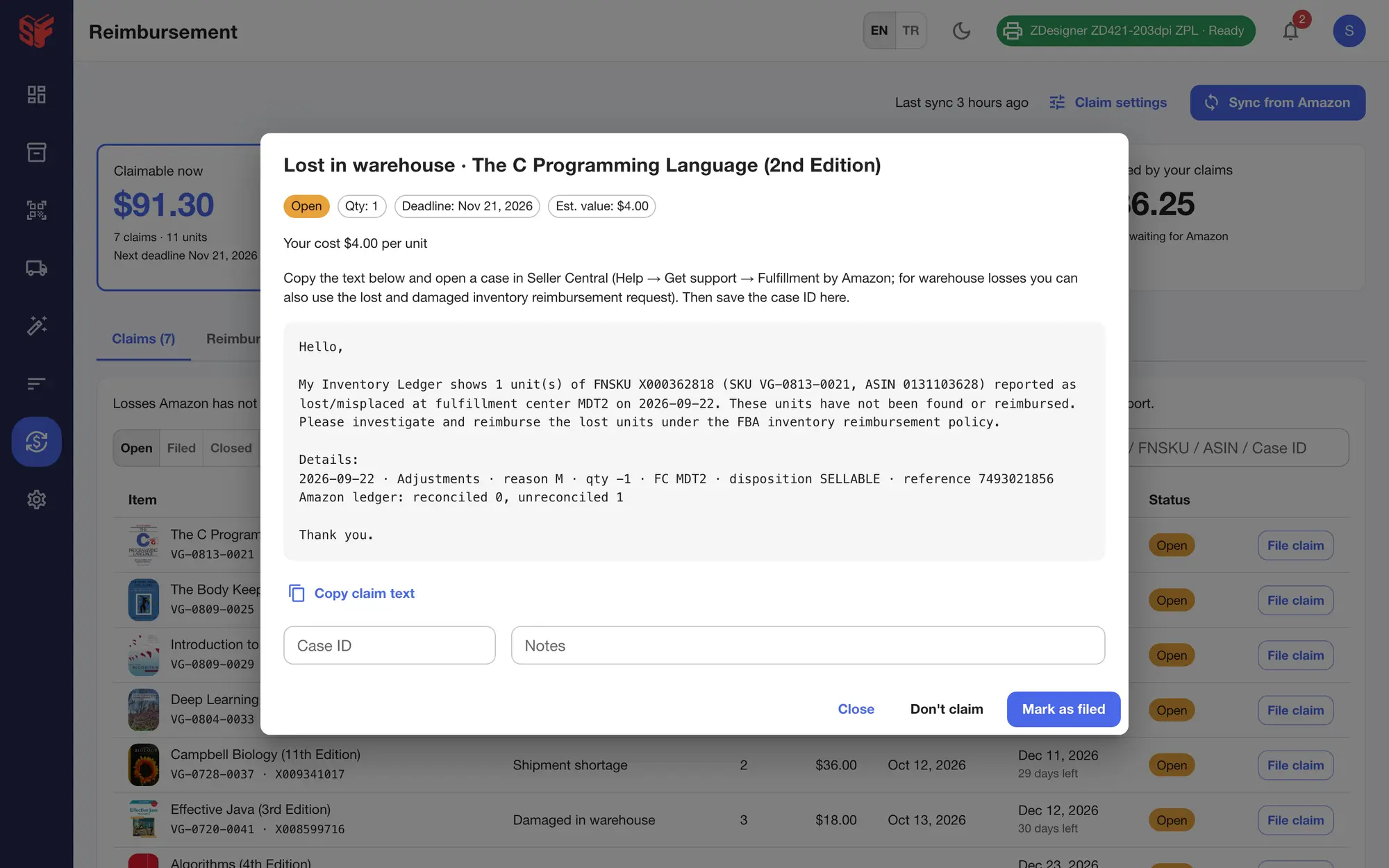
SpineFlip reads Amazon’s reports, finds claims with their deadlines and writes the claim text. You file it in Seller Central.
In the web panel
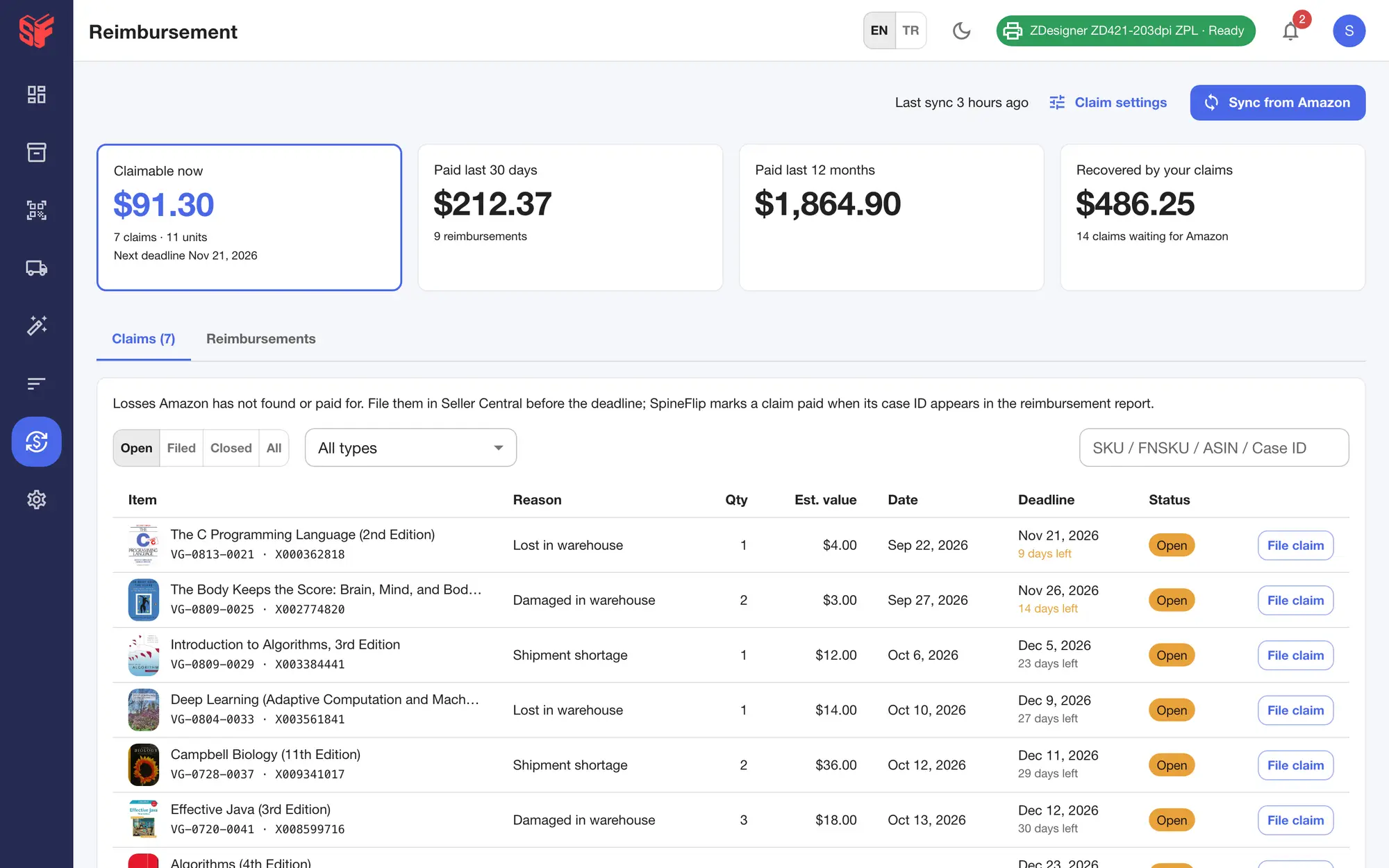
- Reads Amazon’s reimbursement report and inventory ledger: the first sync looks back 18 months, then it runs daily.
- Finds items lost in the warehouse, damaged in the warehouse, short-received shipments and reimbursements paid below your cost.
- Each claim has an estimated value from your buy cost, a deadline and the days left.
- “File claim” gives copy-ready claim text and evidence plus the Seller Central steps. You submit it in Seller Central; SpineFlip does not file claims for you.
- A claim is marked paid when its case ID appears in Amazon’s report.
- Cards for claimable now, paid in the last 30 days and 12 months, and recovered by your claims.
More screens
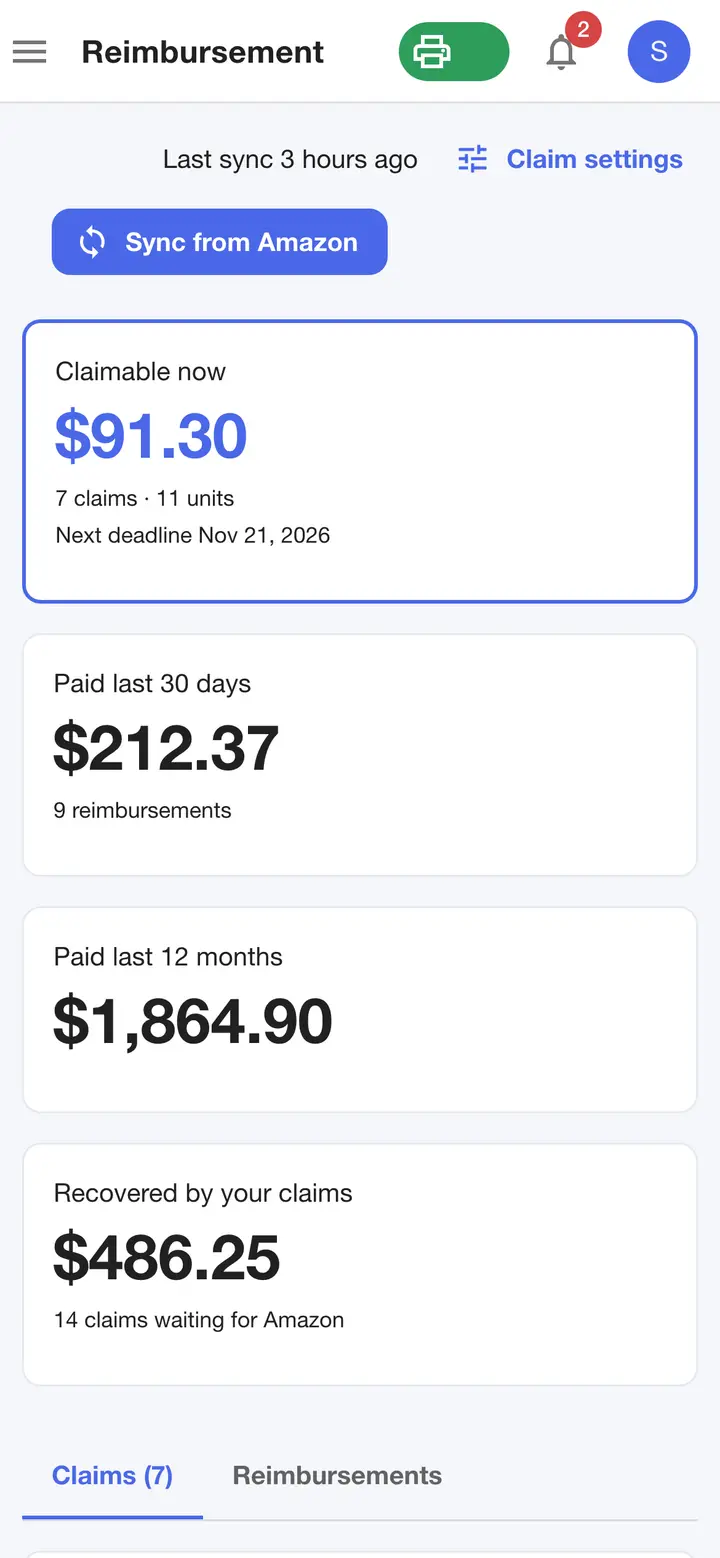
Fig. 11.3Reimbursements on a phone browser
Actual SpineFlip screen. Sample data.
Team & accountWeb panelPhone app
One account for the whole team.
Invite the people who scan, list and ship. Each phone that scans uses a seat; the web panel needs none.
In the web panel
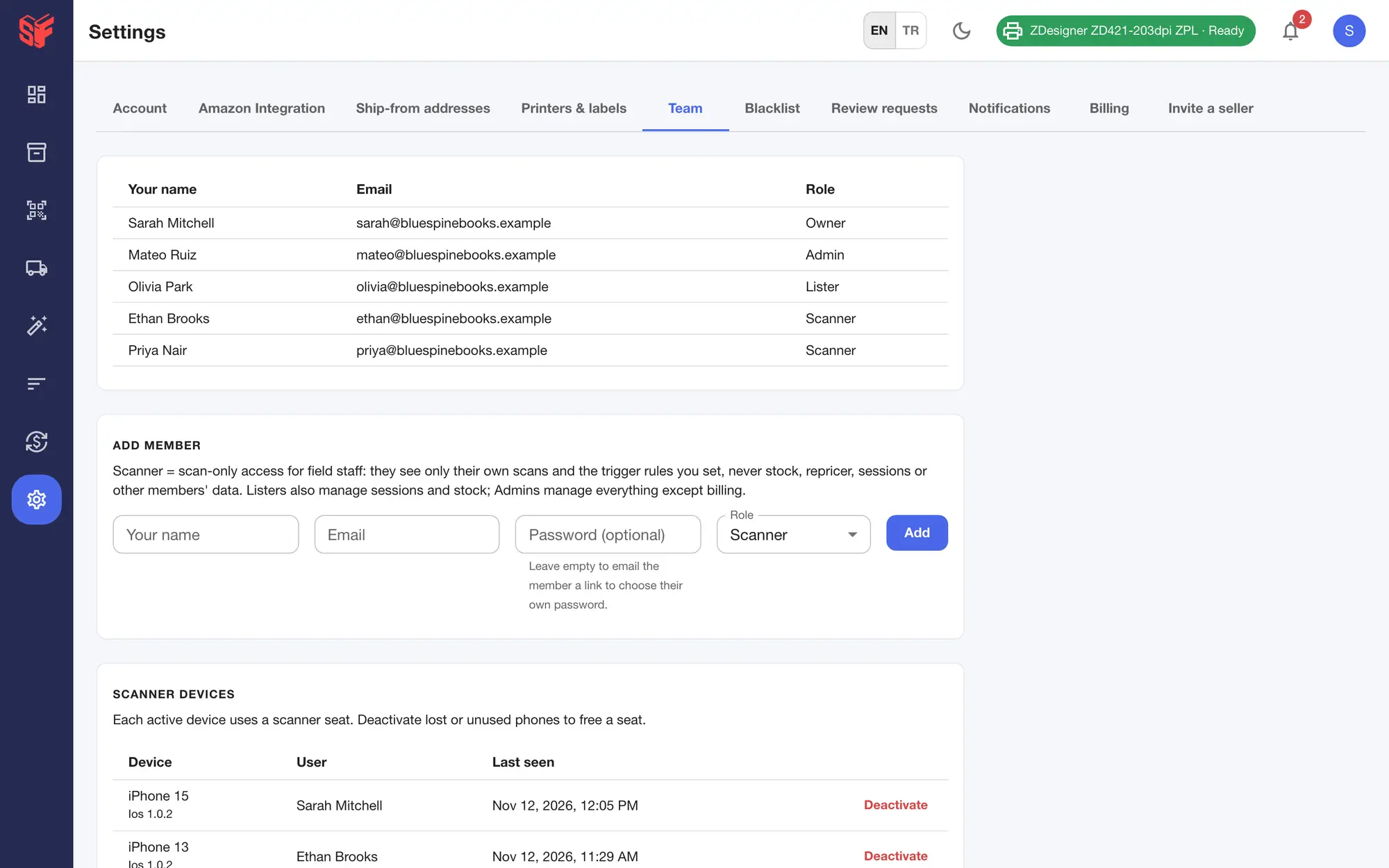
- Roles: Owner; Admin (everything except billing); Lister (scan, sessions, stock); Scanner (scan only, and sees only their own scans).
- Add members by email; the invite link is valid for 24 hours.
- Each phone that scans uses a scanner seat, and owners can deactivate devices. The web panel needs no seat.
On the phone and the web
- Feedback and problem reports from the app and the panel, with a screenshot and a case number, and a “My requests” thread.
- A “What’s new” page with dated release notes.
- The web panel’s notifications, such as repricer alerts, negative feedback and shipment steps, also appear in the phone app; one read on either side shows as read on both.
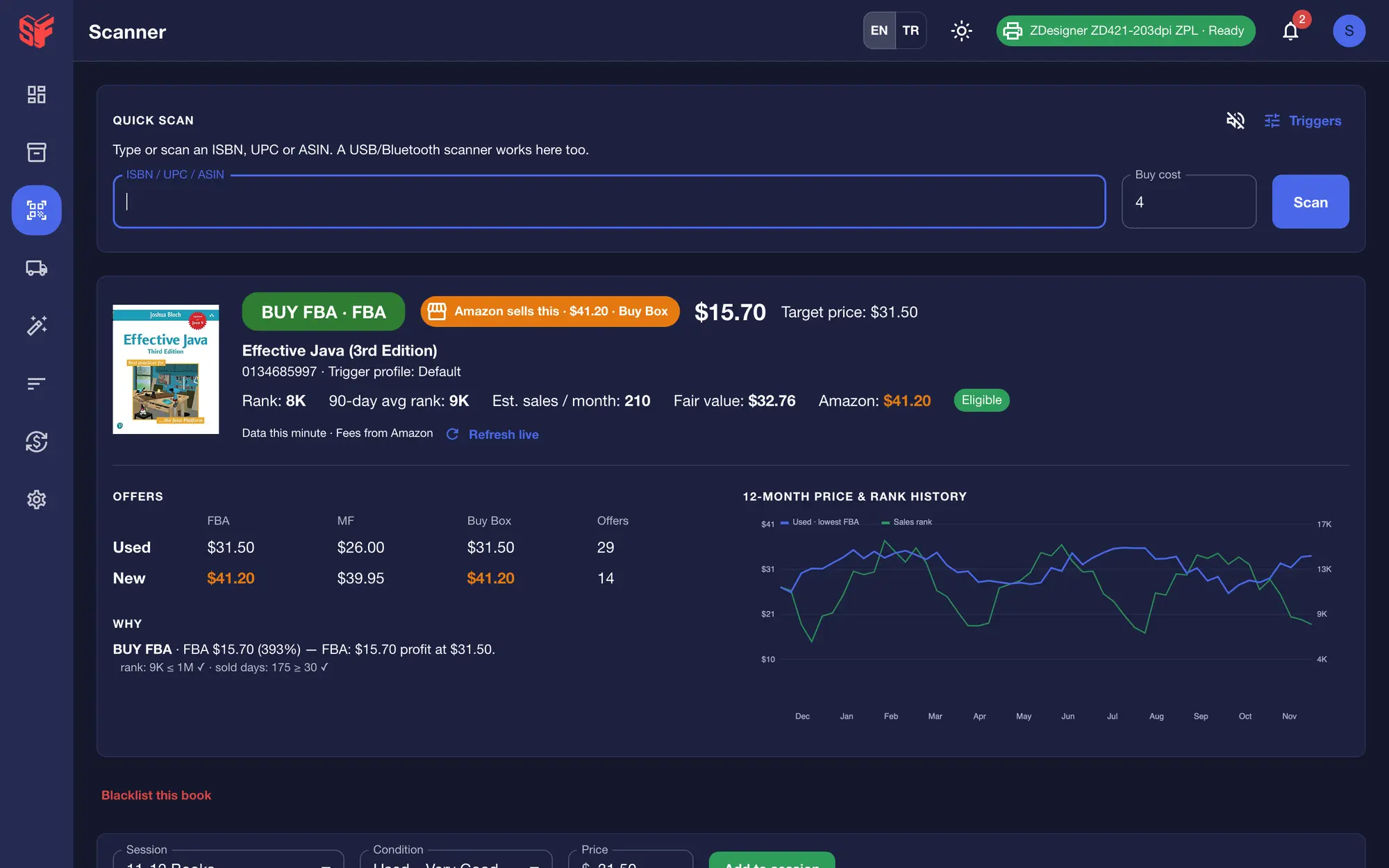
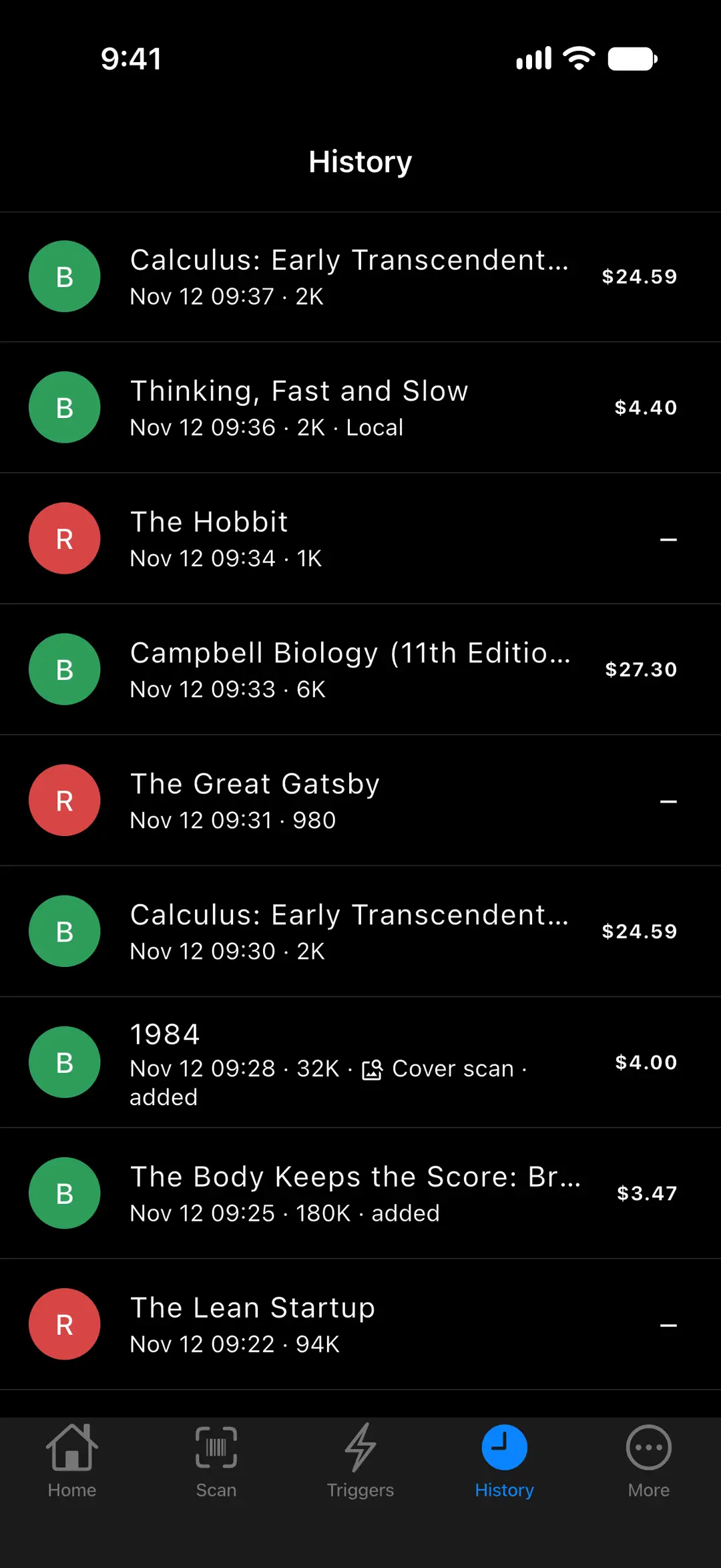
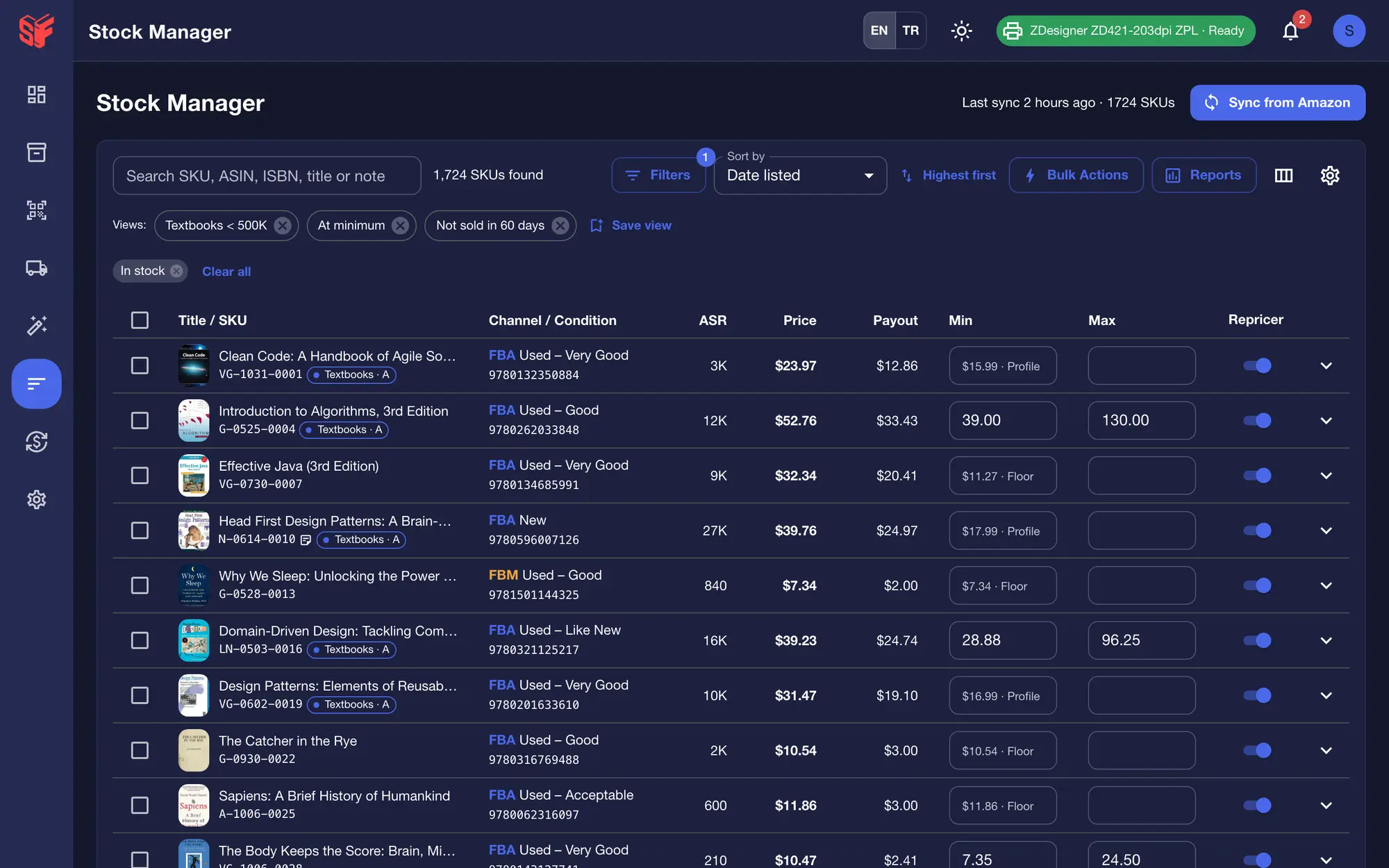
- English and Turkish, light and dark themes.
- The phone app runs on iPhone and iPad (iOS 15.5 or later) and Android (7.0 or later); the web panel also works in phone browsers.
- One marketplace: Amazon.com (US), in US dollars.
More screens
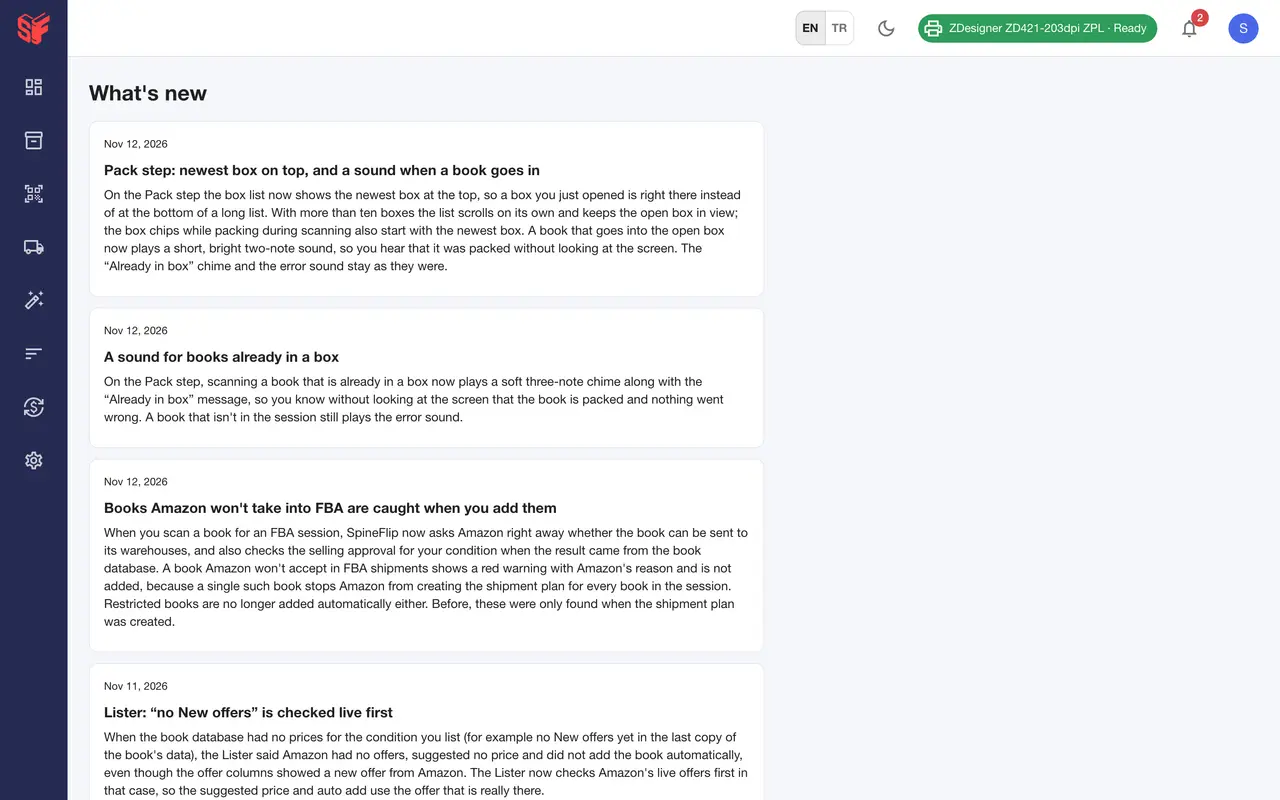
Fig. 12.3What's new 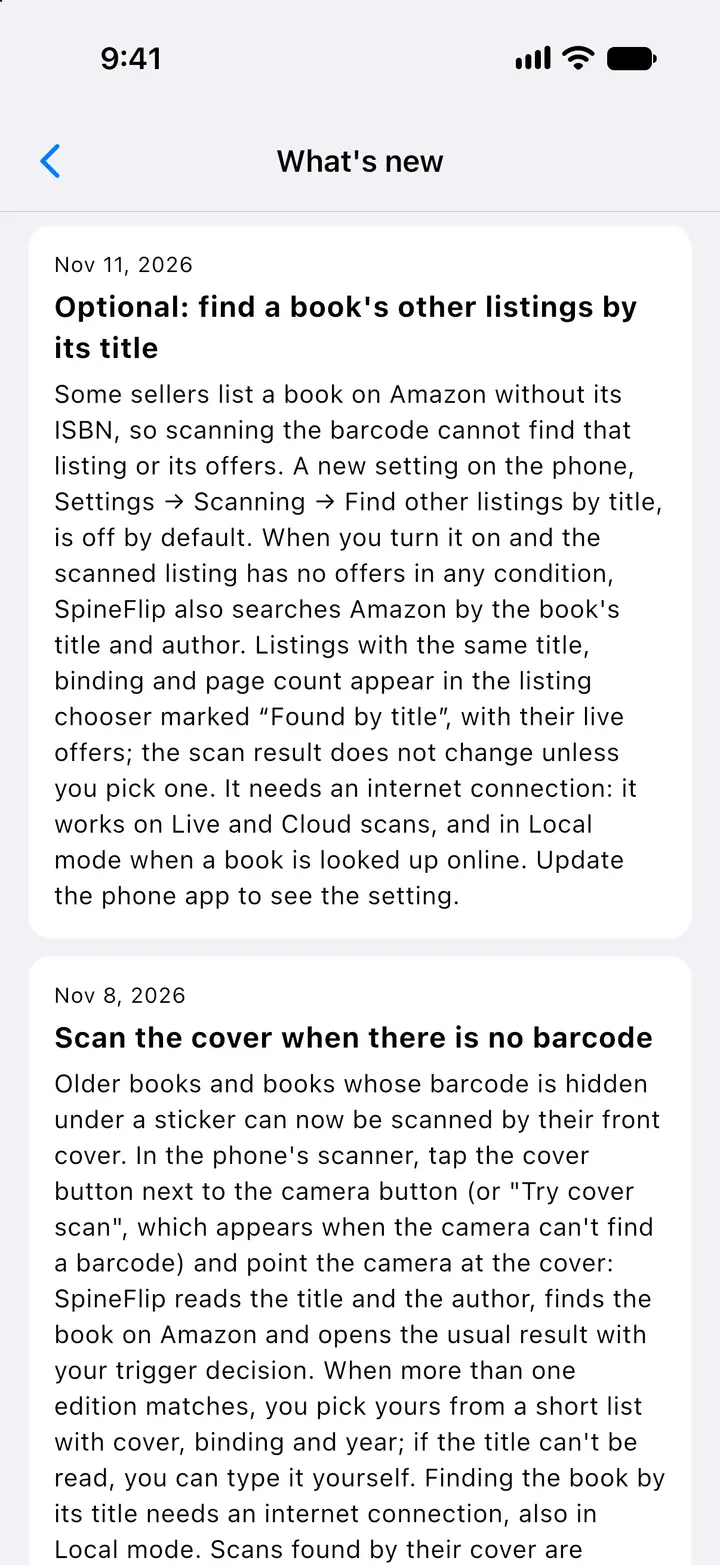
Fig. 12.4What’s new 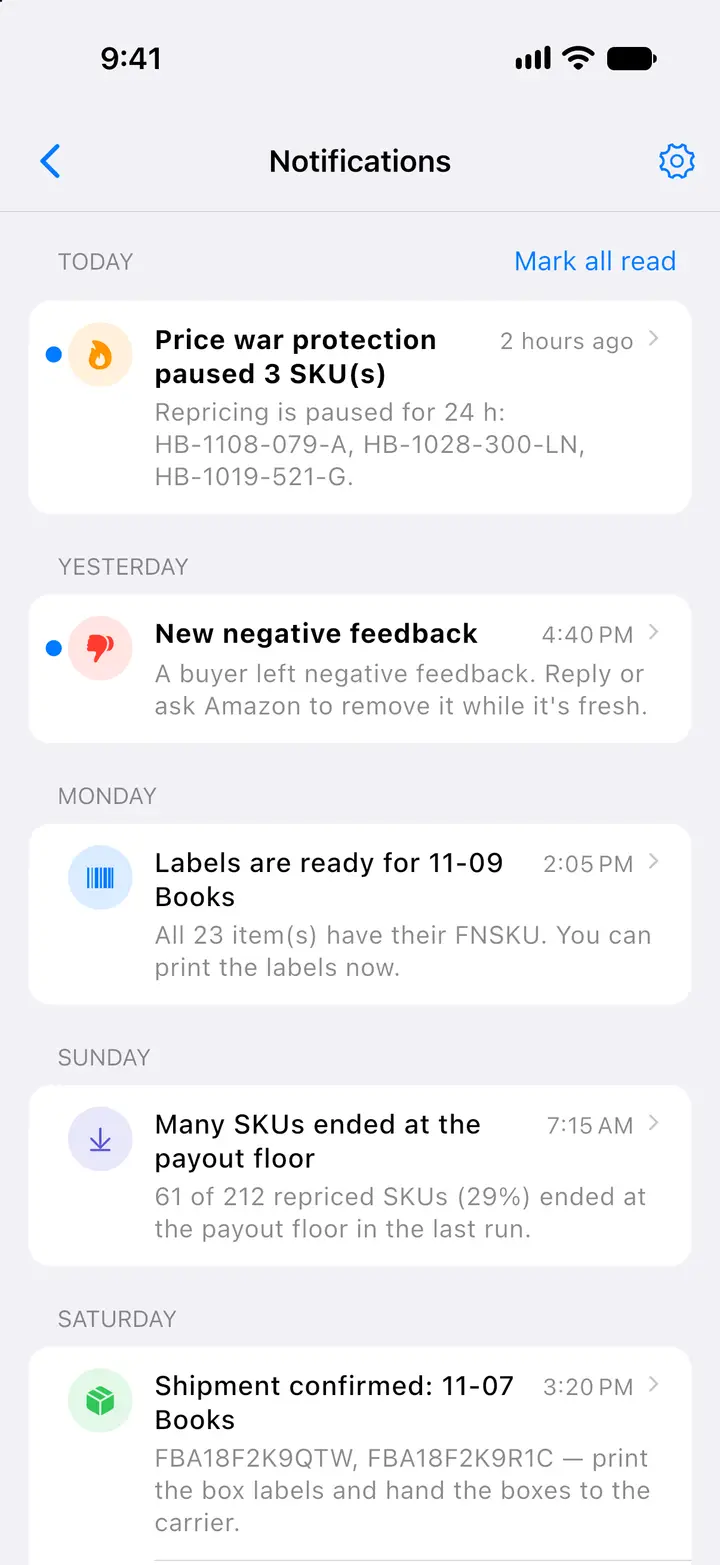
Fig. 12.5Notifications
Actual SpineFlip screens. Sample data.
SecurityPhone appWeb panel
Connected the Amazon way.
SpineFlip connects through Amazon’s own authorization and takes payment through a secure hosted checkout page, so it never sees your Amazon password or your card details.
Amazon
Amazon is connected through Amazon’s own Seller Central authorization. SpineFlip never asks for your Amazon password, and tokens are stored encrypted.
Buyers
Buyer names and addresses are not shown or stored.
Payments
Card payments go through a secure hosted checkout page; card details never reach SpineFlip.
Your data
The account owner can request a data export by email.
Ready for your next book run?
Try every feature free for a month, with 3 phones included. No credit card: just connect your Amazon seller account.
No credit card · your free month starts when you connect your Amazon seller account